Chapter 29: Modeling and texturing of an empty and inflated 3D balloon
Beginners guide to Blender
Modeling
This time you will learn how to model and texture a 3D inflated and deflated balloon by usingdrivers and shape keys.
(You can check out video tutorial on my YouTube channel:
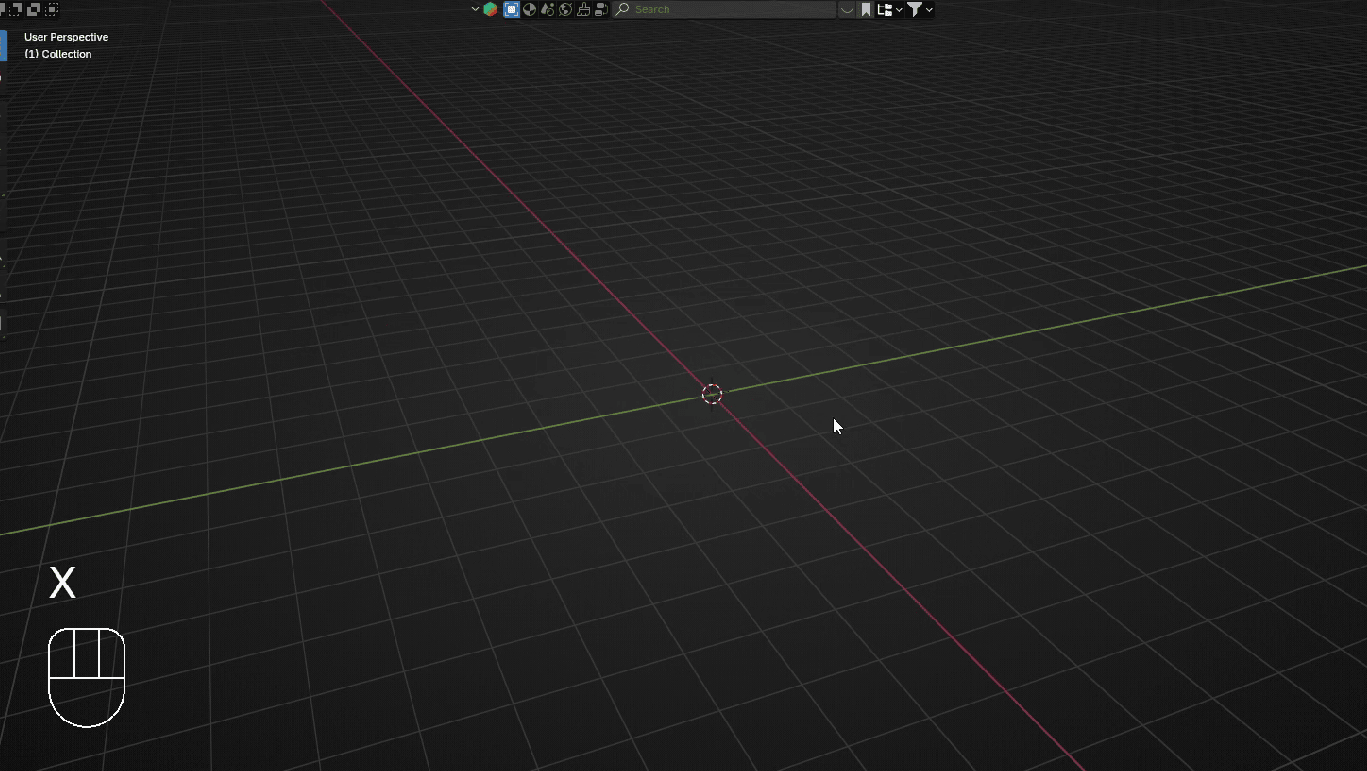
Select everything with “A” and delete it with “X”.
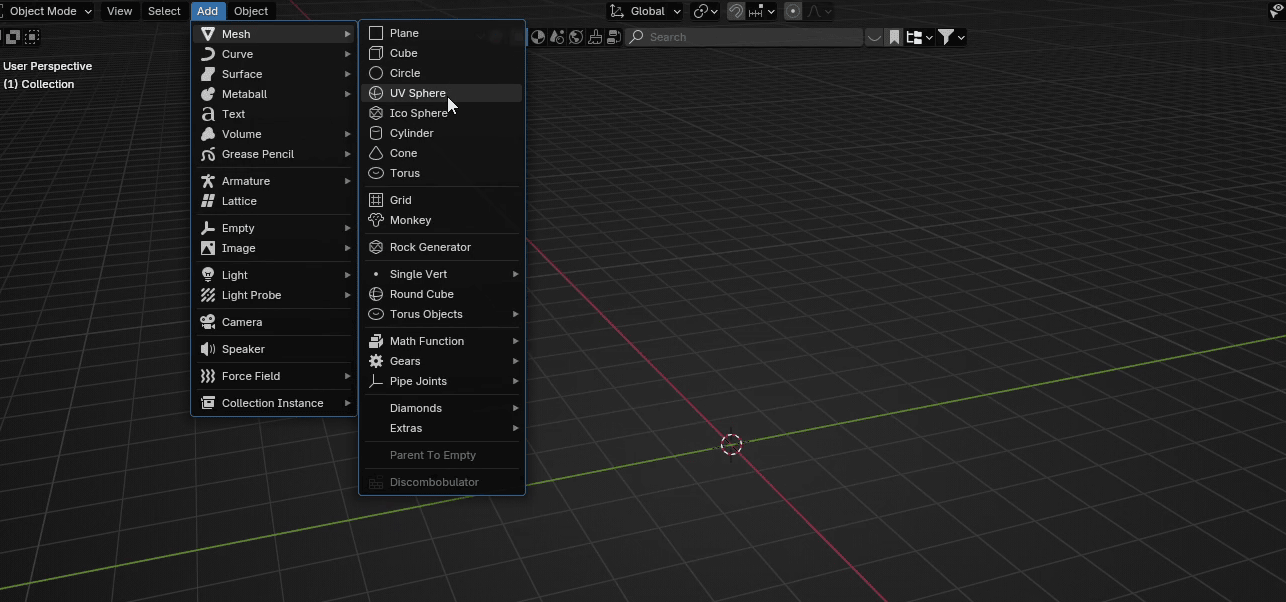
Go to Add → Mesh → UV Sphere
Beginners guide to Blender
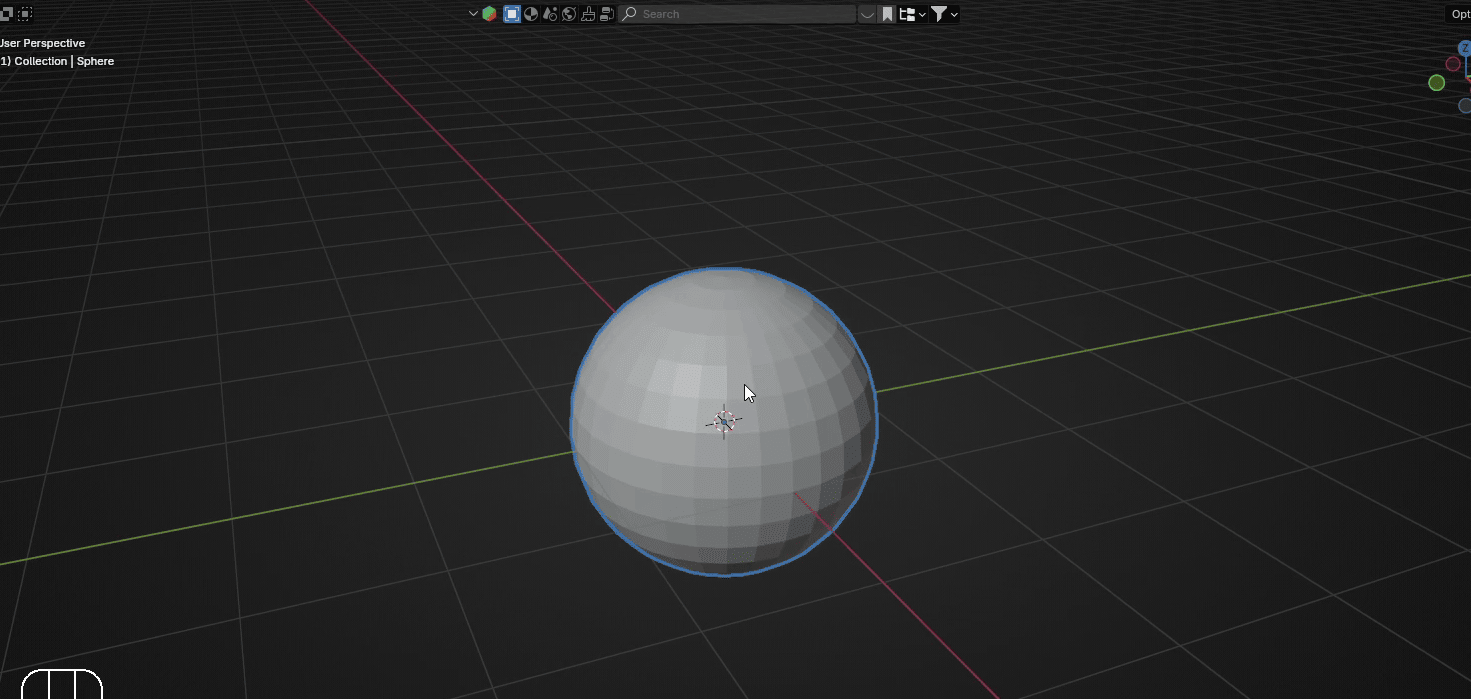
Scroll the mouse wheel up to zoom into the sphere.
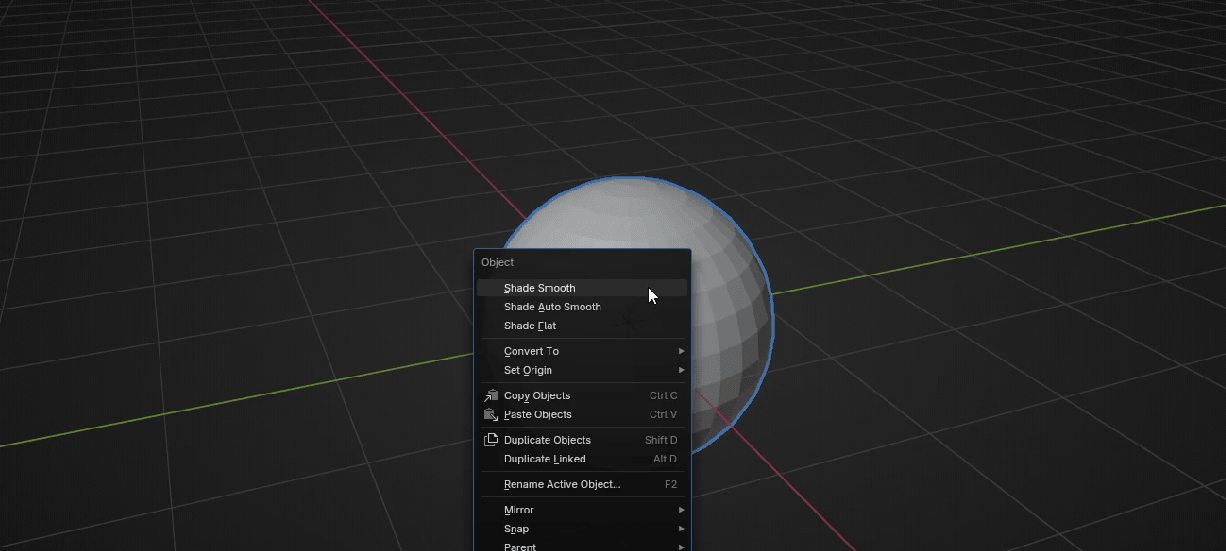
Click RMB and choose Shade Smooth.
Switch to edit mode with “TAB”.
Beginners guide to Blender
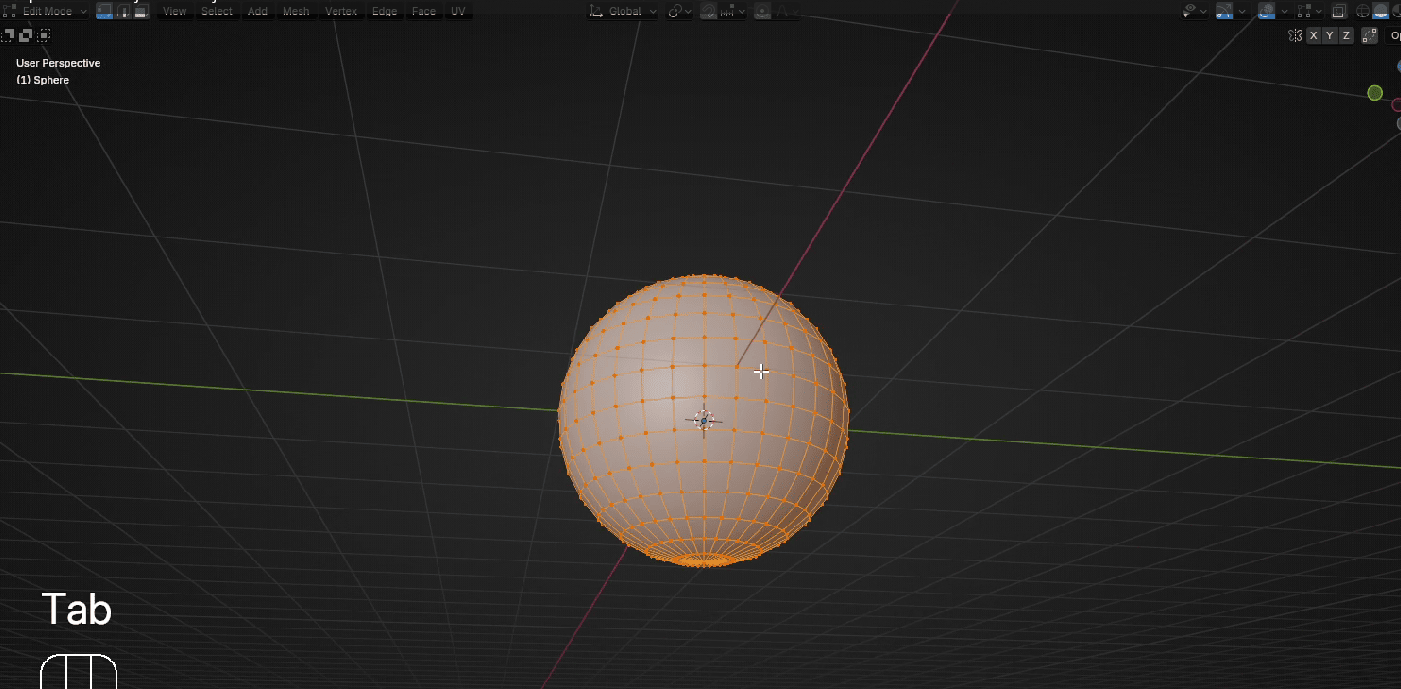
Select this bottom vertex
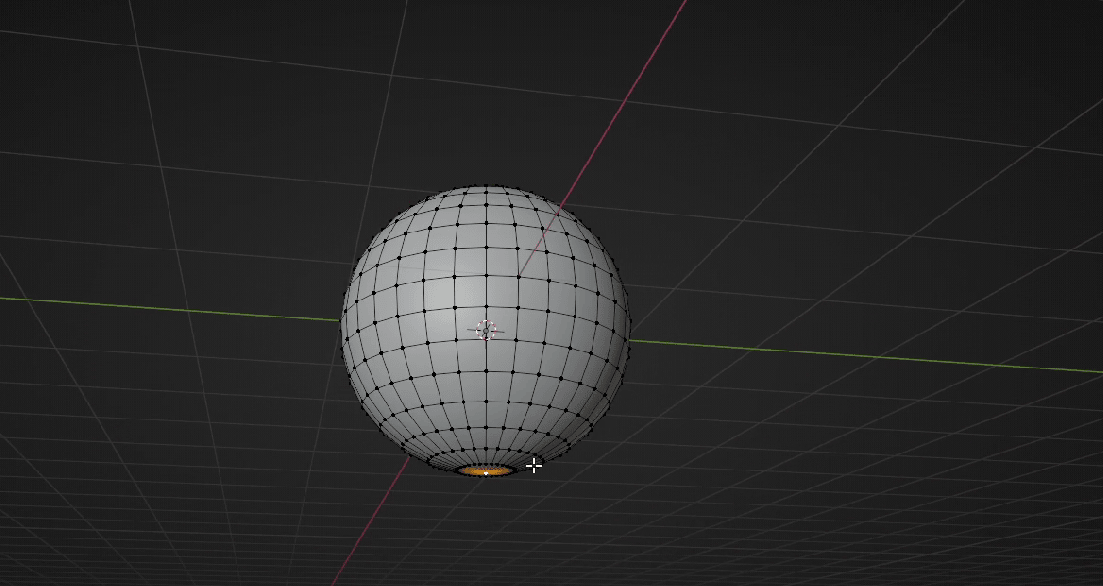
Turn on the Proportional editing with “O”.
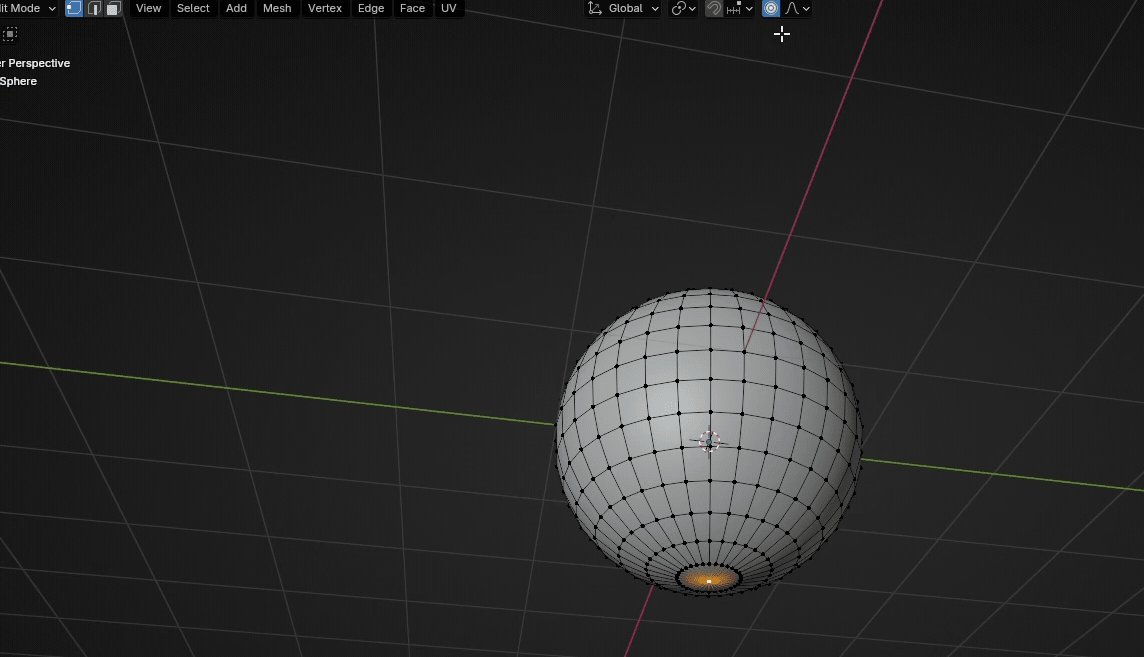
Beginners guide to Blender
Press “G+Z” and move it for around -0.7
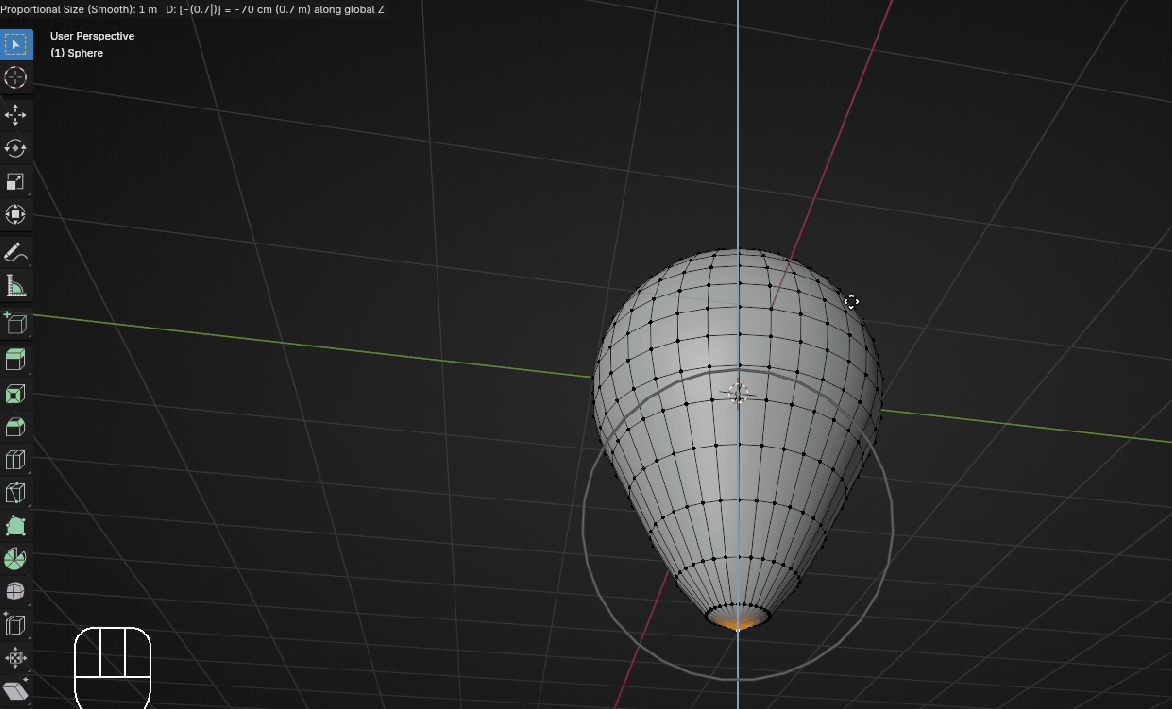
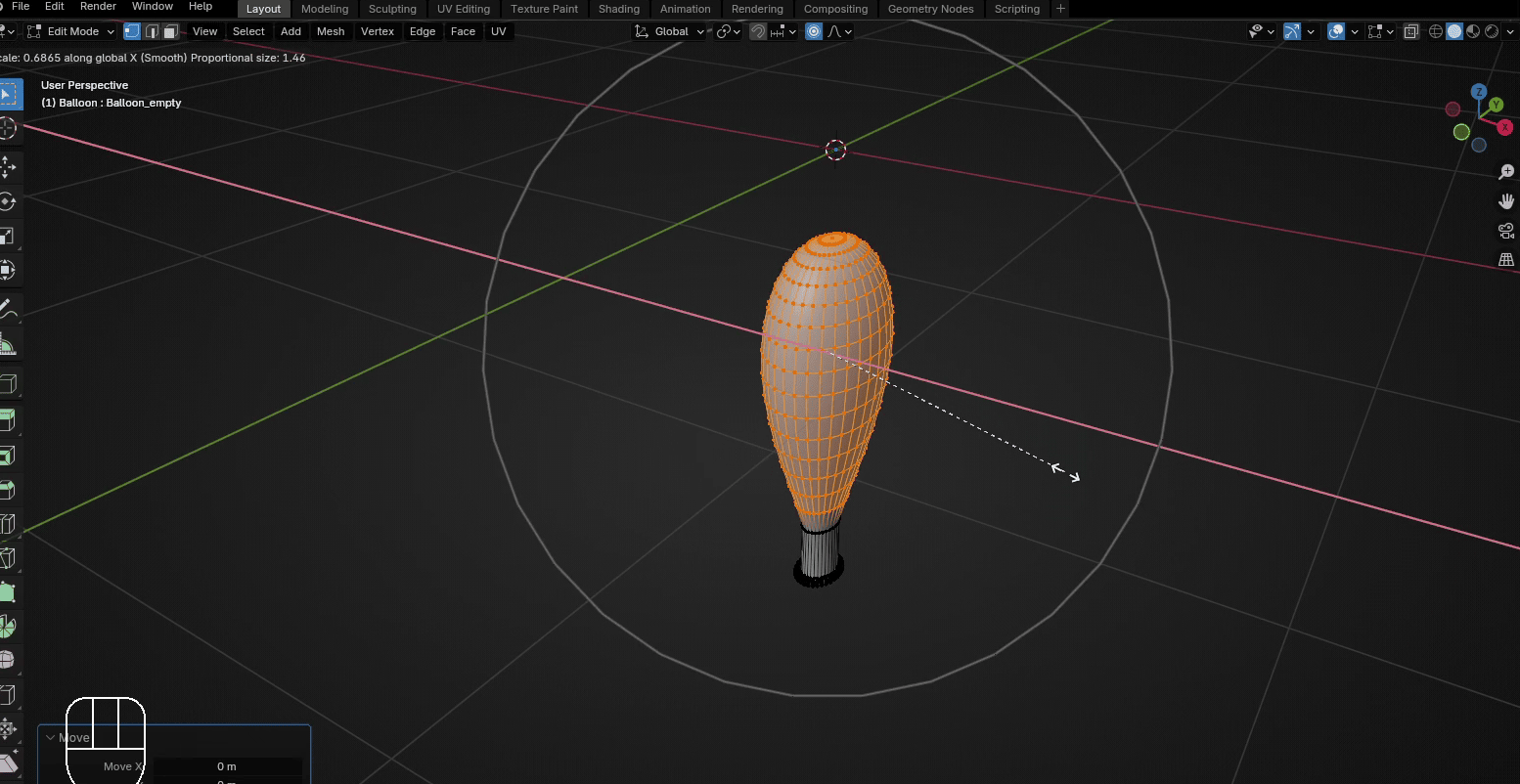
Scroll the mouse wheel up to increase area of influence. I scrolled it approximately to 1.46.When you are satisfied with the look, confirm it with the LMB.
Beginners guide to Blender
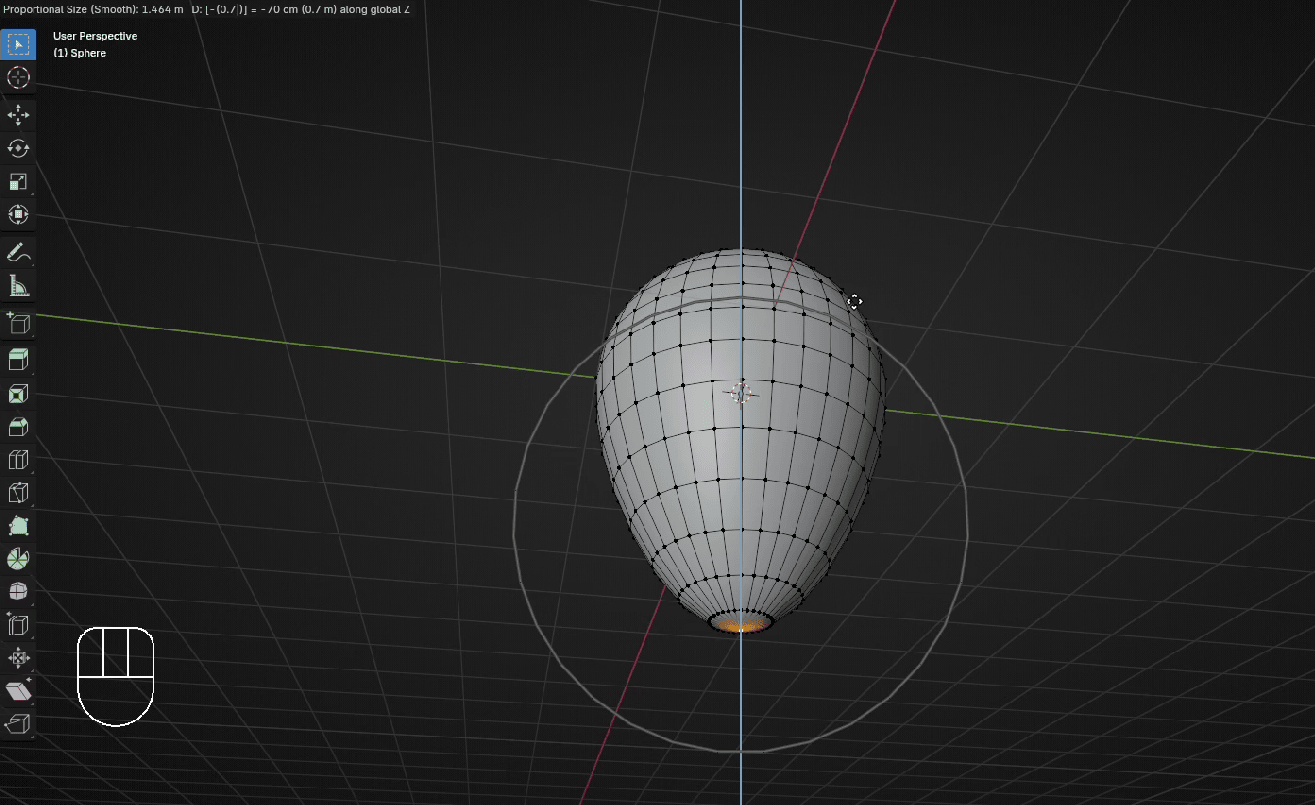
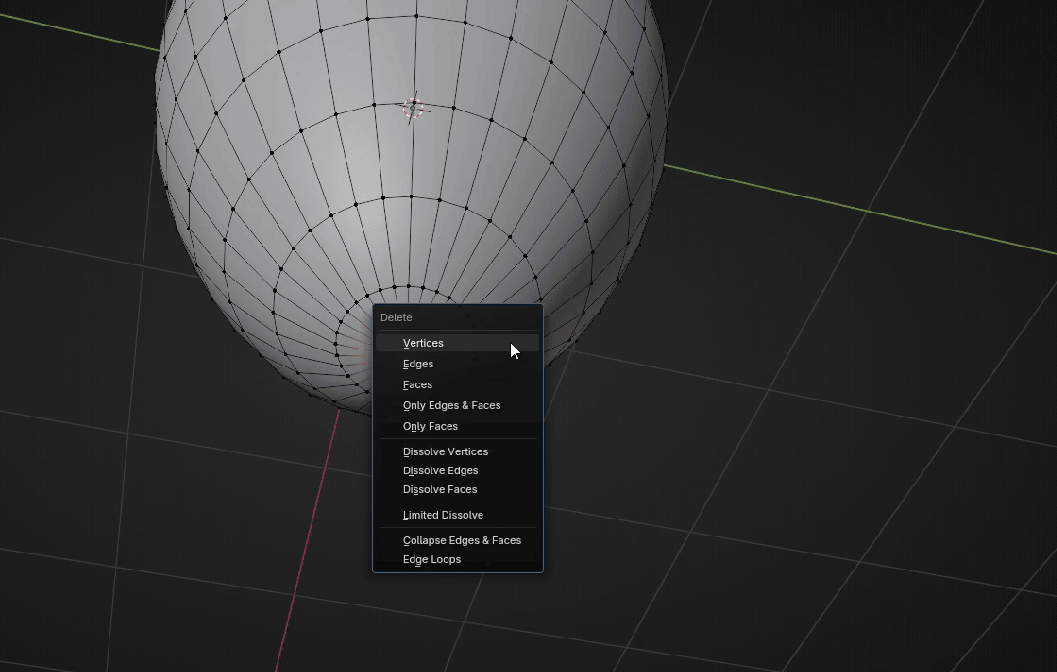
While that bottom vertex is still selected, press “X” and choose delete vertices.
Beginners guide to Blender
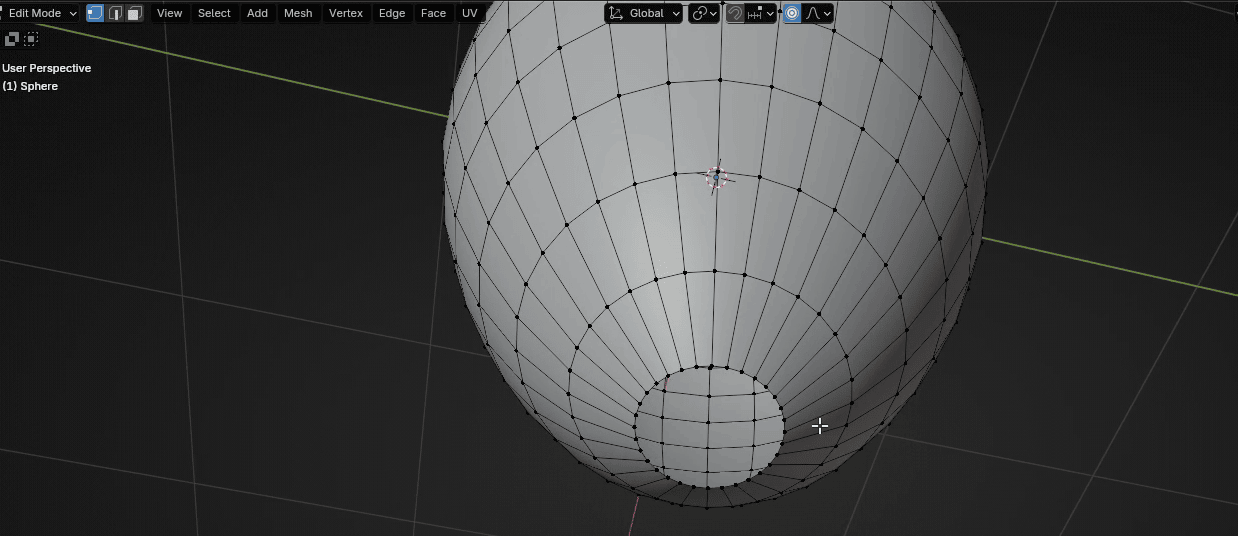
Select this whole loop with “ALT” +LMB
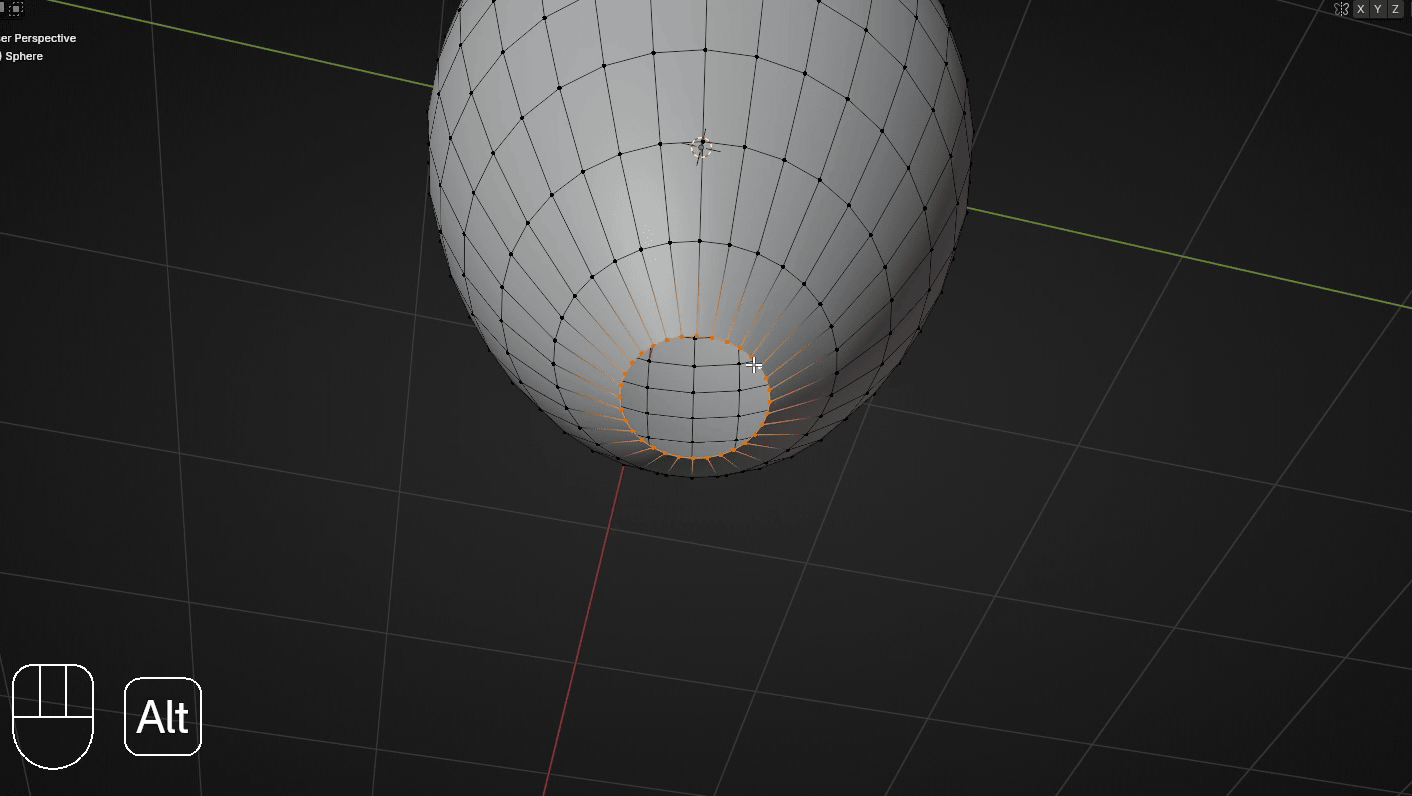
And fill it with “F”.
Beginners guide to Blender
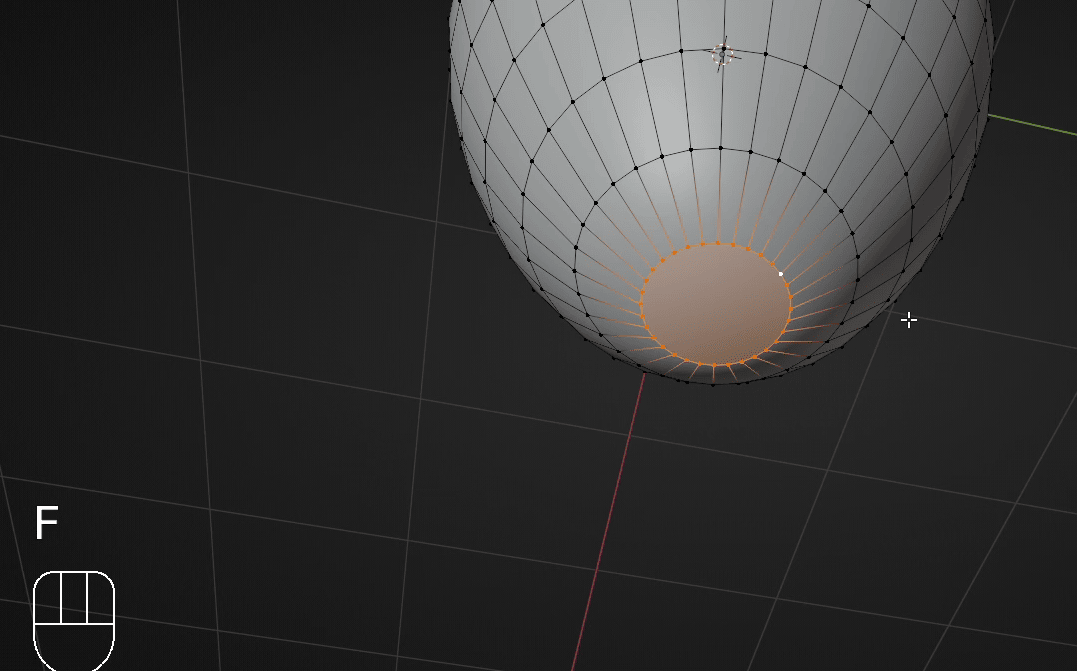
Turn off the proportional editing with “O” or by clicking here.
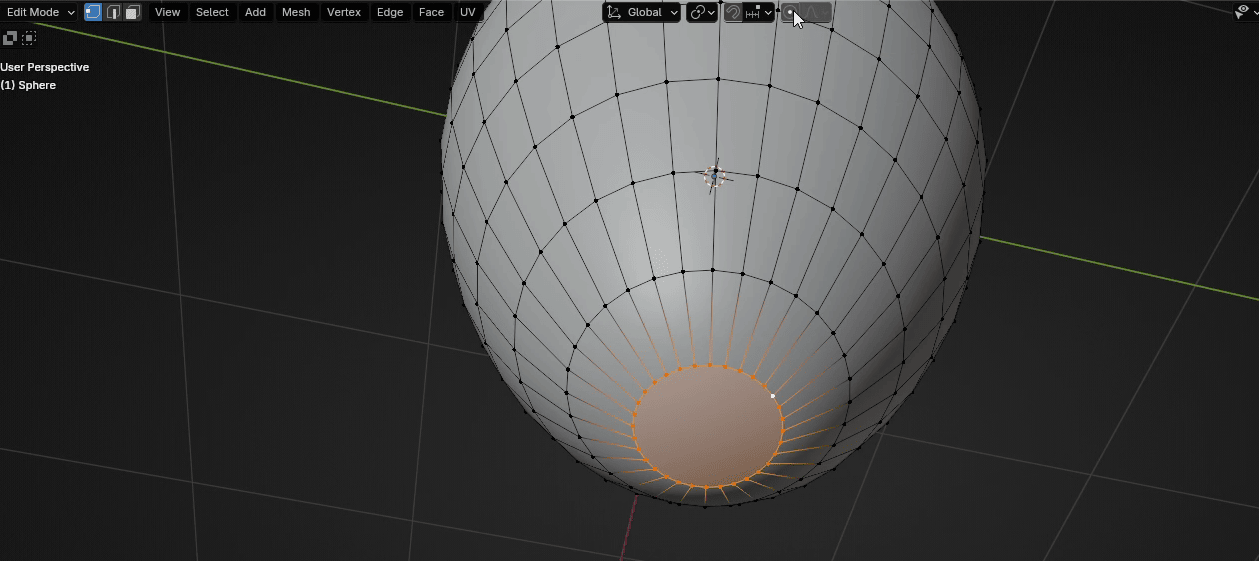
Press “I” to inset a new face and inset it for around 0.088
Beginners guide to Blender
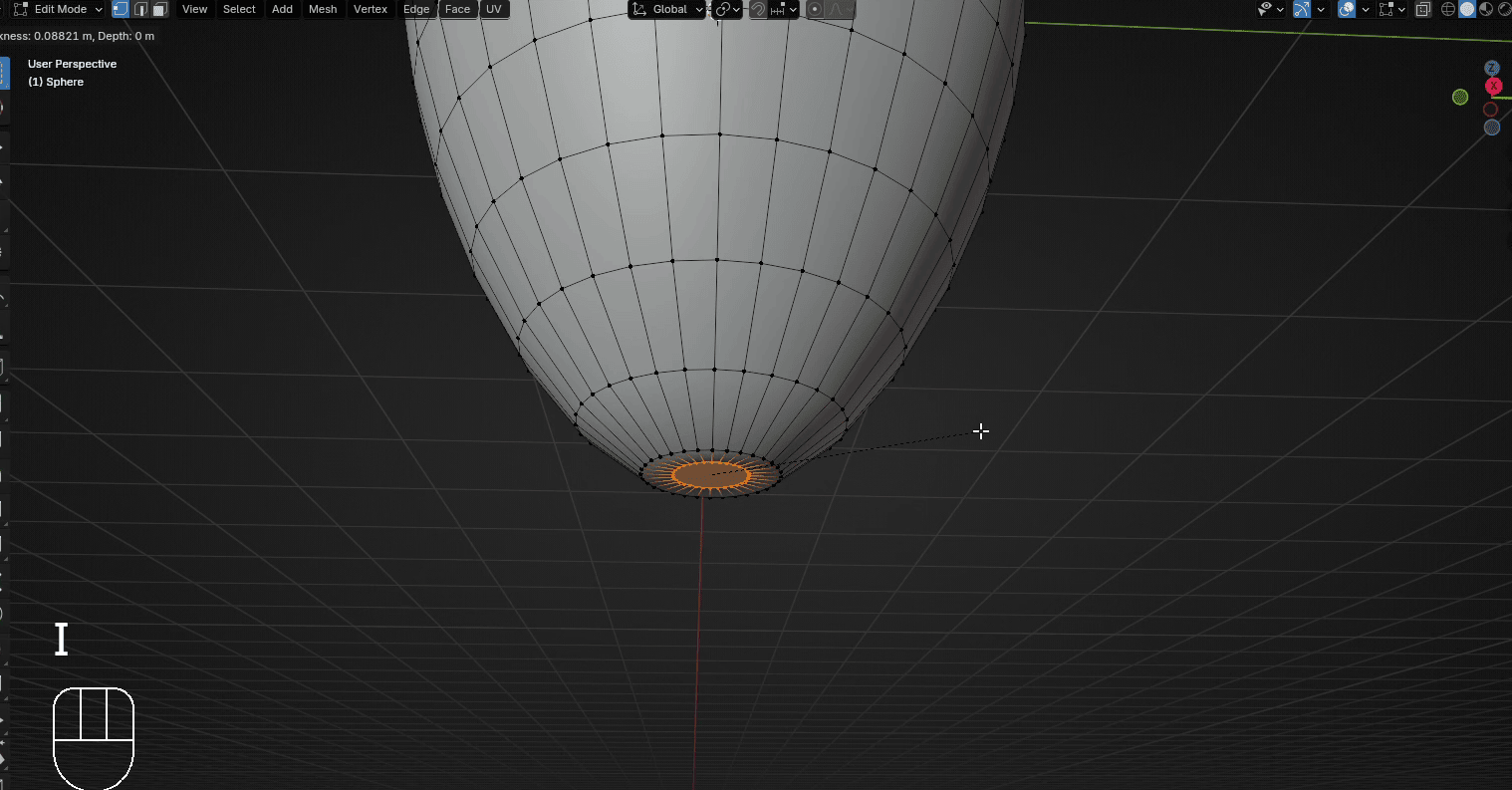
Move it with “G+Z” for around -0.05
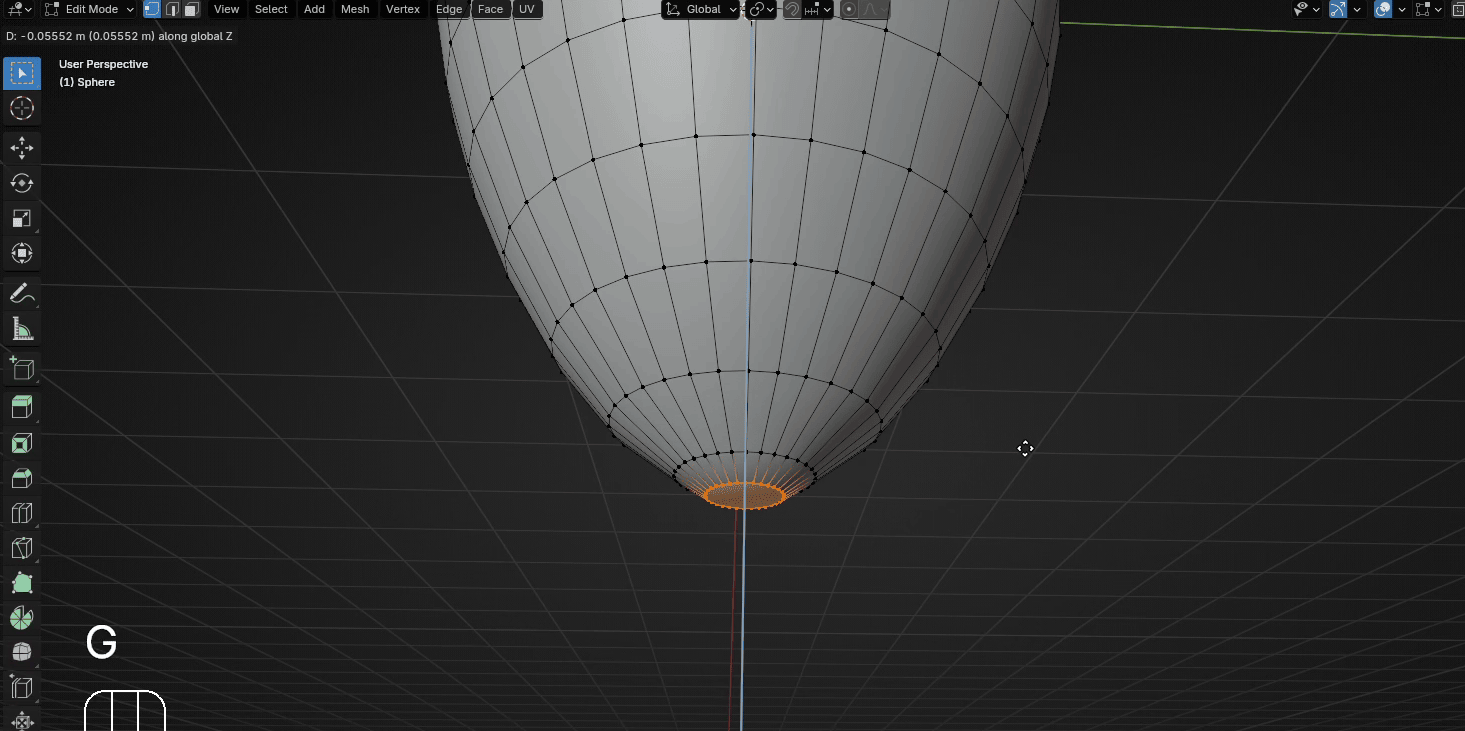
Extrude it with “E+Z” for around 0.27
Beginners guide to Blender
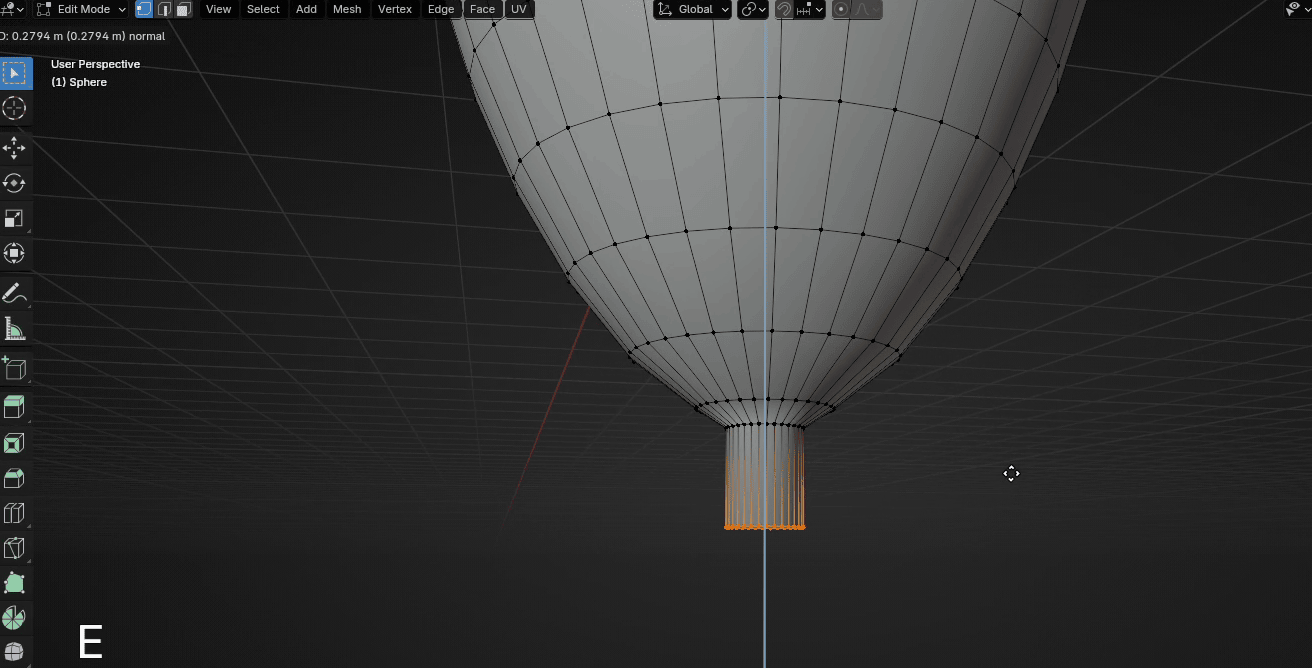
Switch to selecting edges with 2 and select this loop
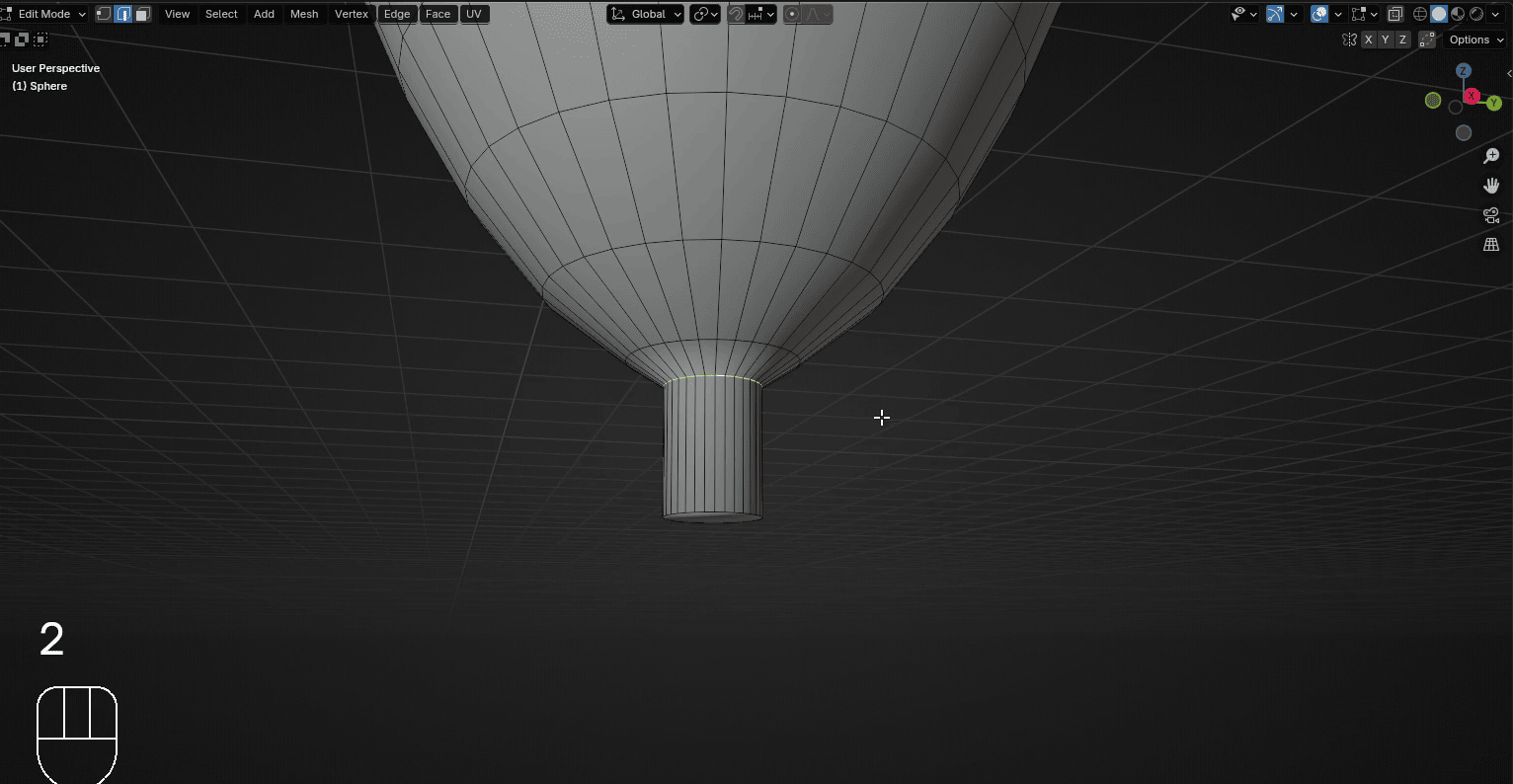
Scale it with “S” for around 0.78
Beginners guide to Blender
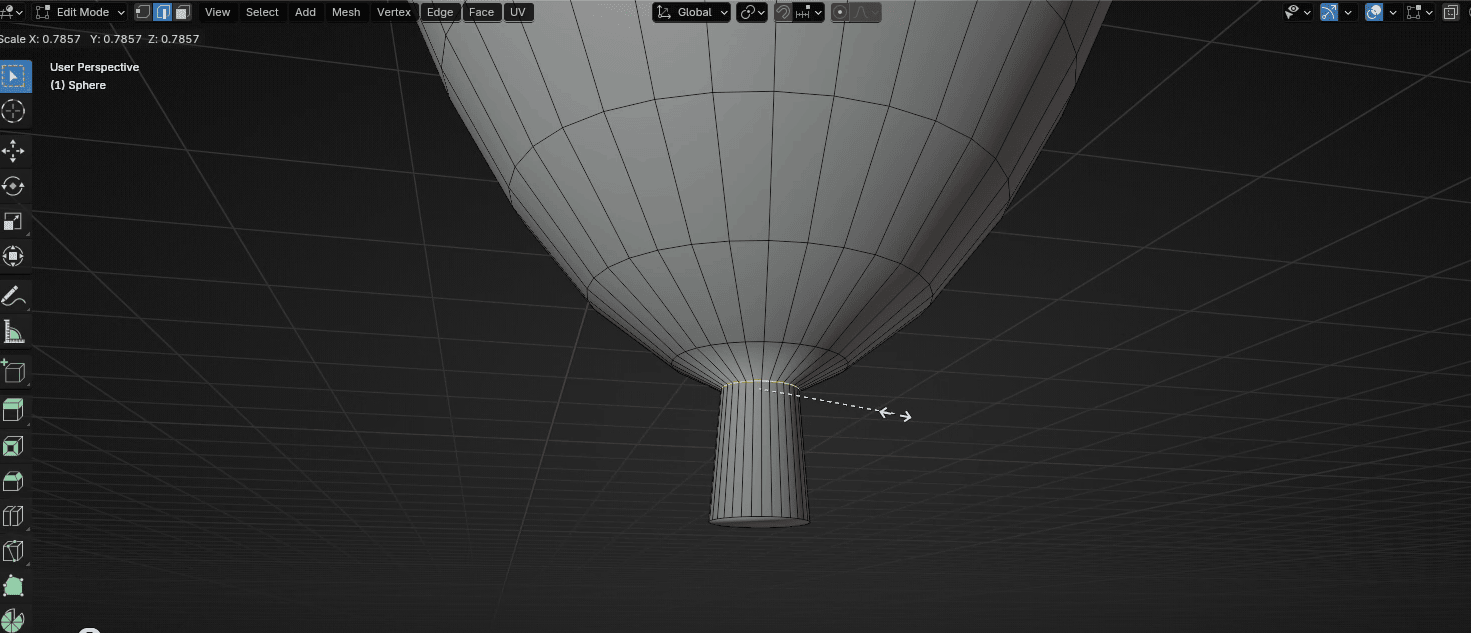
Move it with “G+Z” for around -0.03
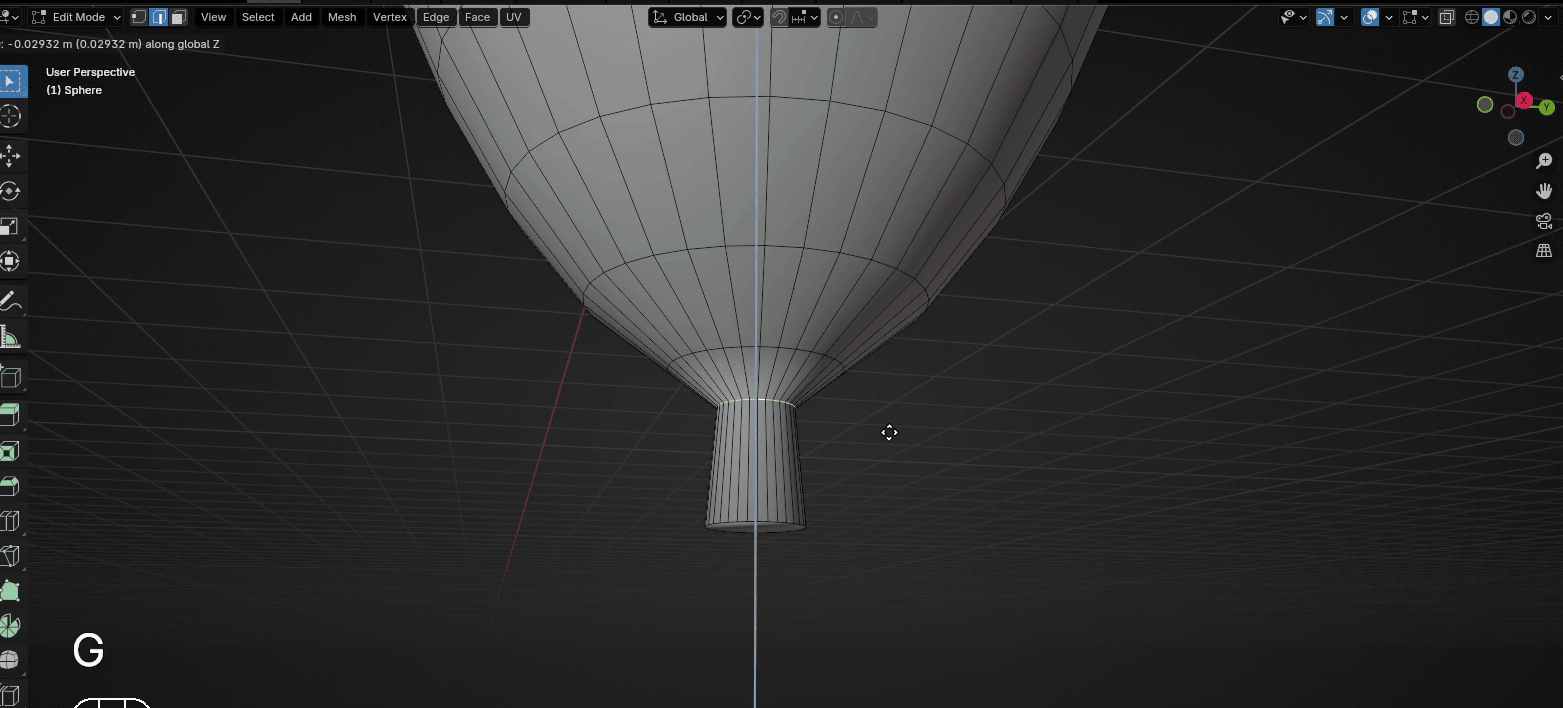
And scale it a bit more with “S” if necessary.
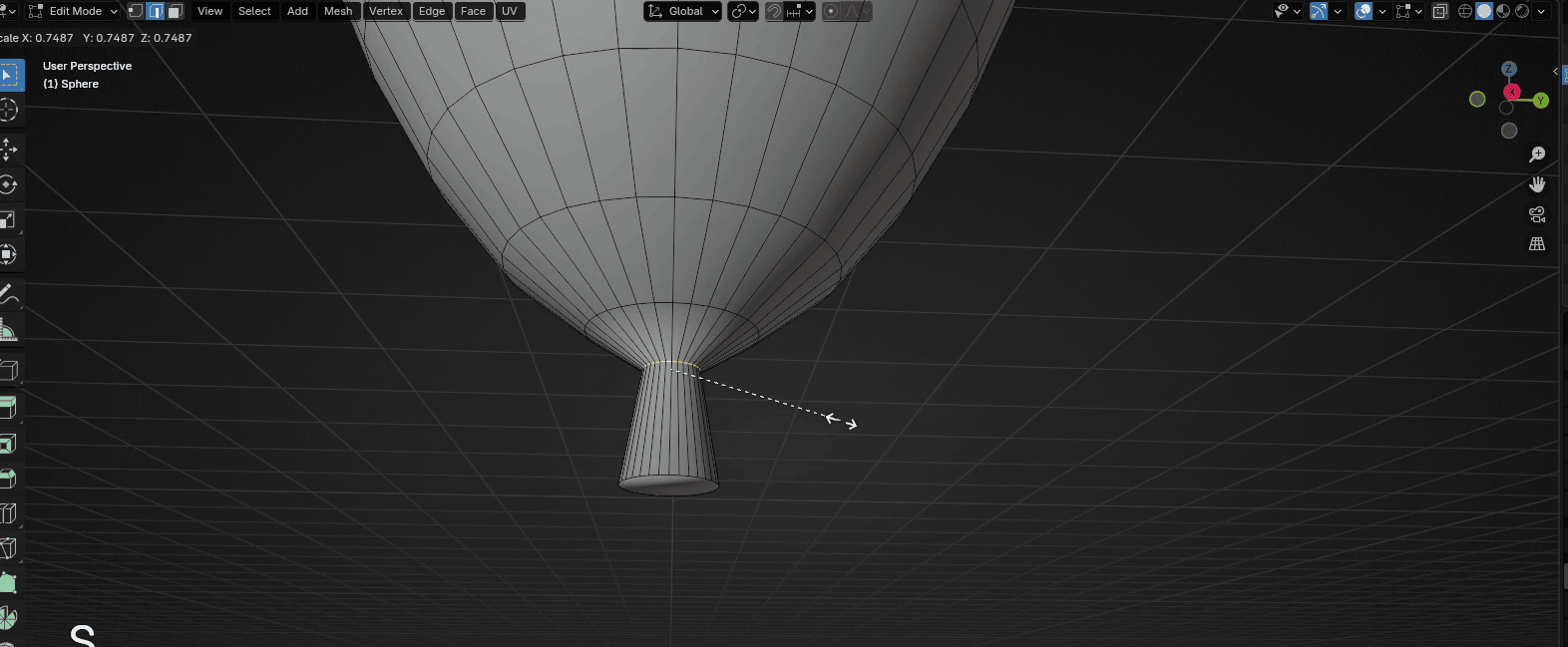
Switch to selecting faces with 3 and select this face.
Beginners guide to Blender
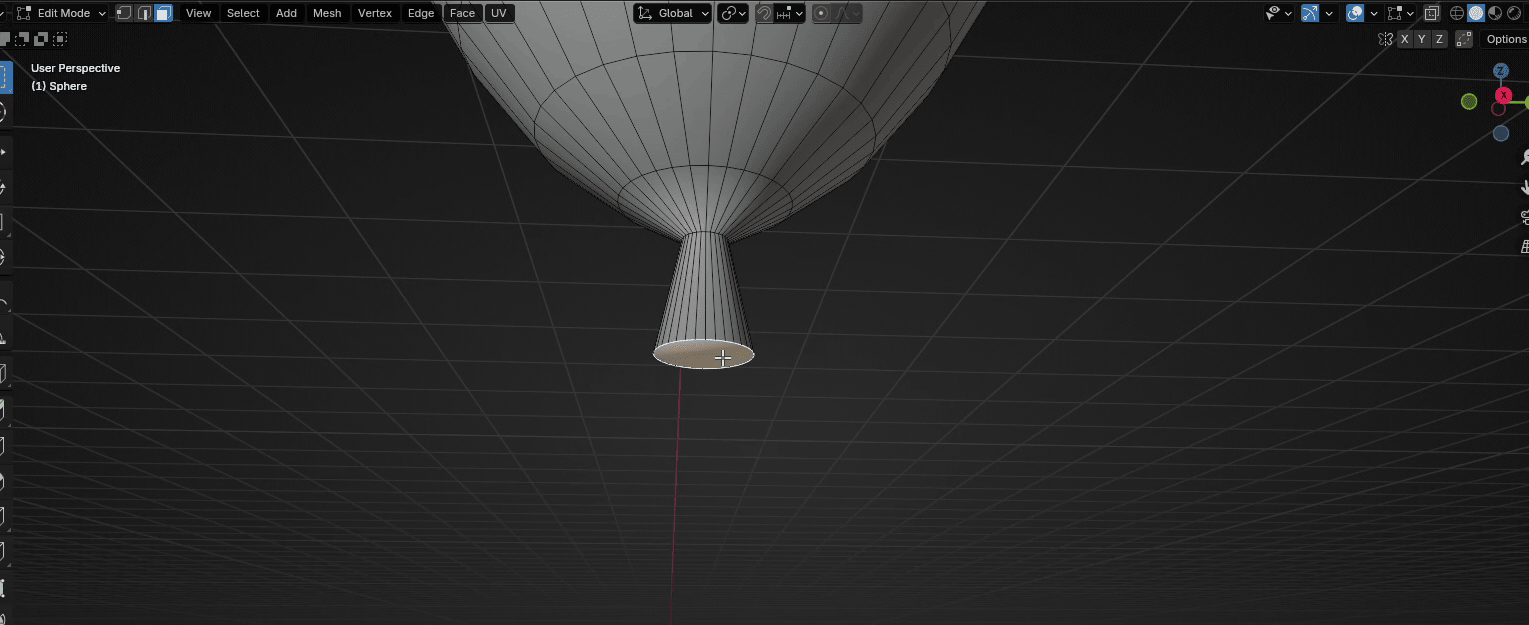
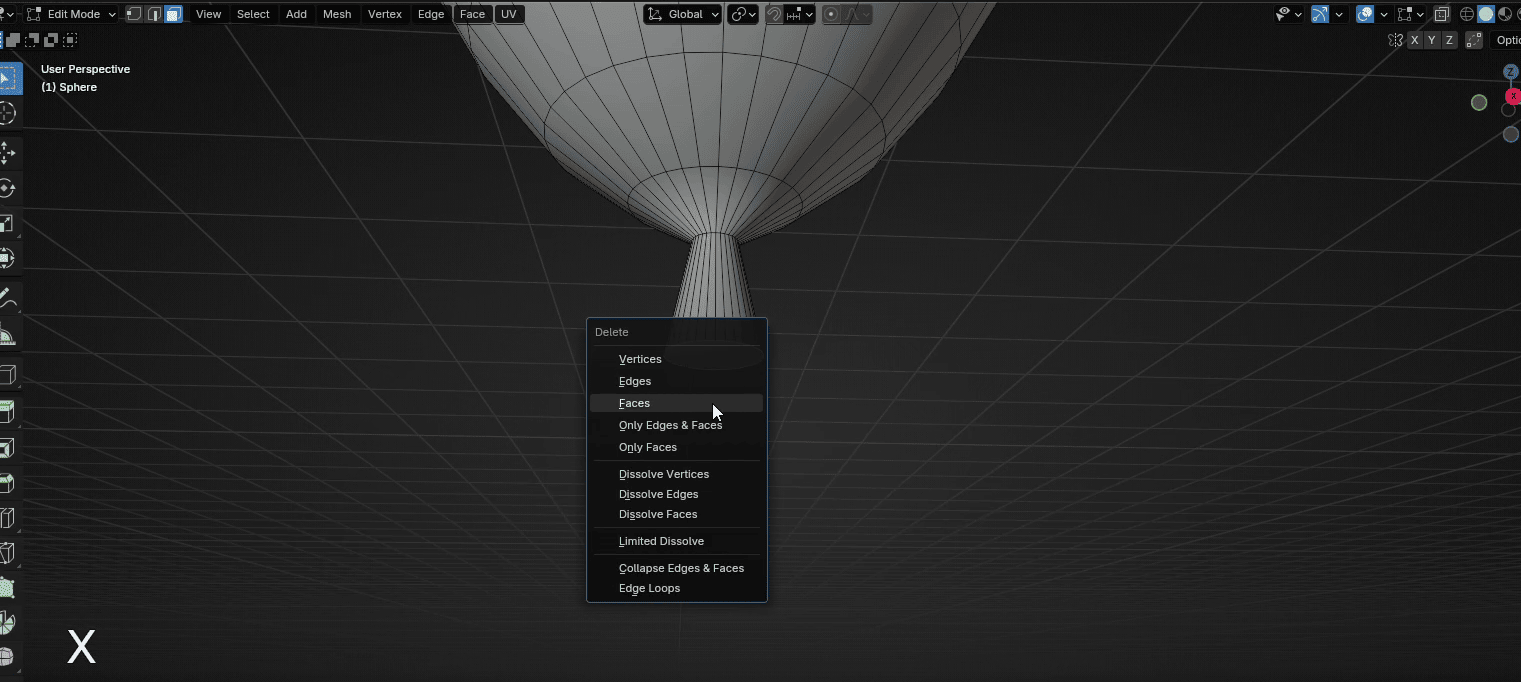
Press “X” and choose delete faces
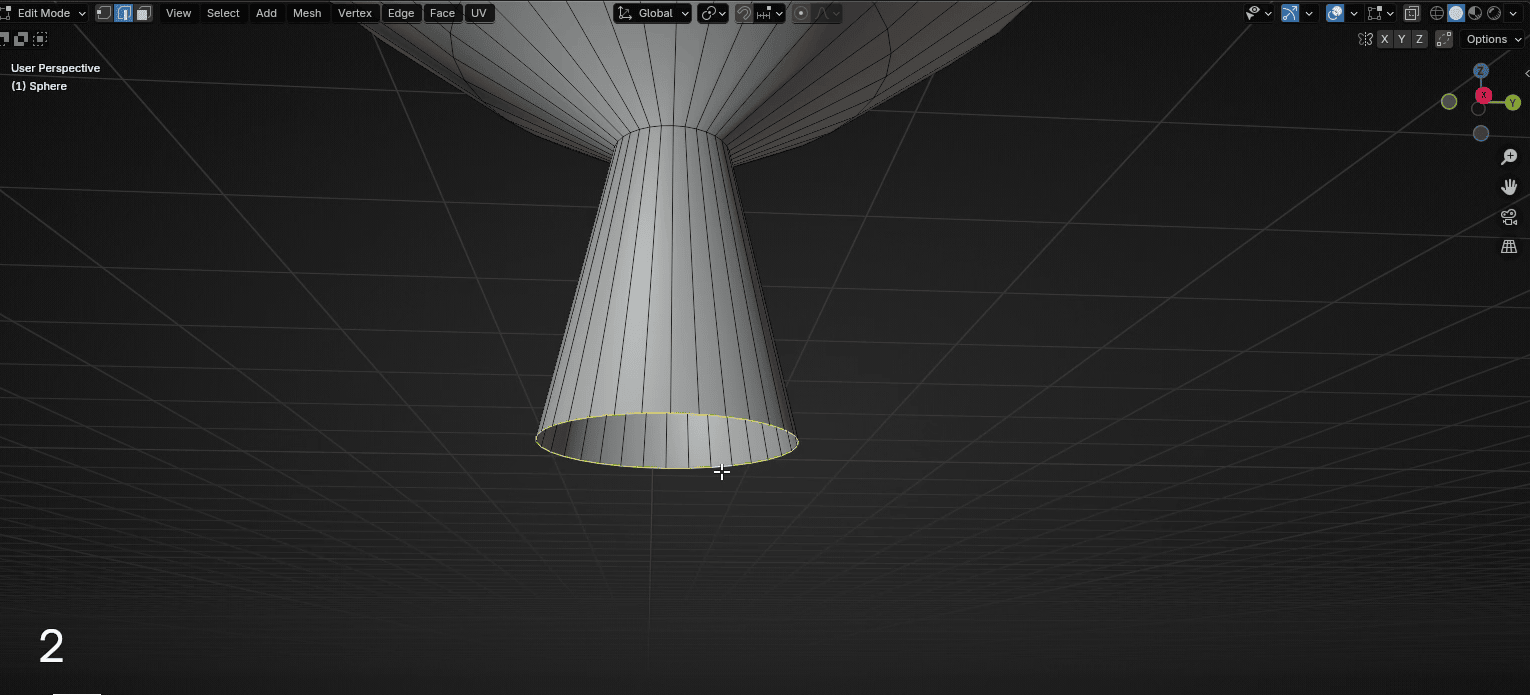
Switch to selecting edges with 2 and select this edge
Duplicate it with “SHIFT+D”
Beginners guide to Blender
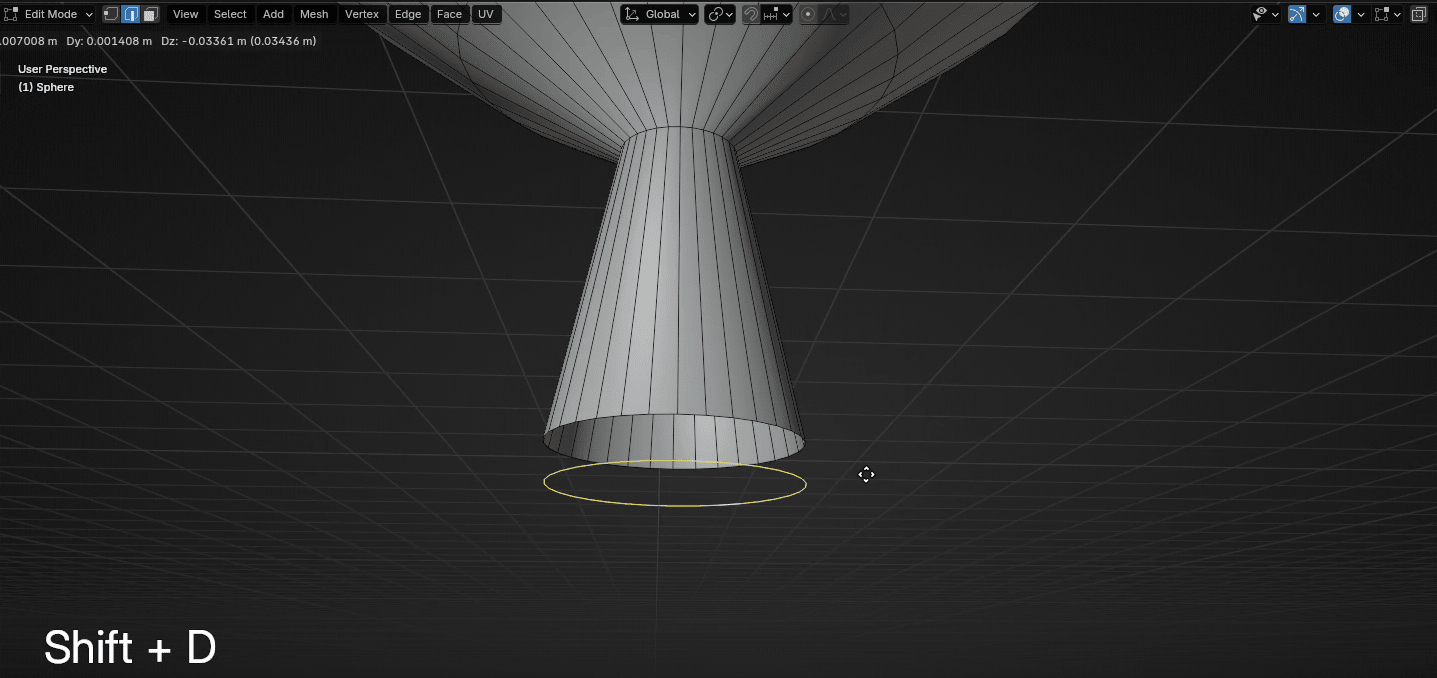
And press “ESC” to return it to its original position.
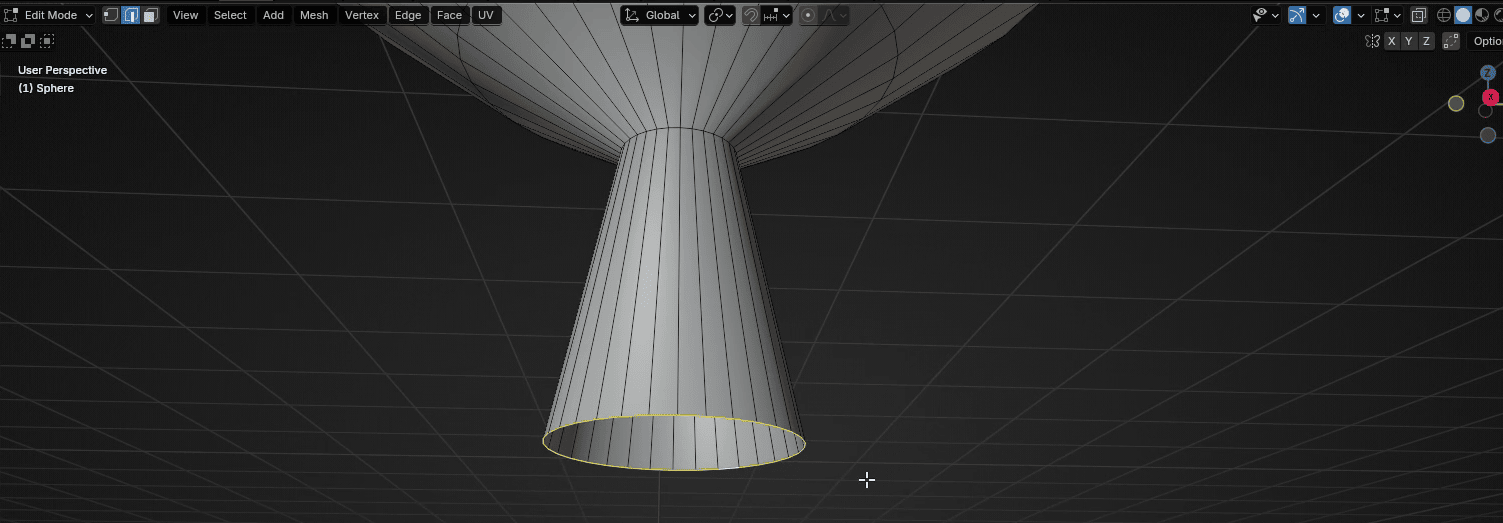
Extrude it with “E+Z” for around -0.03
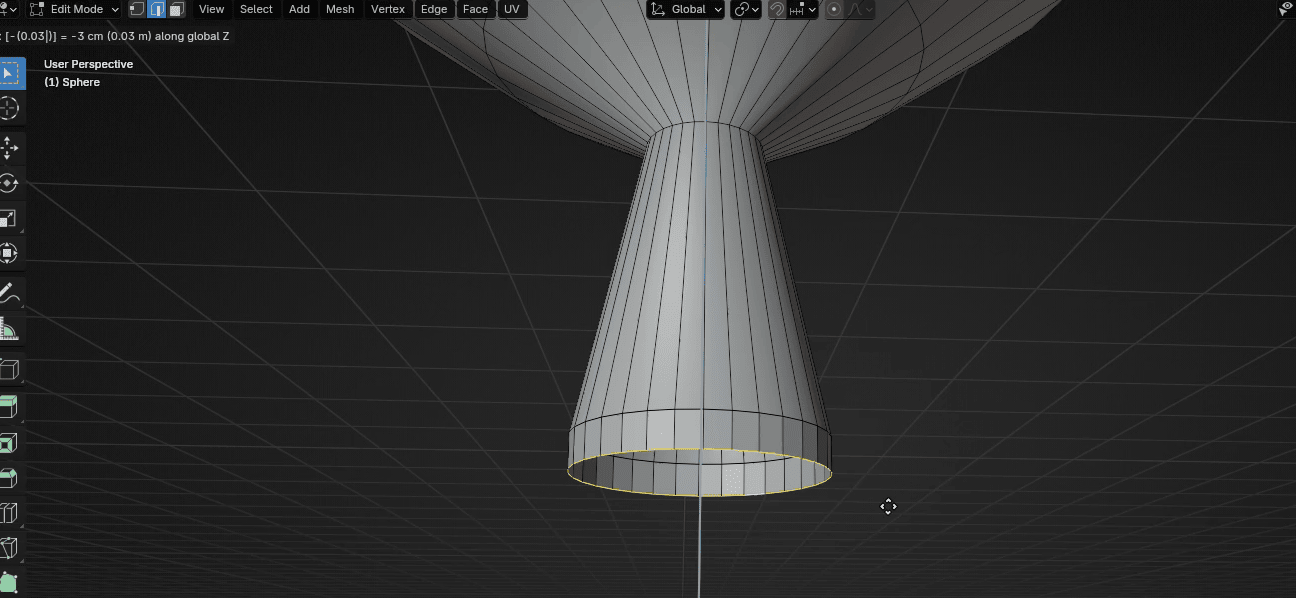
Switch to selecting faces with 3 and select this whole loop with “ALT”.
Beginners guide to Blender
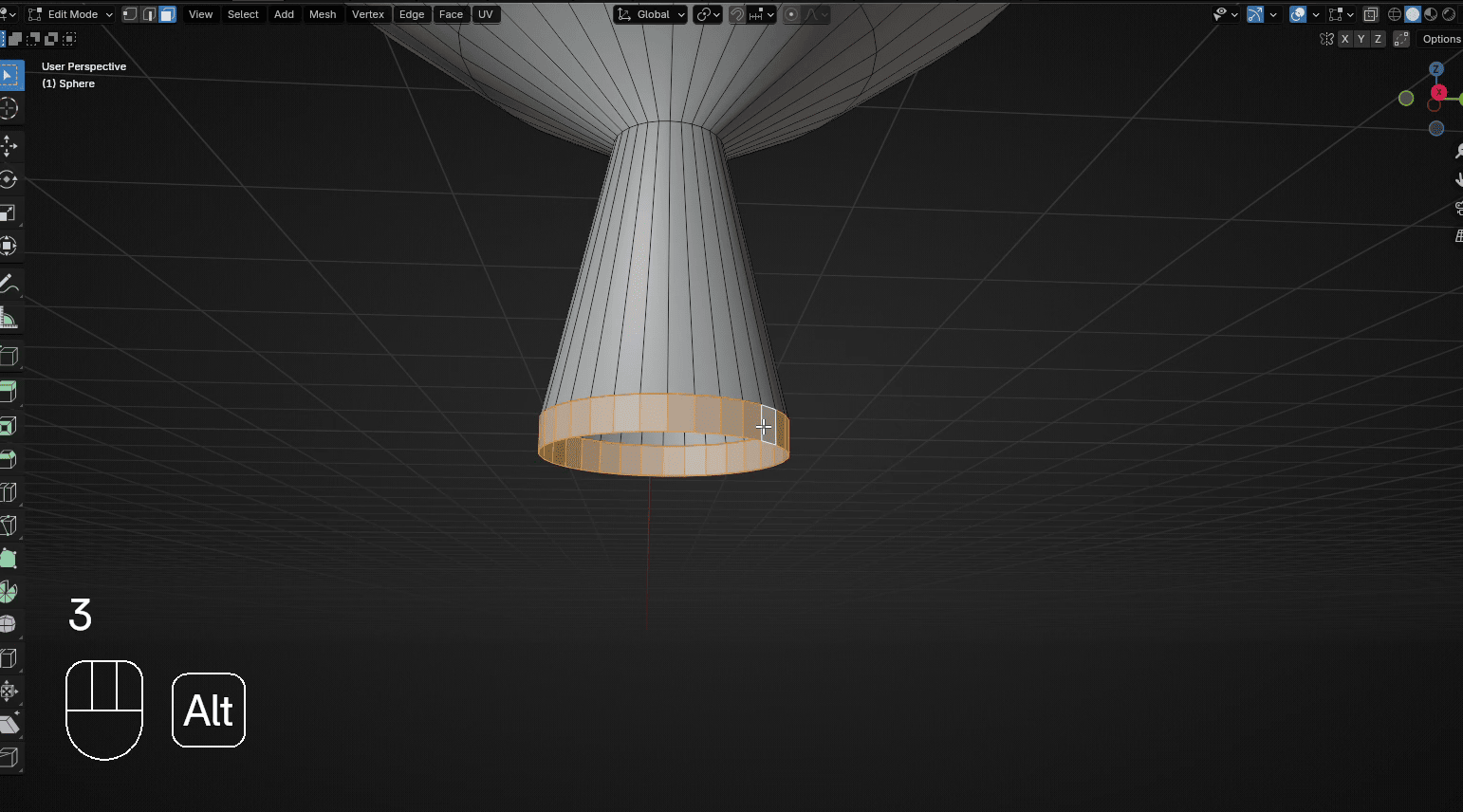
Press “ALT+E” and choose Extrude faces along normals
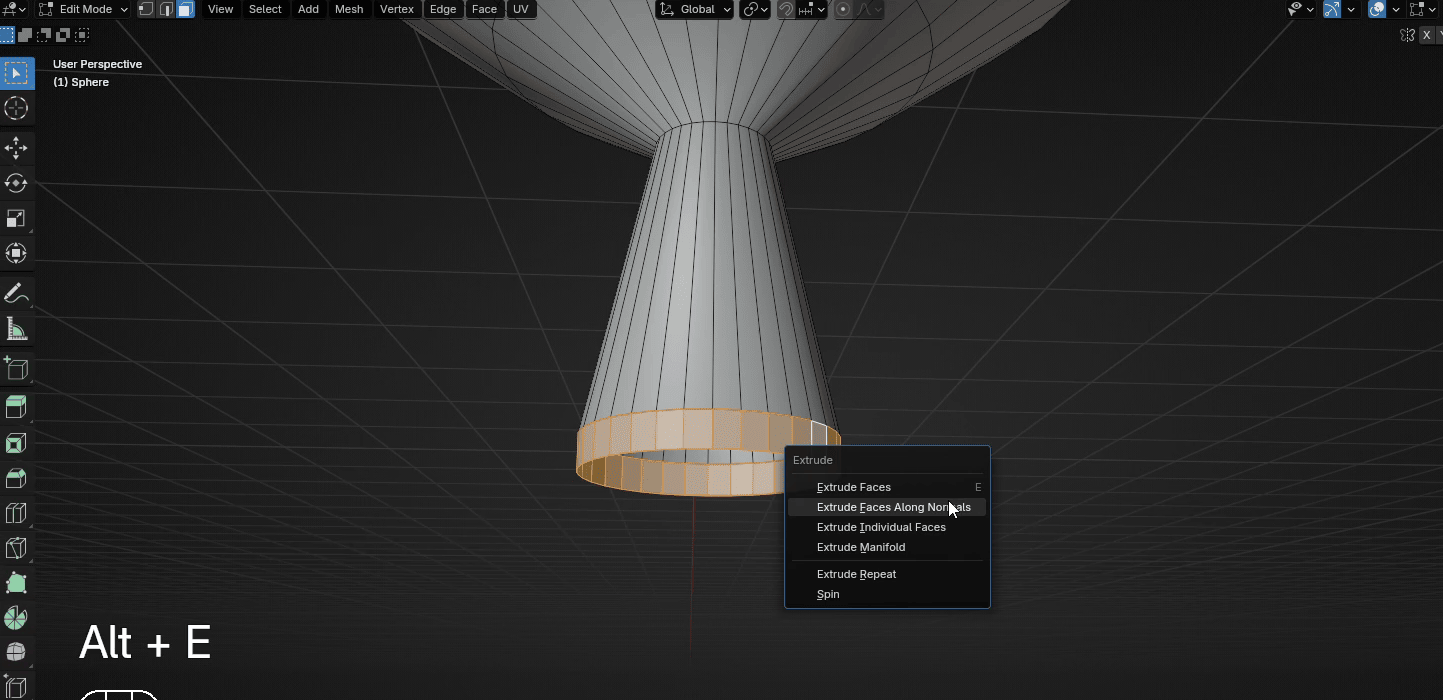
and extrude it for around -0.028
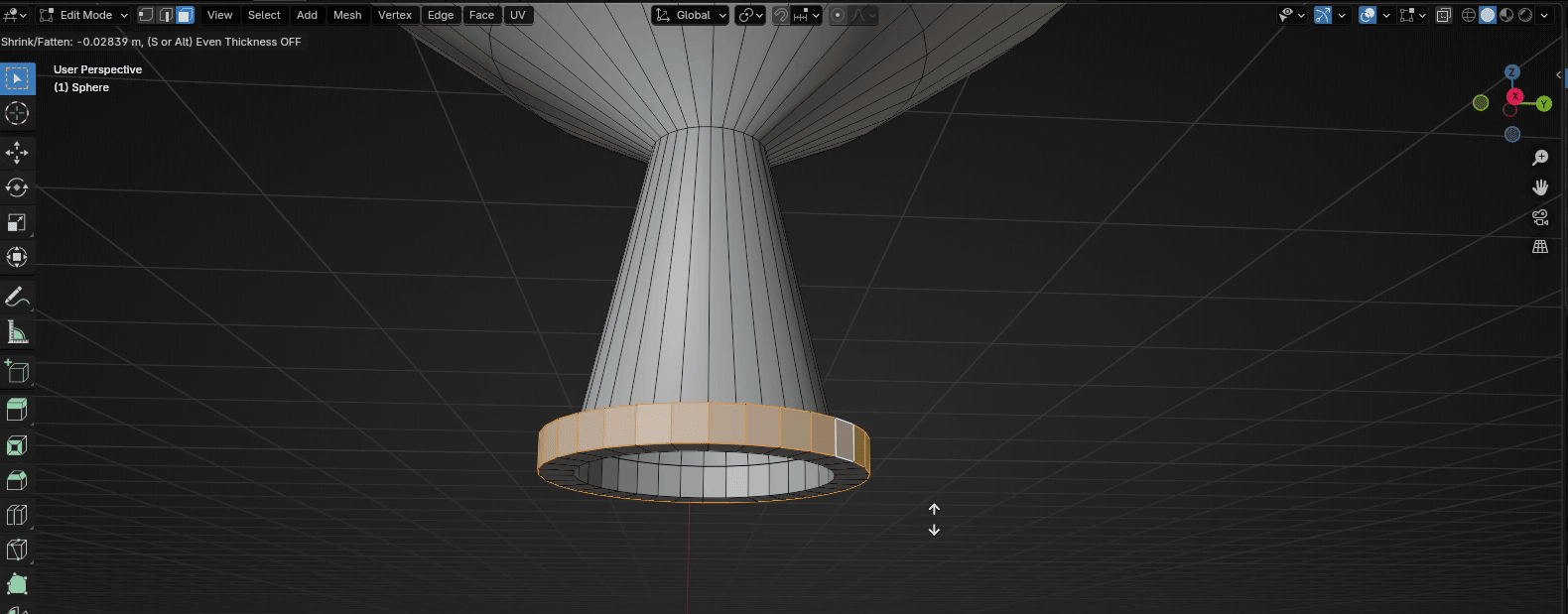
Switch to selecting edges with 2 and select these edges.
Beginners guide to Blender
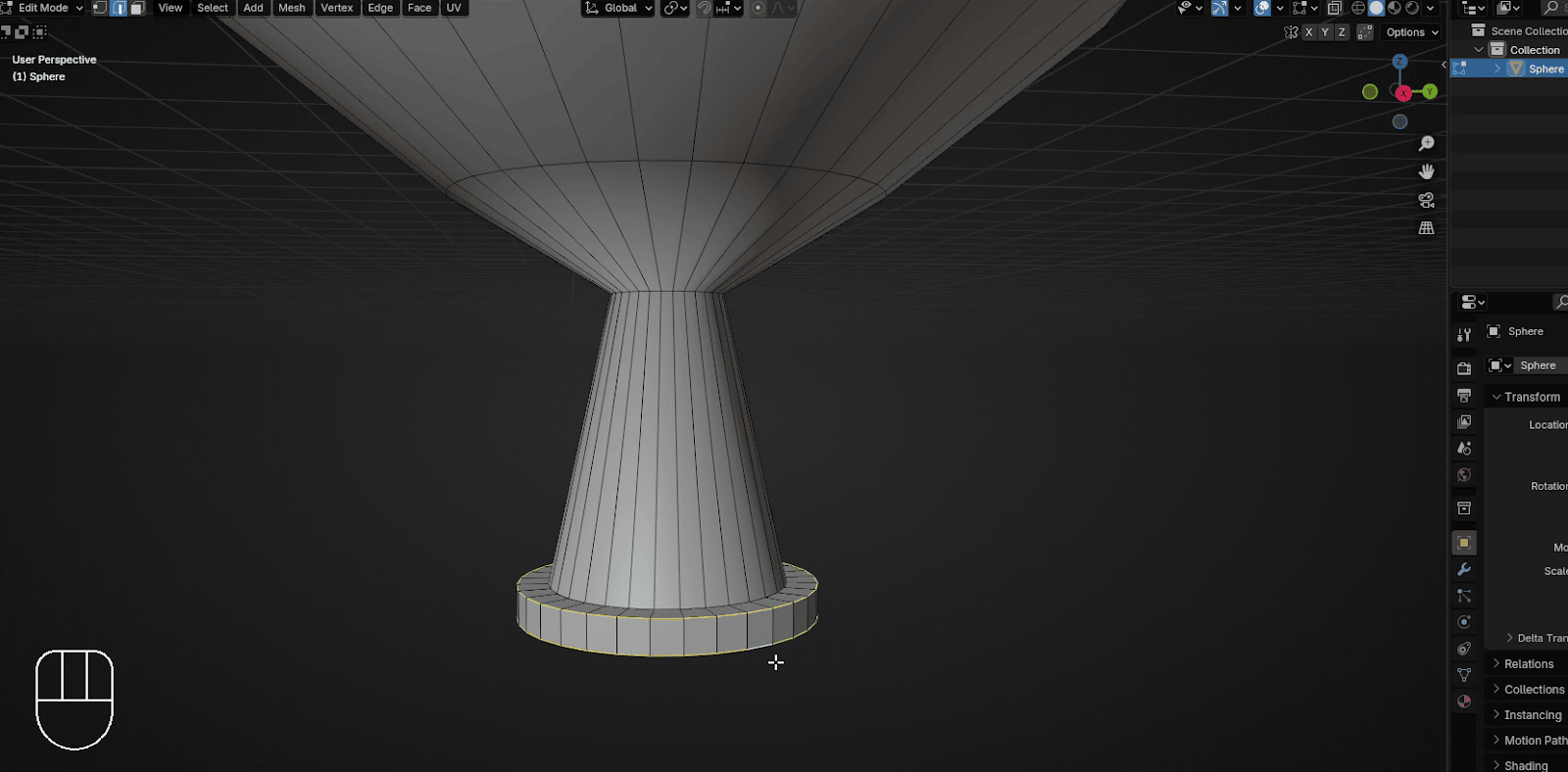
and this
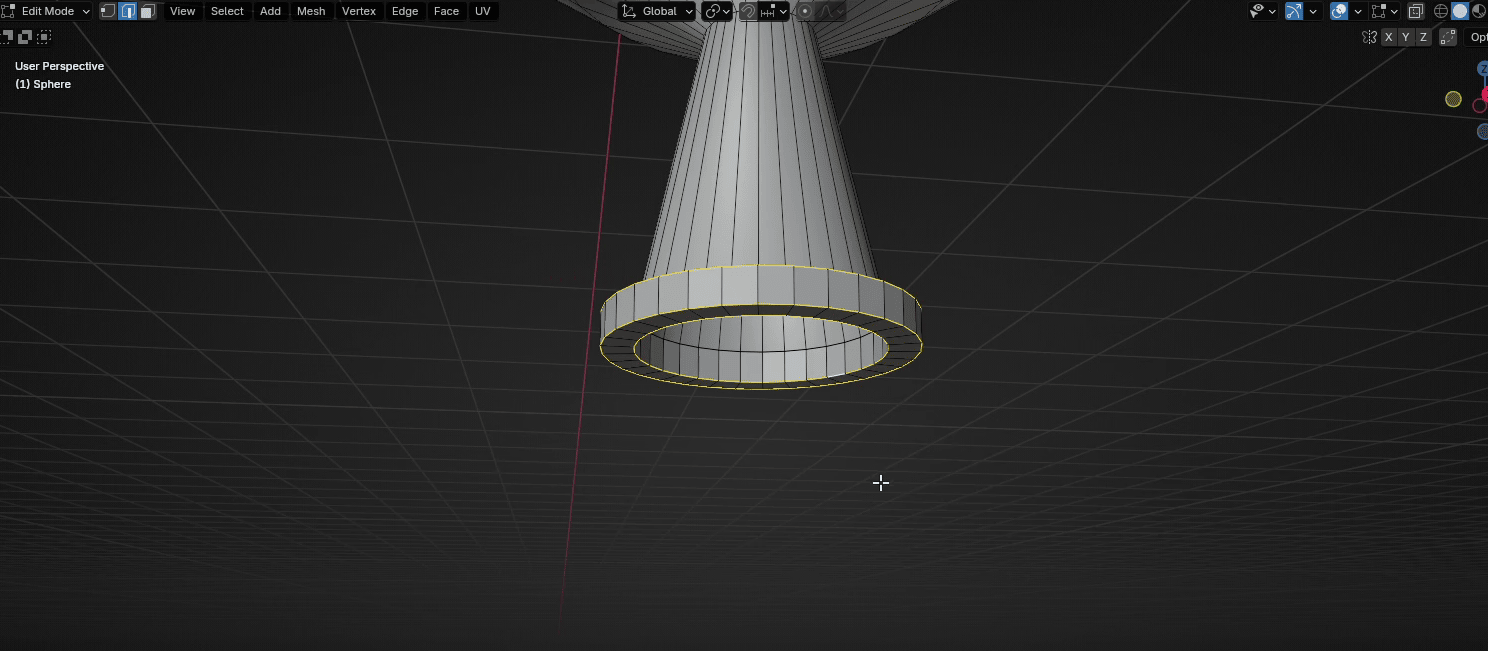
Press “CTRL+B” to bevel them all
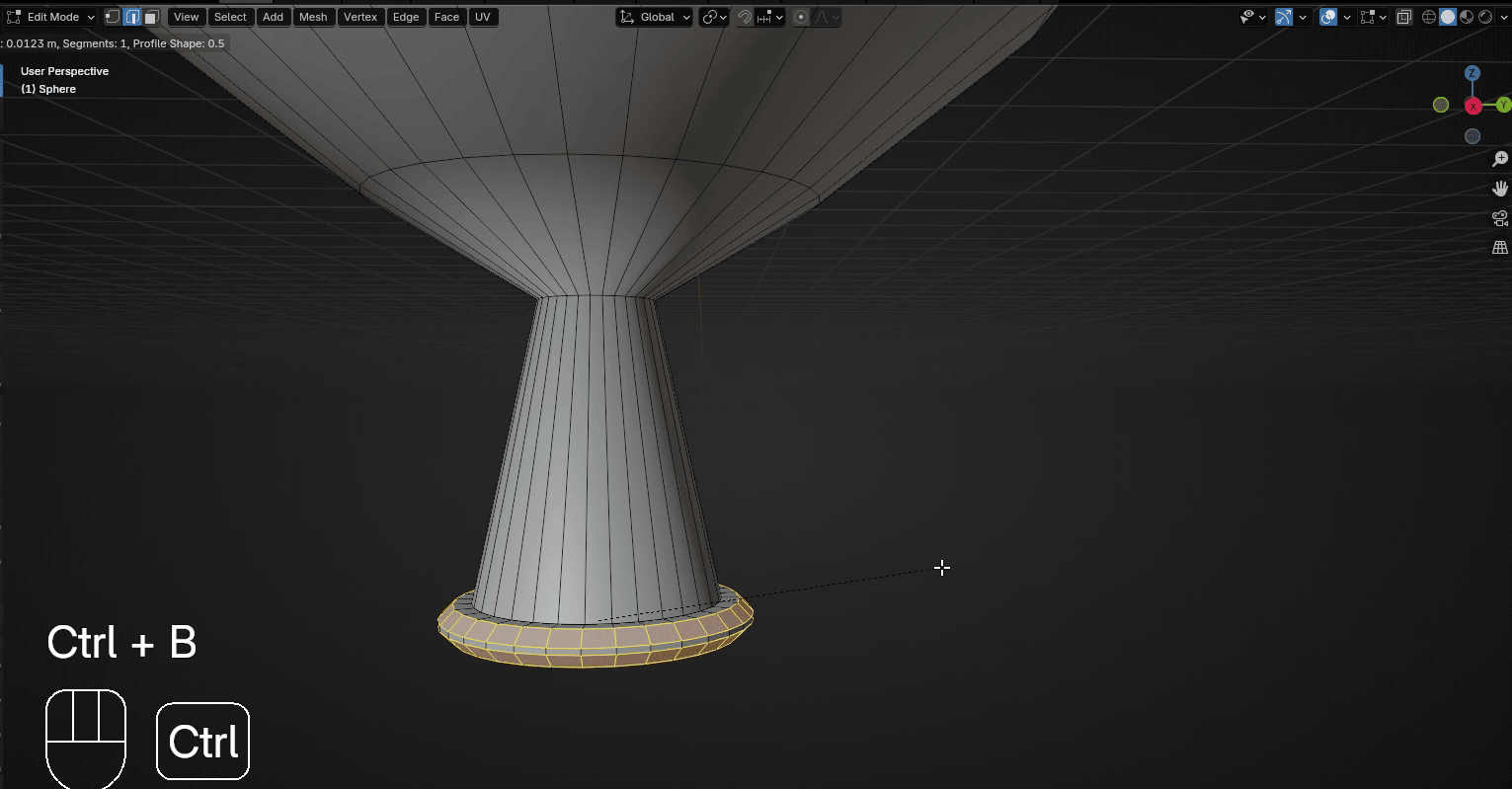
Scroll the mouse wheel up to add more segment.I added 3 more segments.
Beginners guide to Blender
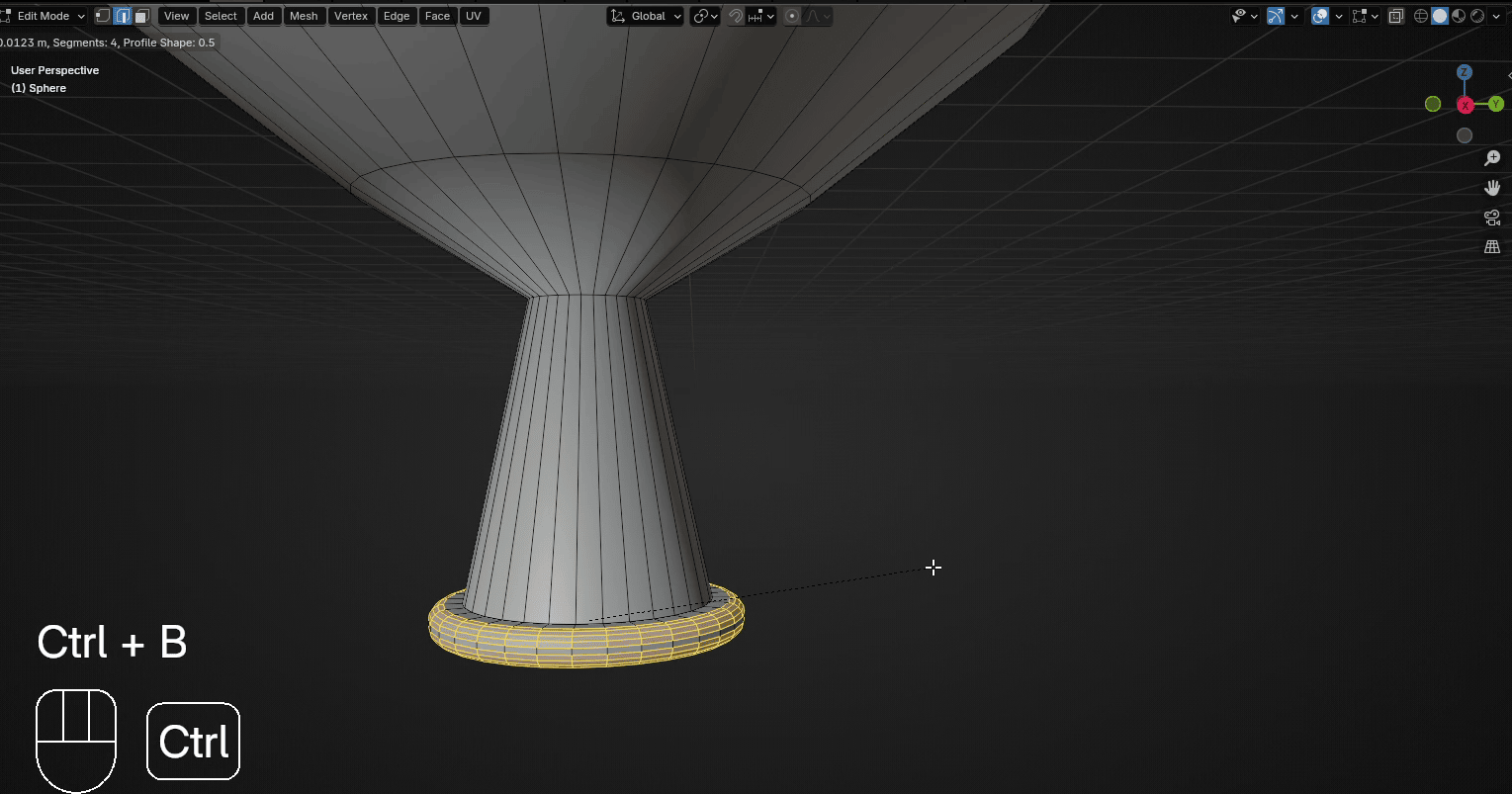
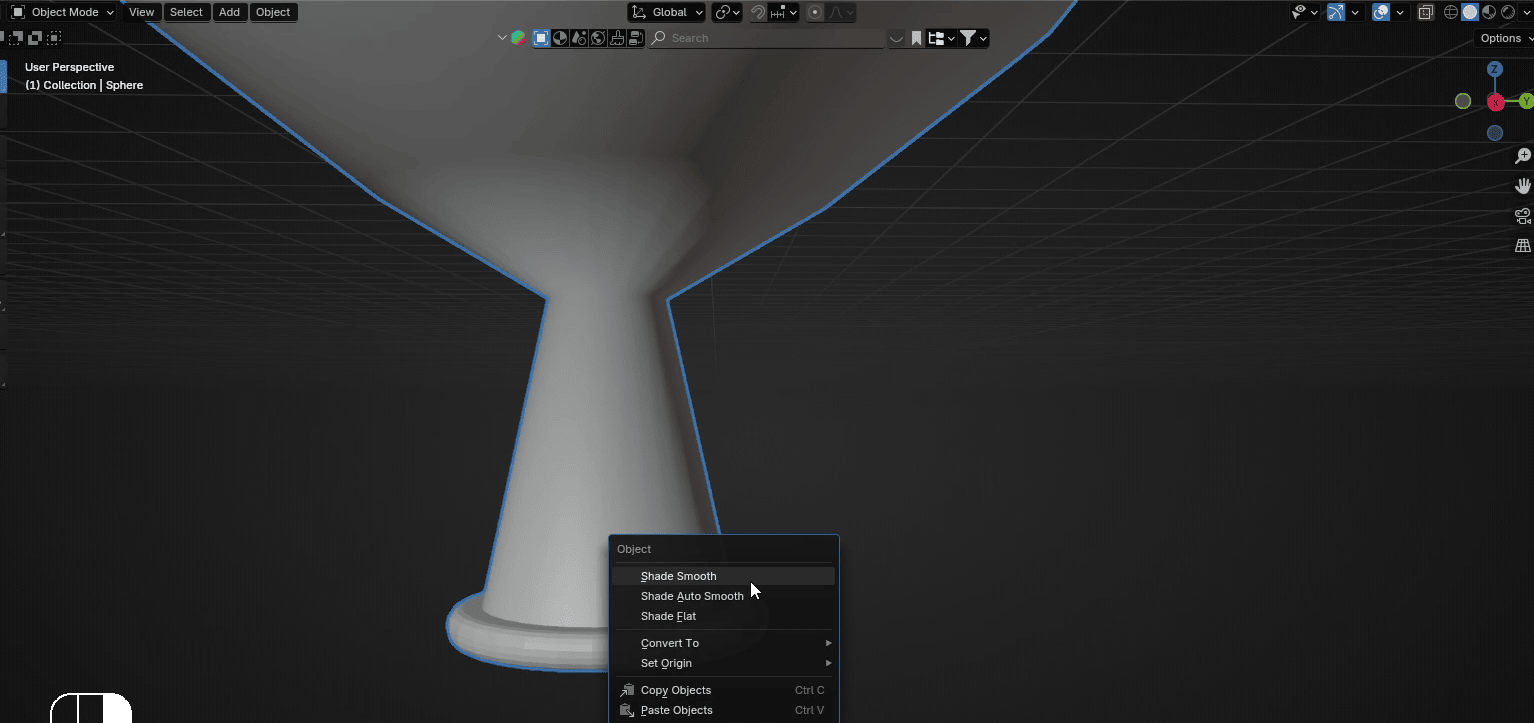
Switch to object mode with “TAB” click RMB and choose Shade Smooth
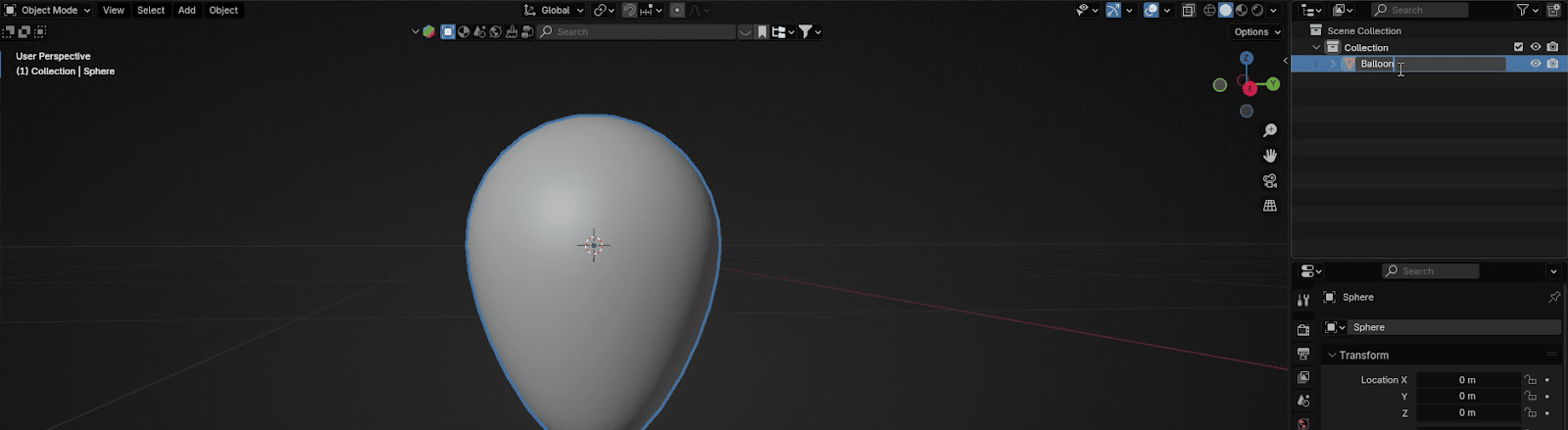
Rename your object from Sphere to Balloon.
Now click here on Data
Beginners guide to Blender
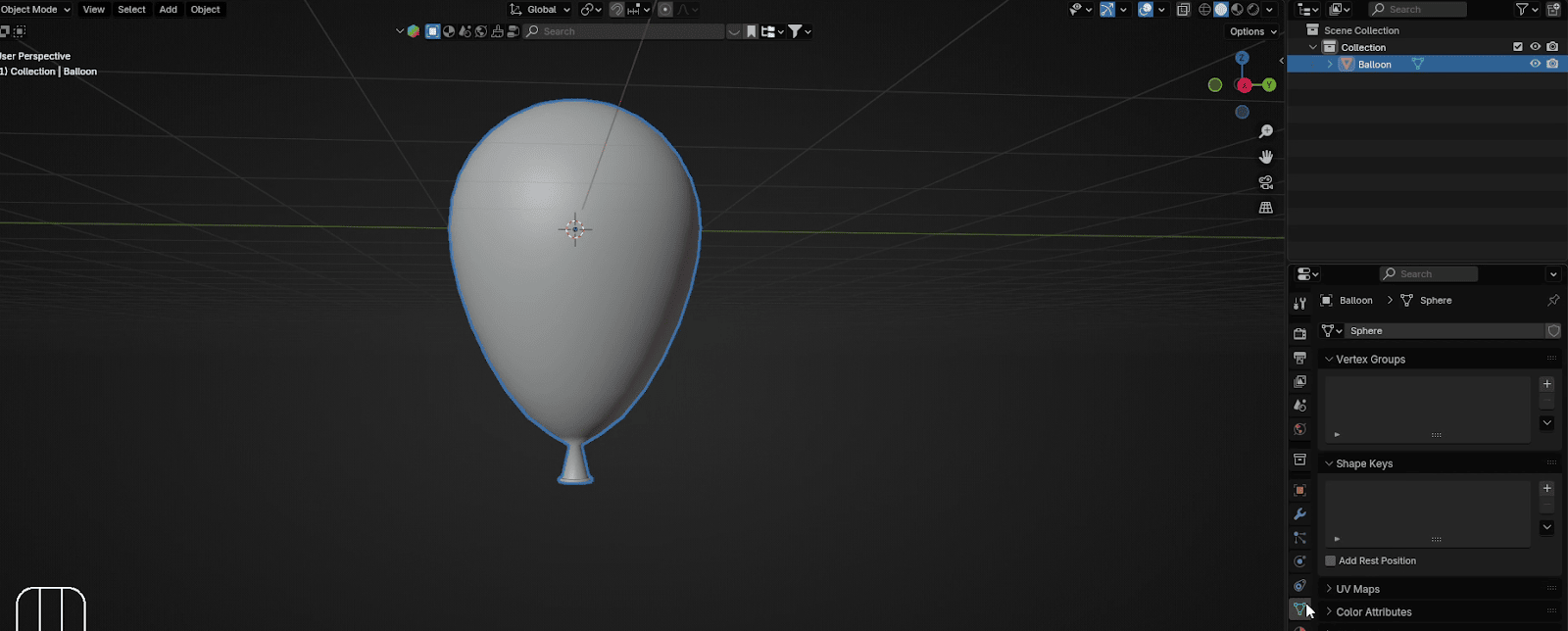
You will see something new called Shape keys.
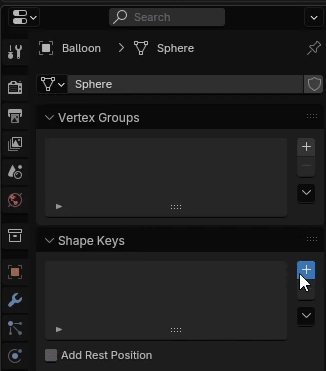
So what are Shape keys?
Shape keys are used to deform object geometry into new shapes for animation.
The most popular case is using shape keys for character facial animation, but you can use itfor other things, like in this case for making empty balloon inflated and vice versa.
First, click on that “+” sign to add a new Shape key.
Beginners guide to Blender
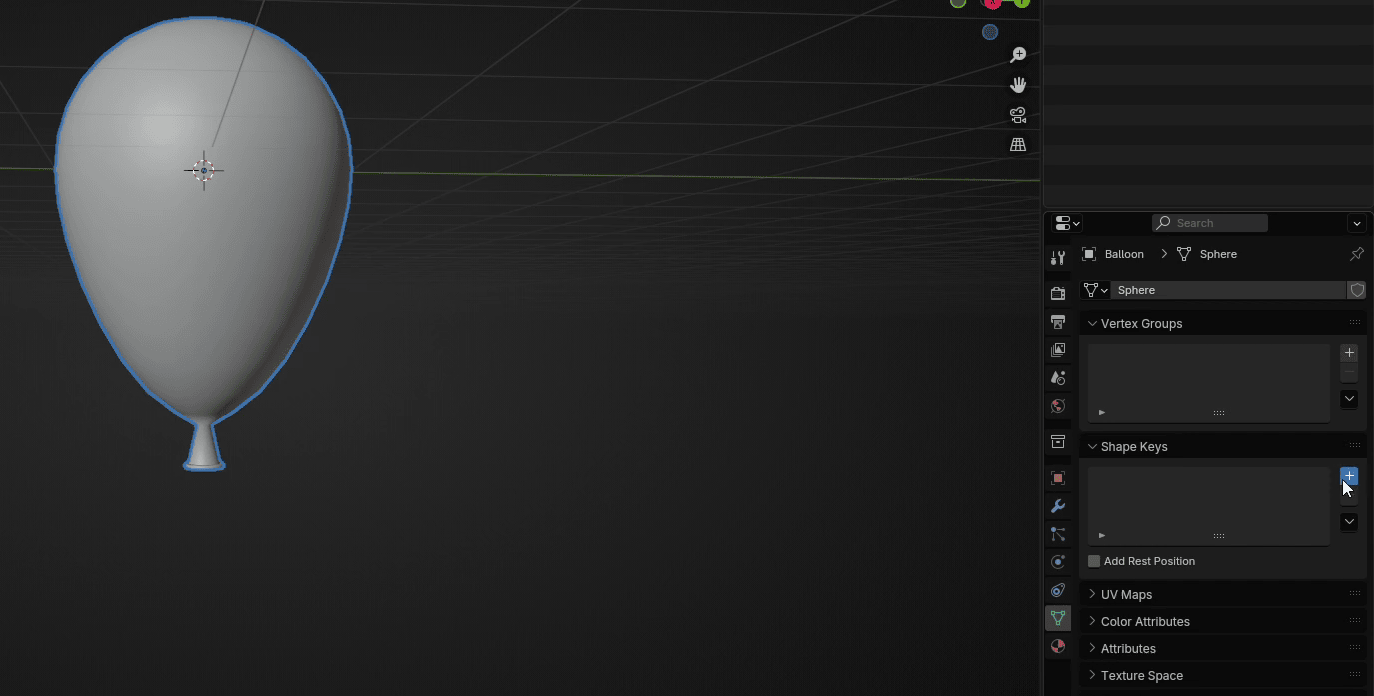
The first Shape key is called Basis.
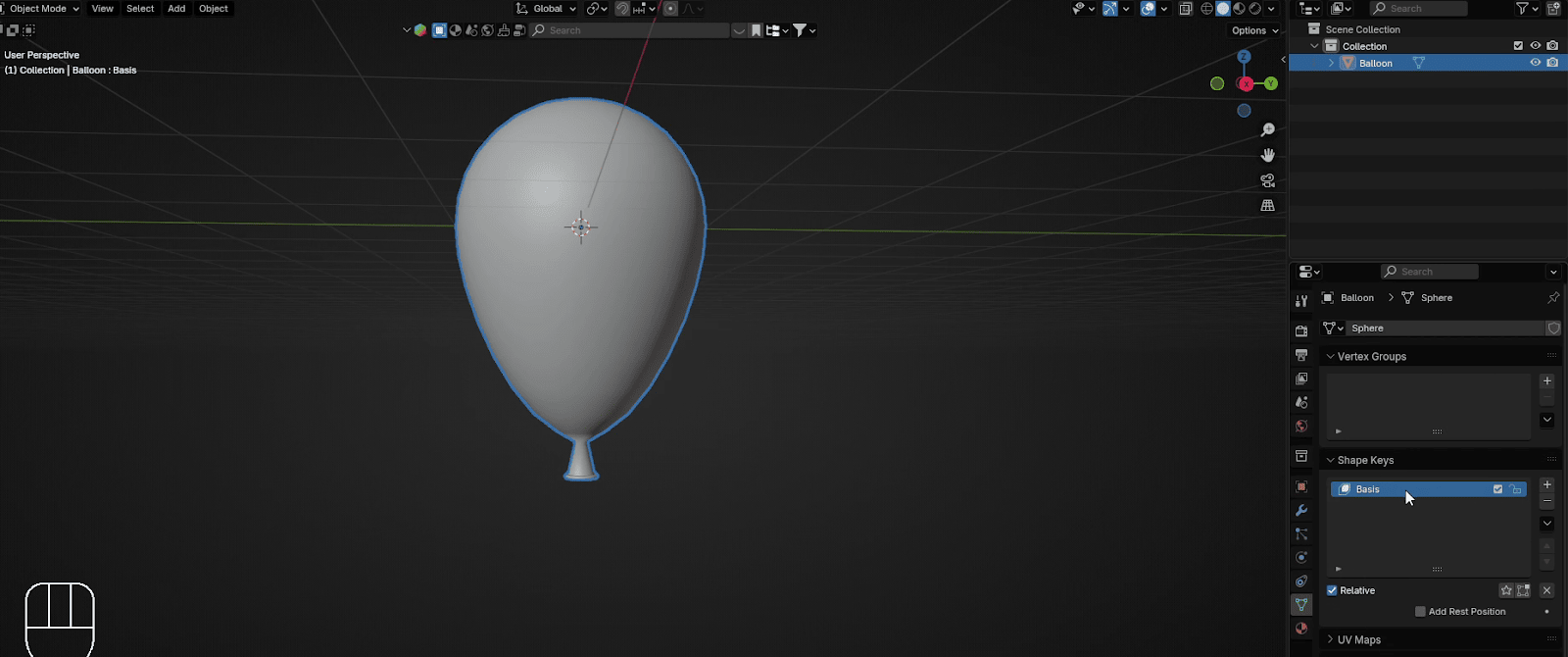
You can rename it however you want. I renamed it to Balloon_full
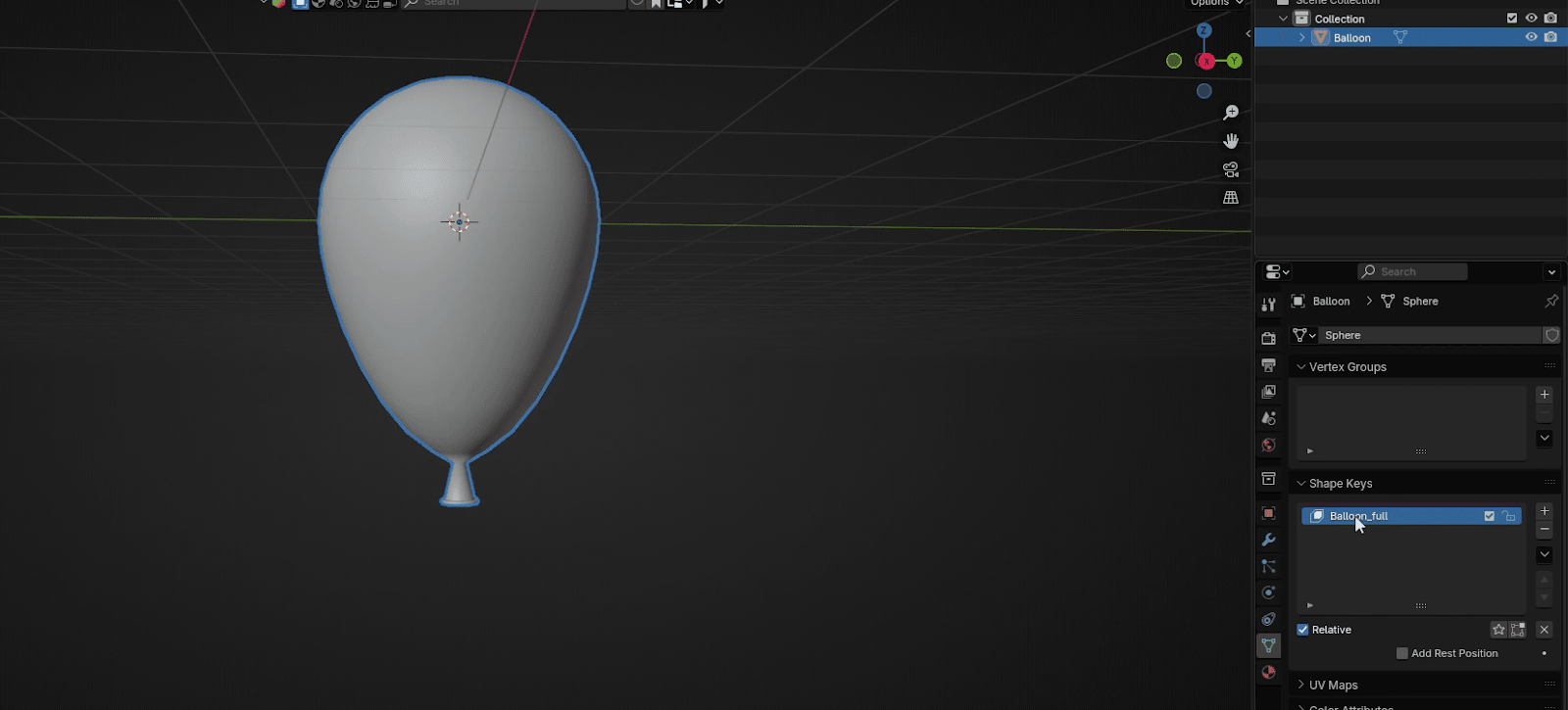
Click once more on the “+” sign to add another Shape key.
Beginners guide to Blender
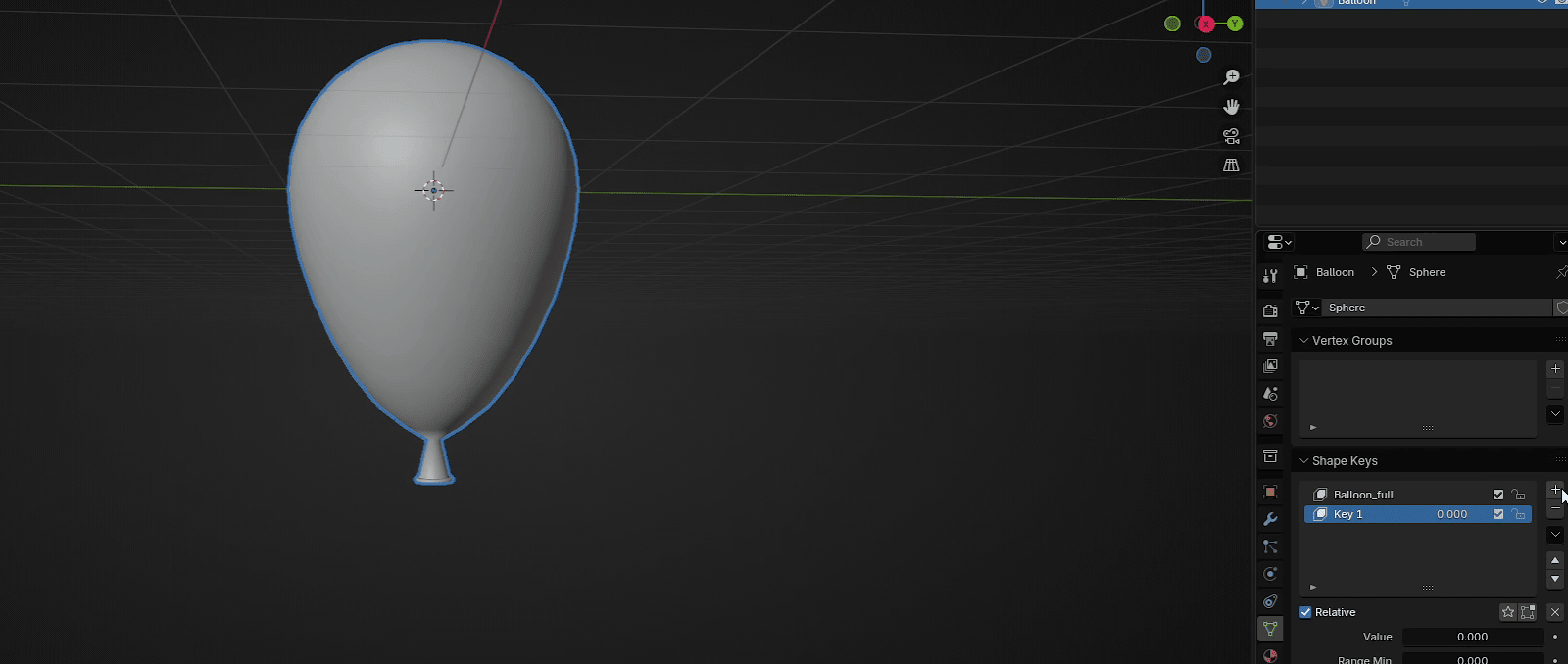
You can rename it however you want. I renamed it to Balloon_empty.
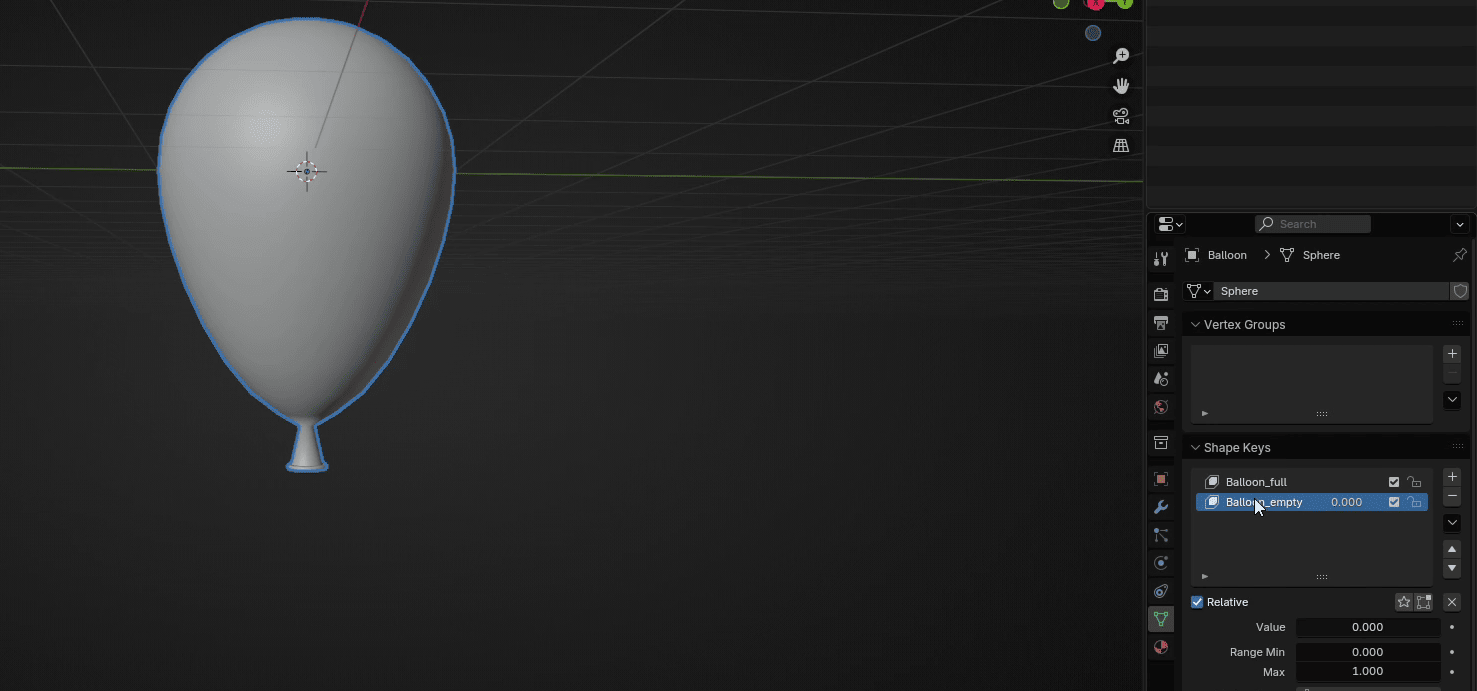
From now on whatever you are doing, make sure that the second shape key is selectedbecause the first Shape key is the base one and you shouldn’t change it.
Switch back to edit mode with “TAB.”
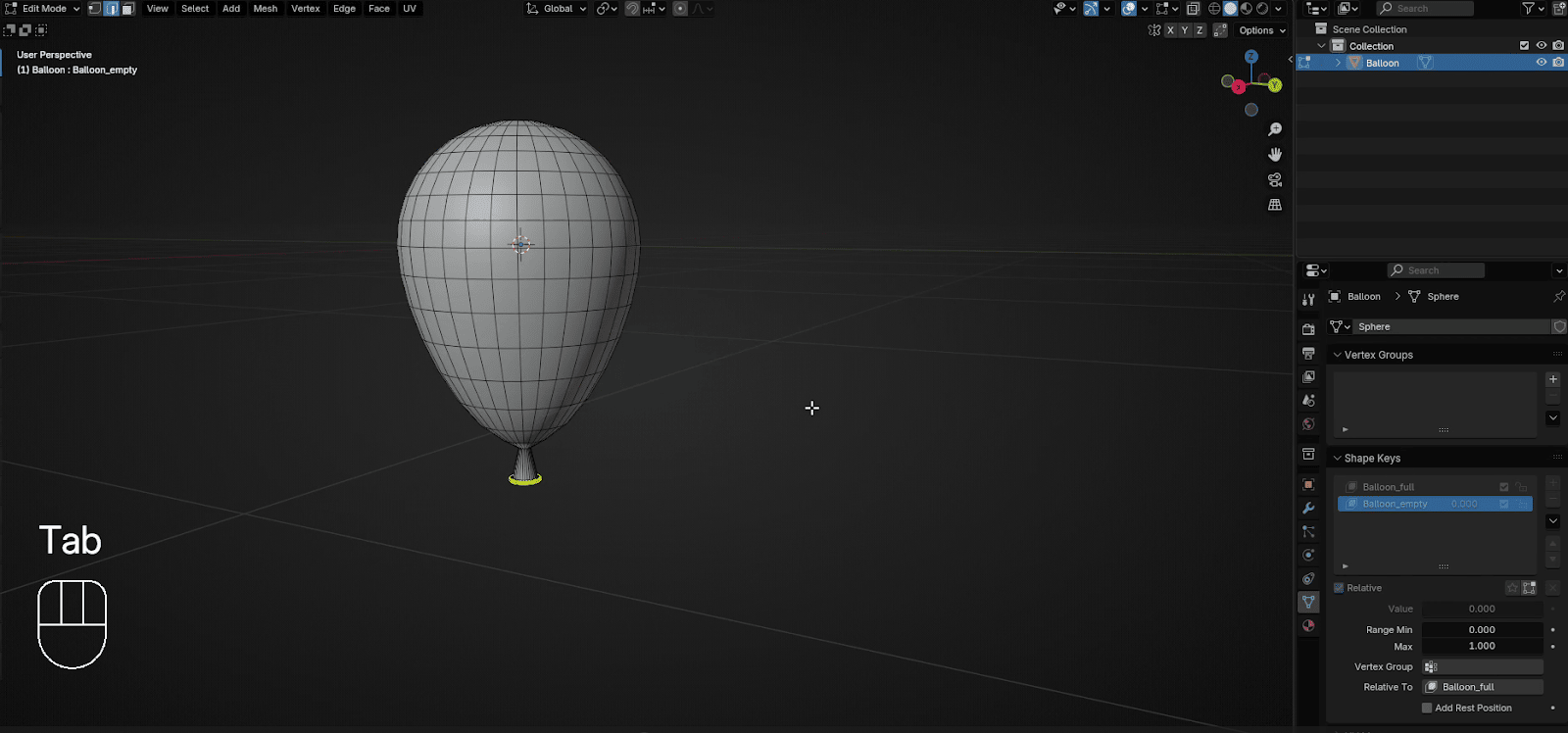
Change view to right orthographic view with numpad 3 or click red X on the screen.
Beginners guide to Blender
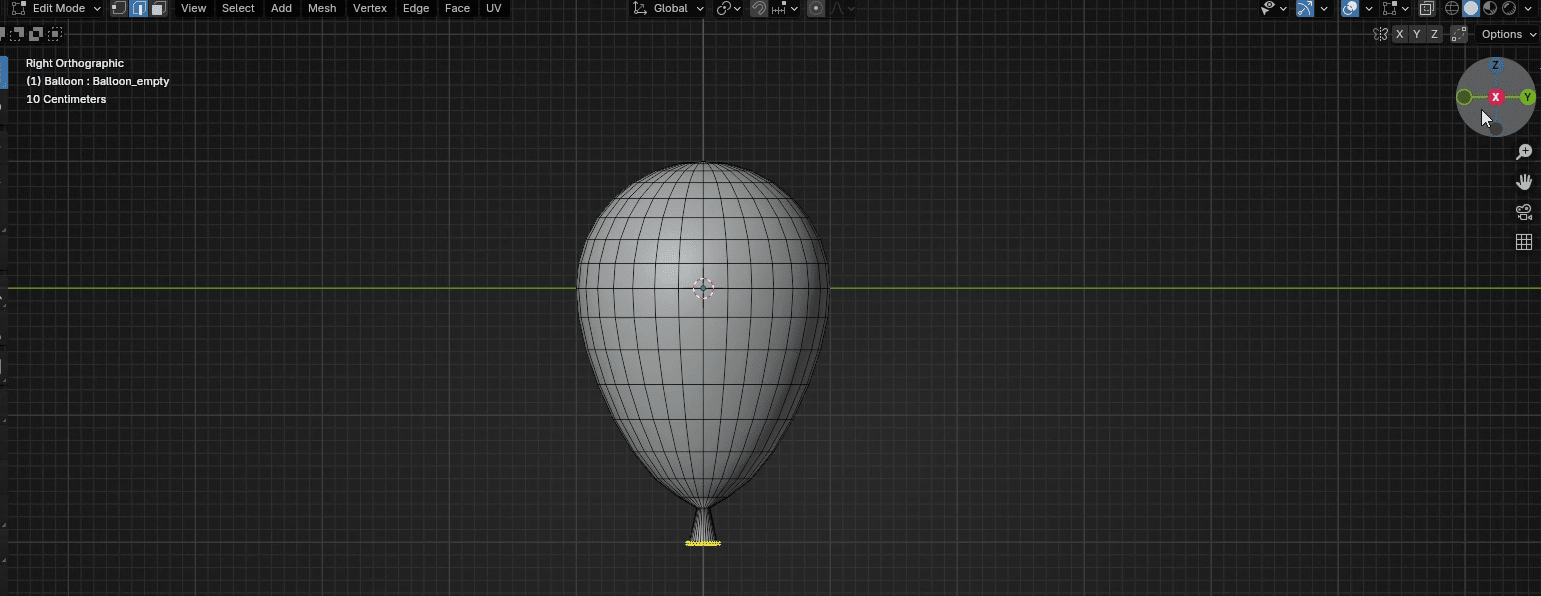
Turn on the X-ray mode by clicking here or pressing “ALT+Z”.
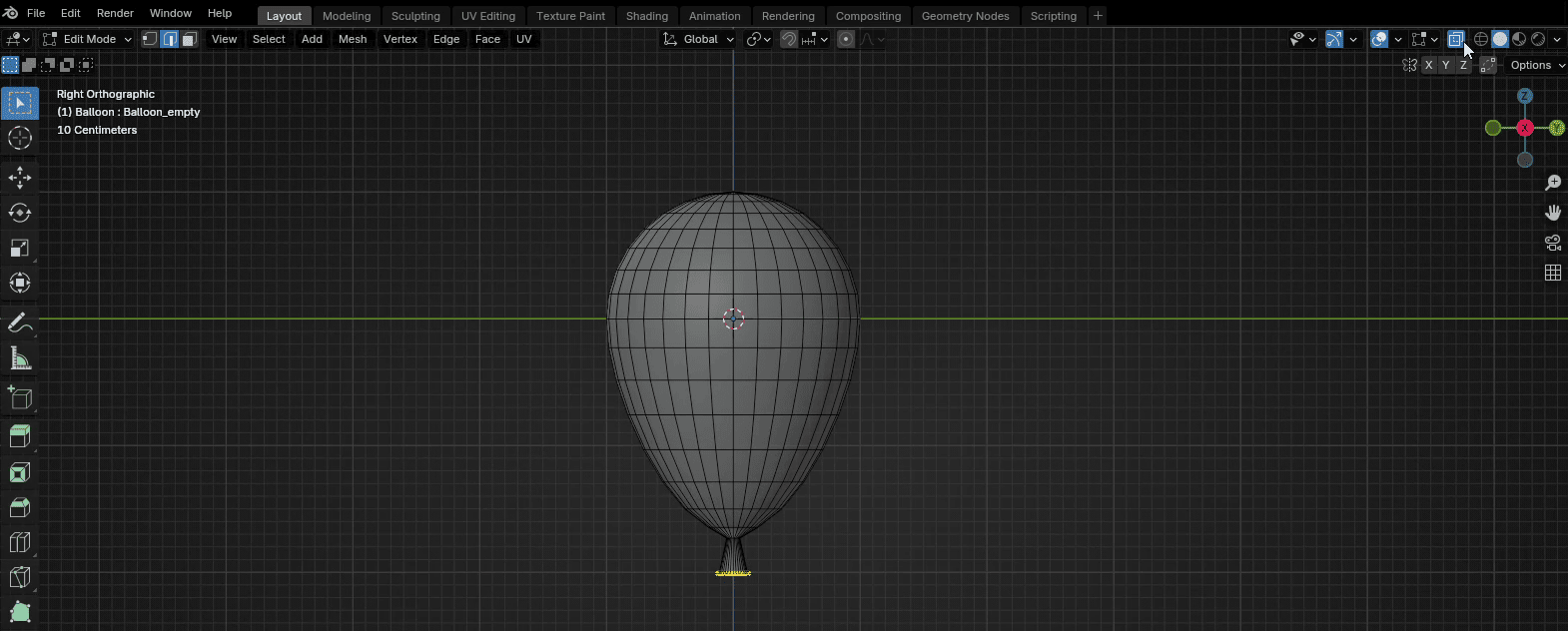
Switch to selecting vertices with 1 and select this part
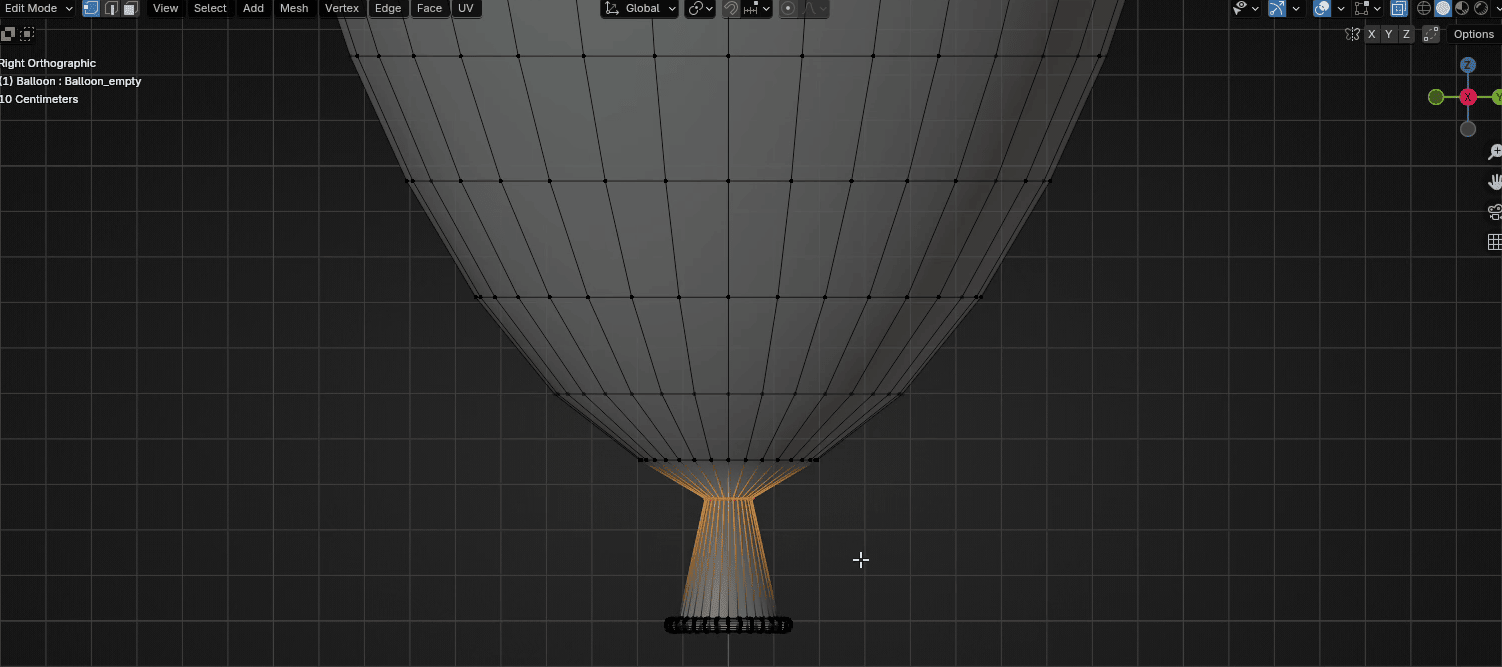
And scale it with “S” for around 2.13
Beginners guide to Blender
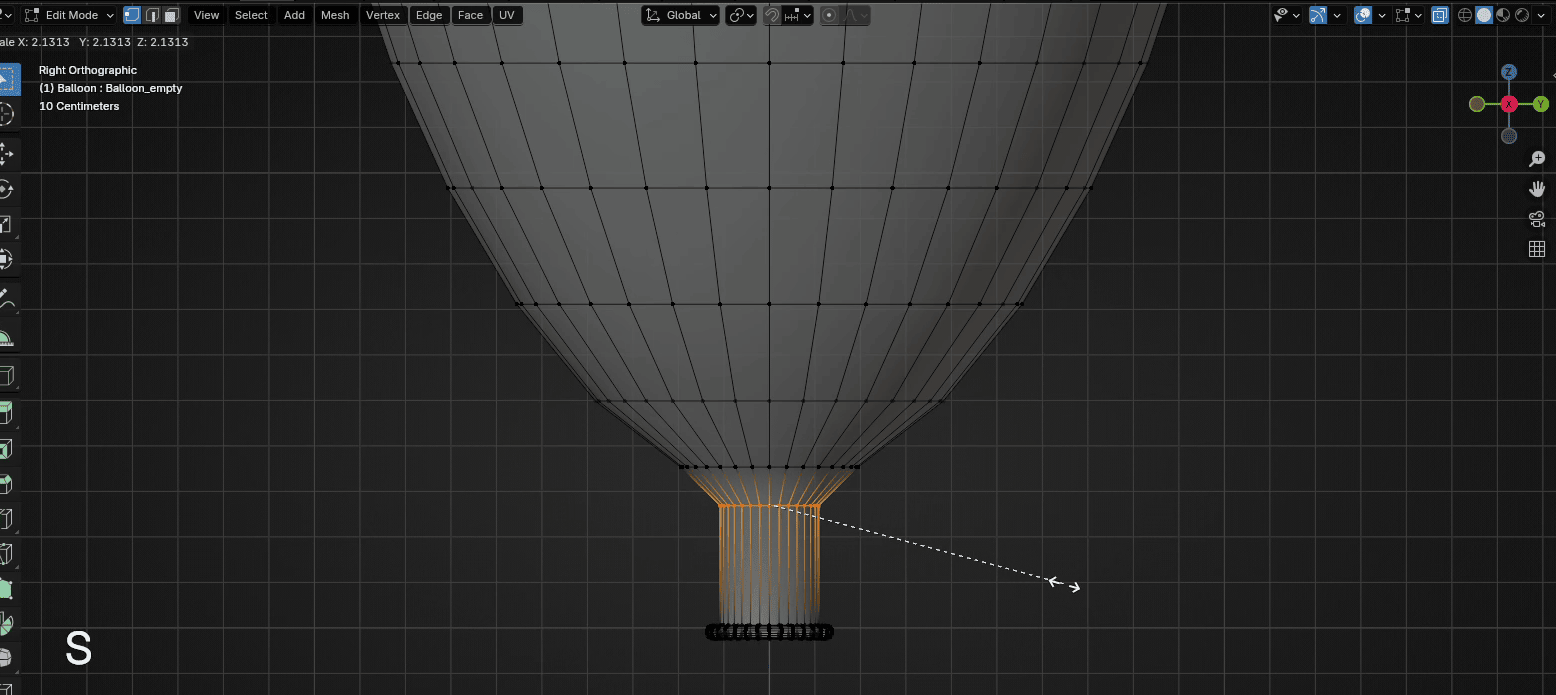
Select this part
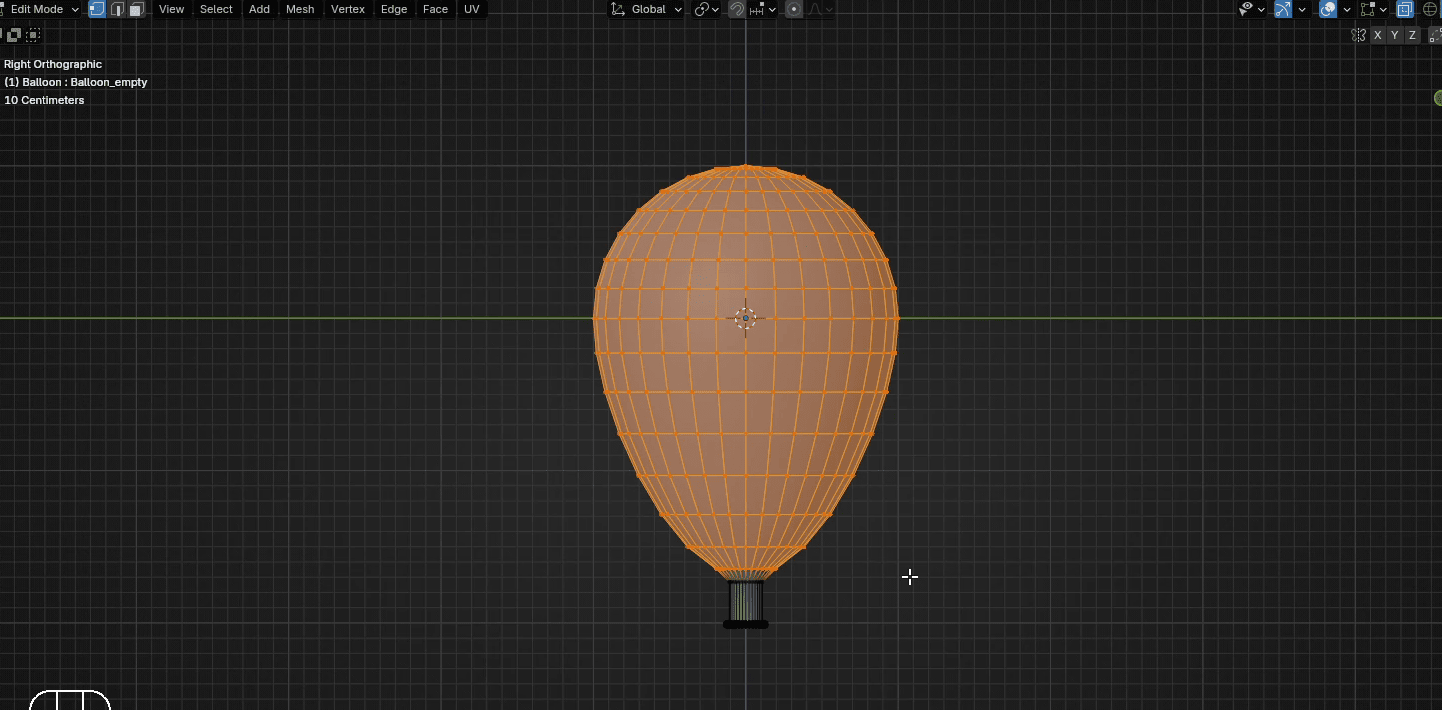
Click RMB and choose Smooth vertices
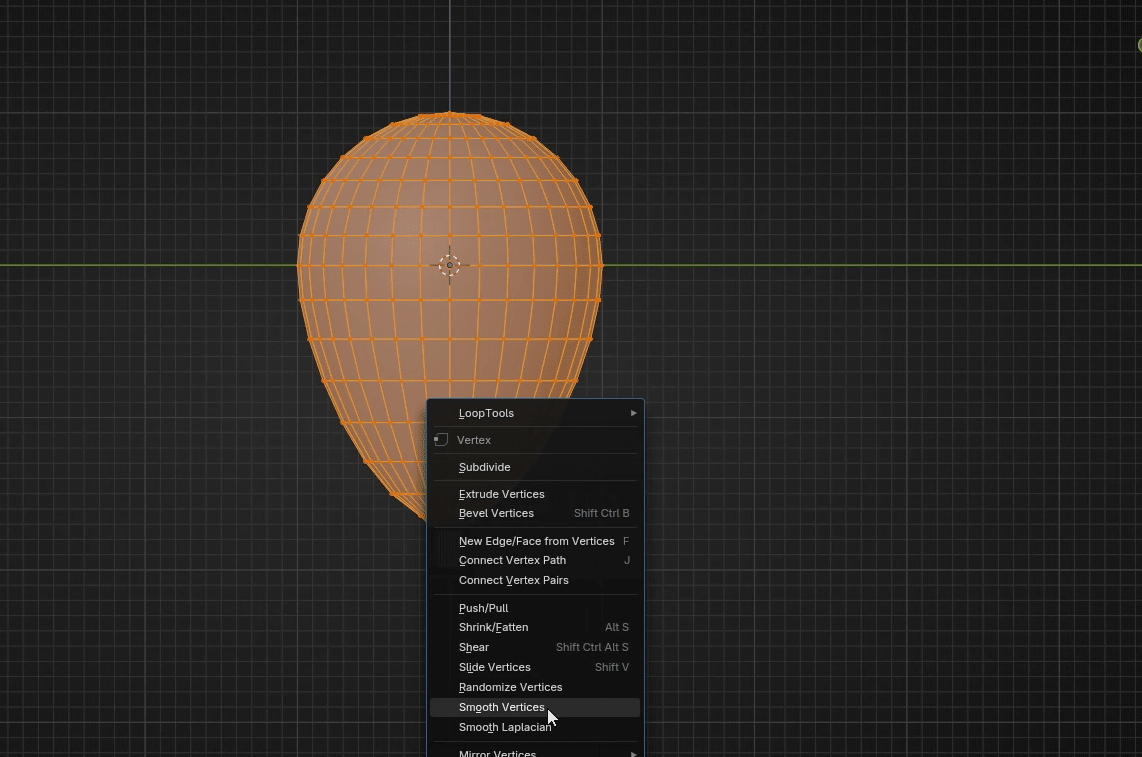
You can see that the new toolbar appeared in the left bottom corner - Smooth Vertices.
Beginners guide to Blender
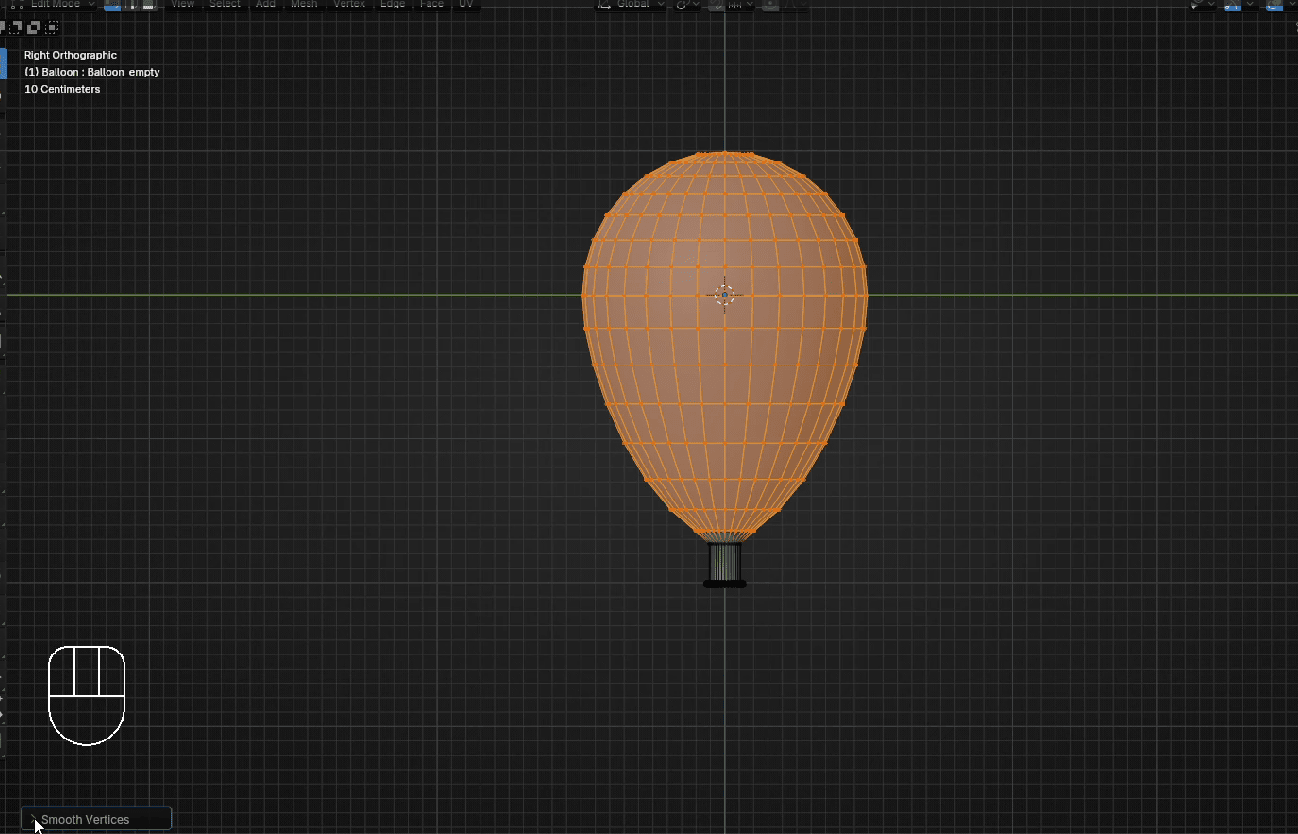
When you click on it, new options appeared
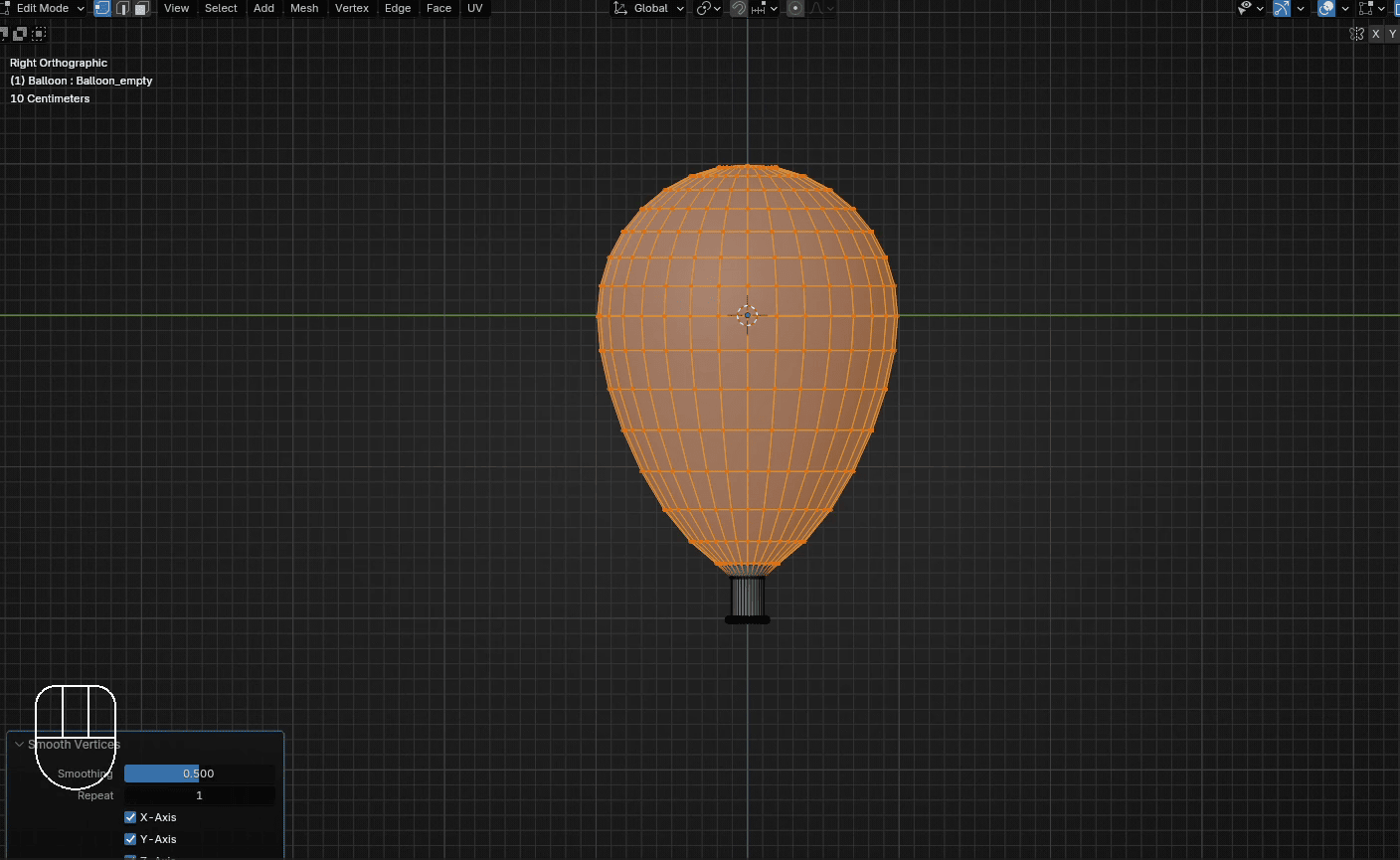
We will change Smoothing from 0.5 to 1
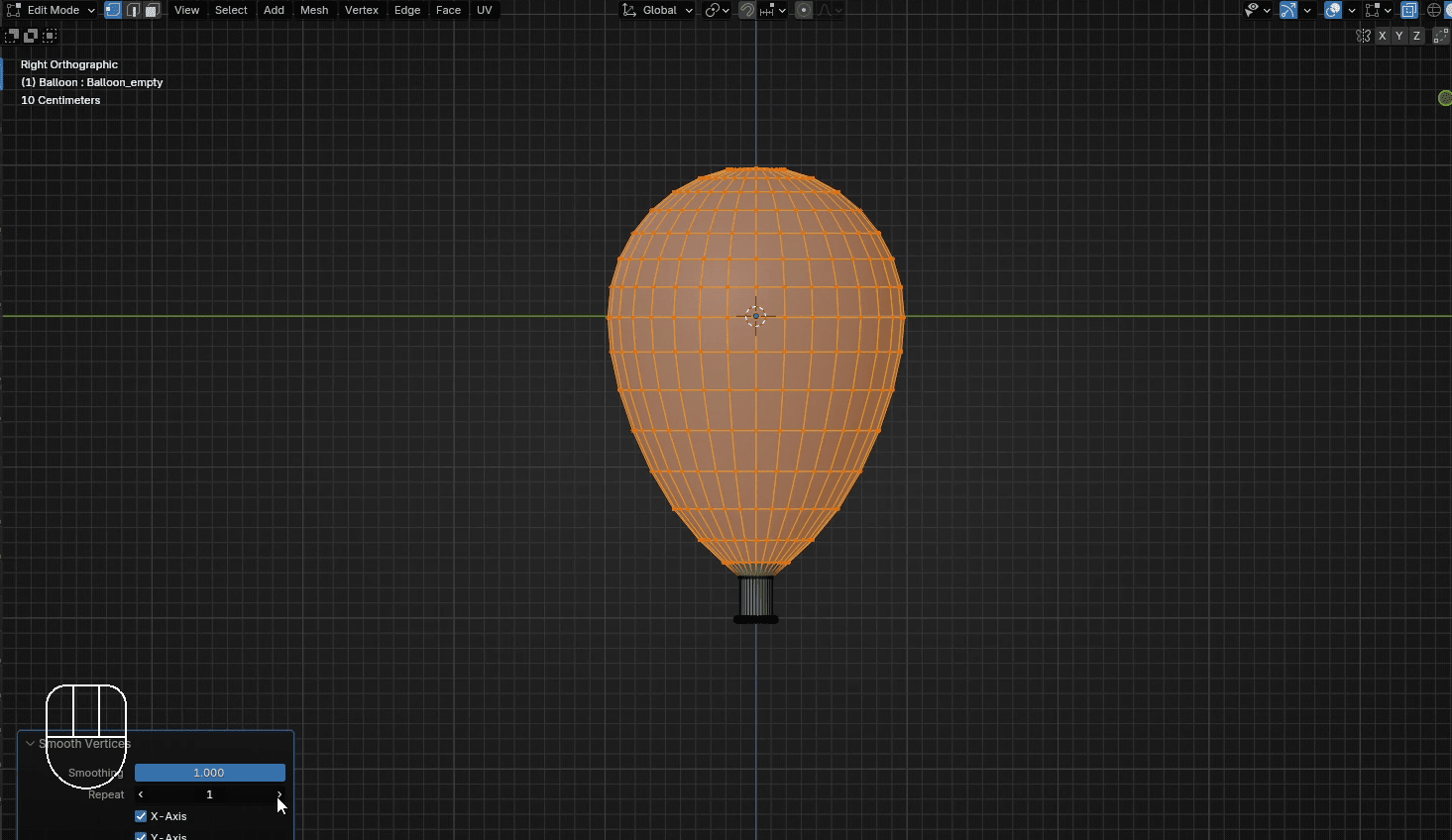
And change repeat to around 55
Beginners guide to Blender
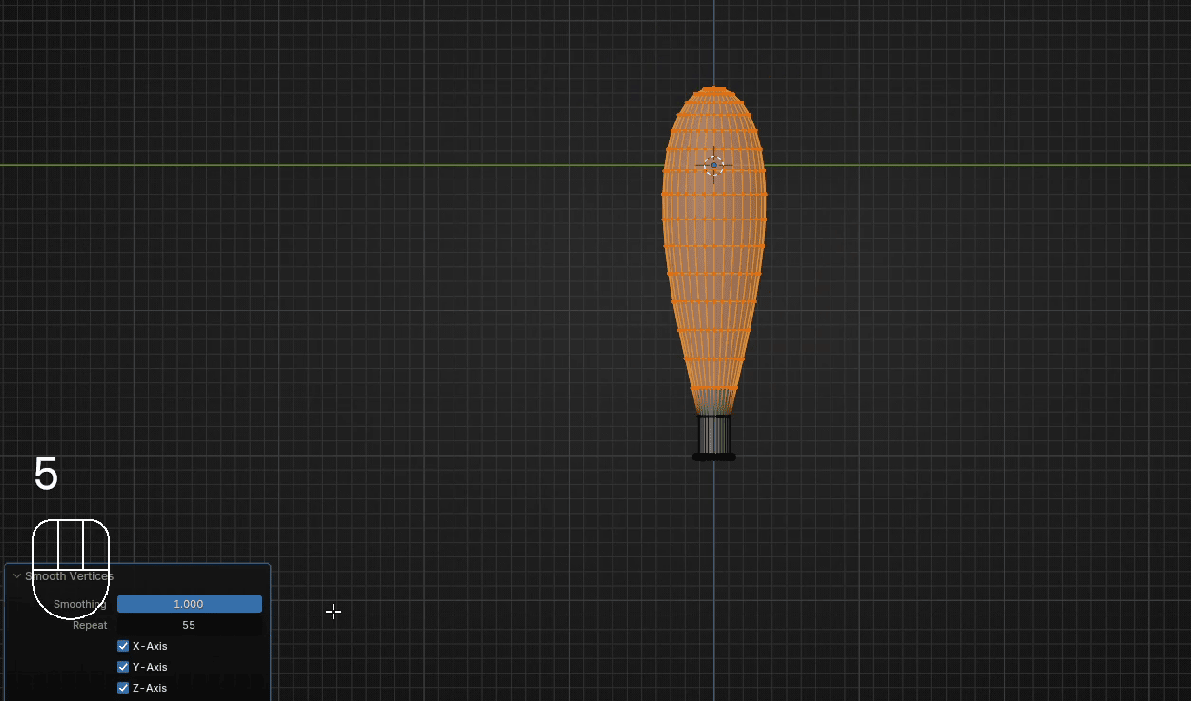
Scale it with “S+Z” for around 0.6
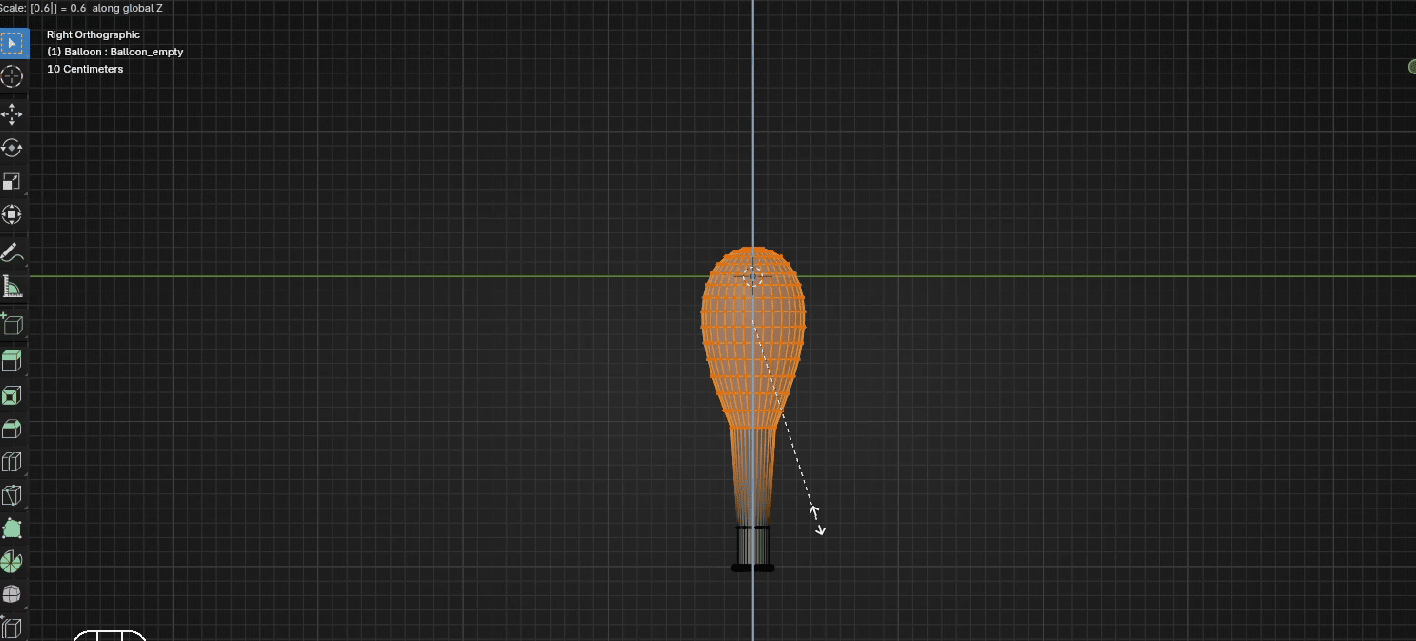
And move it with “G+Z” for around -0.55
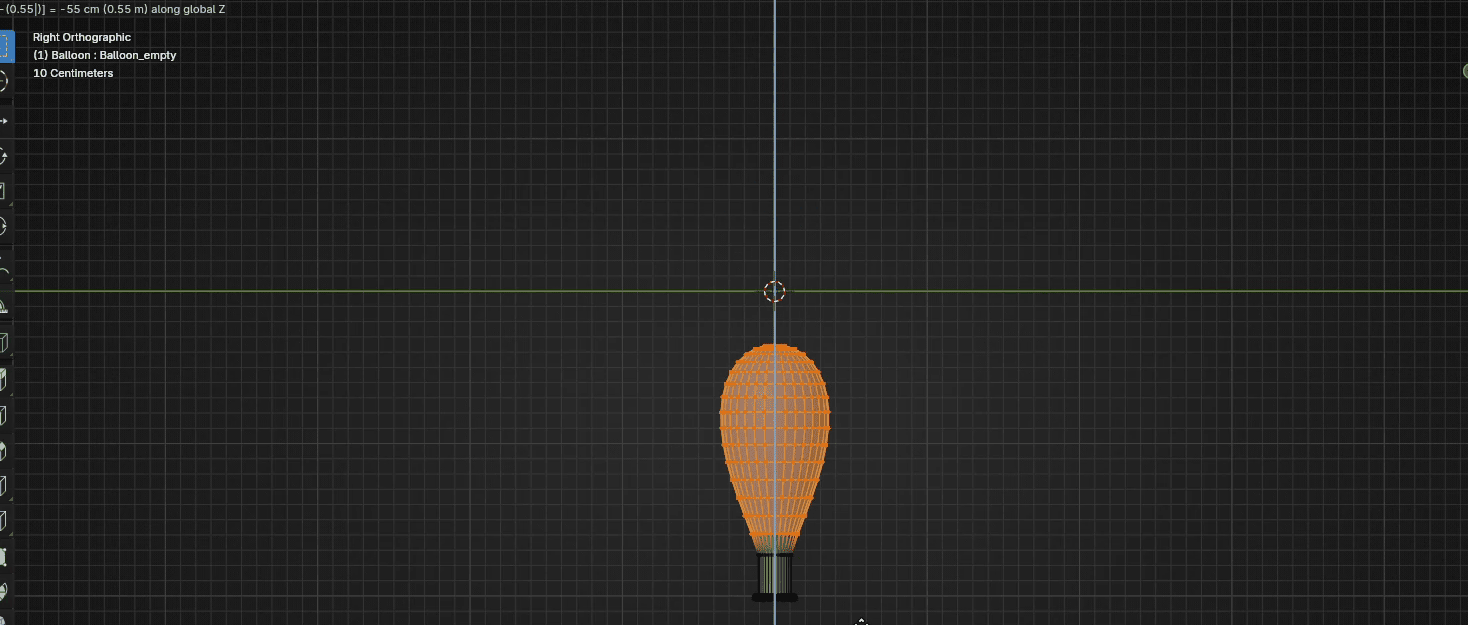
Turn on the Proportional editing with “O” or by clicking here
Beginners guide to Blender
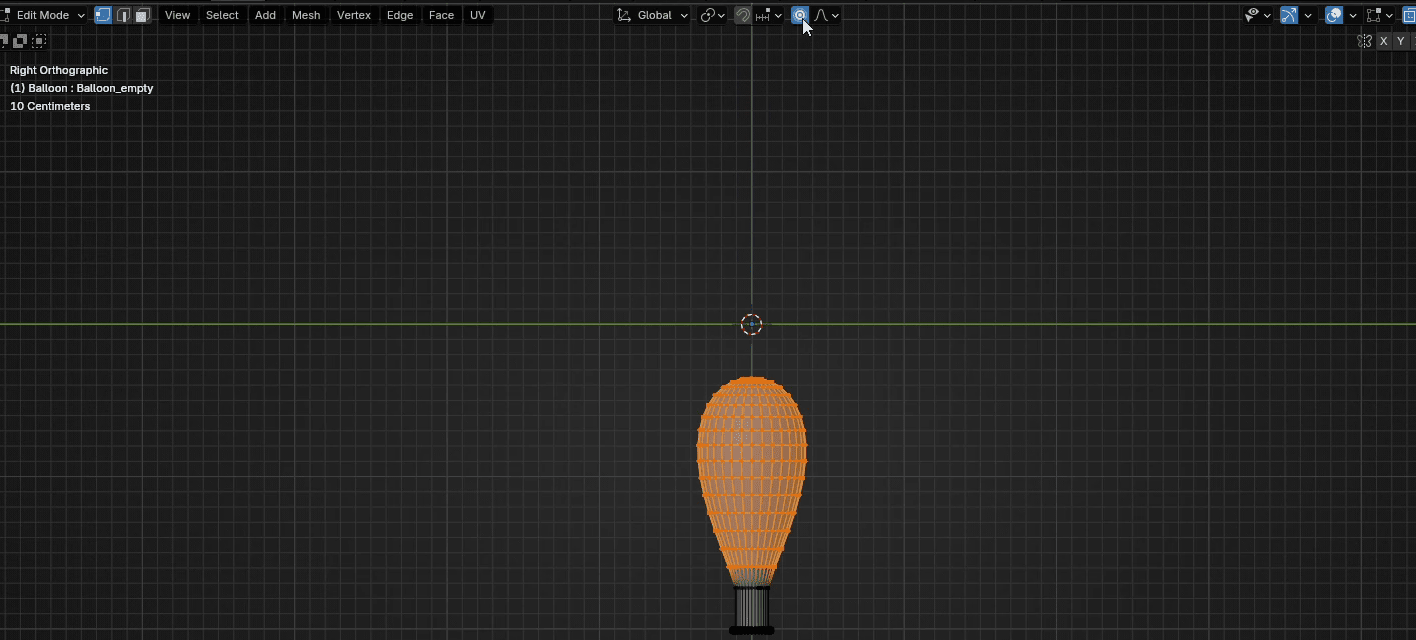
Turn off the X-ray mode with “ALT+Z”
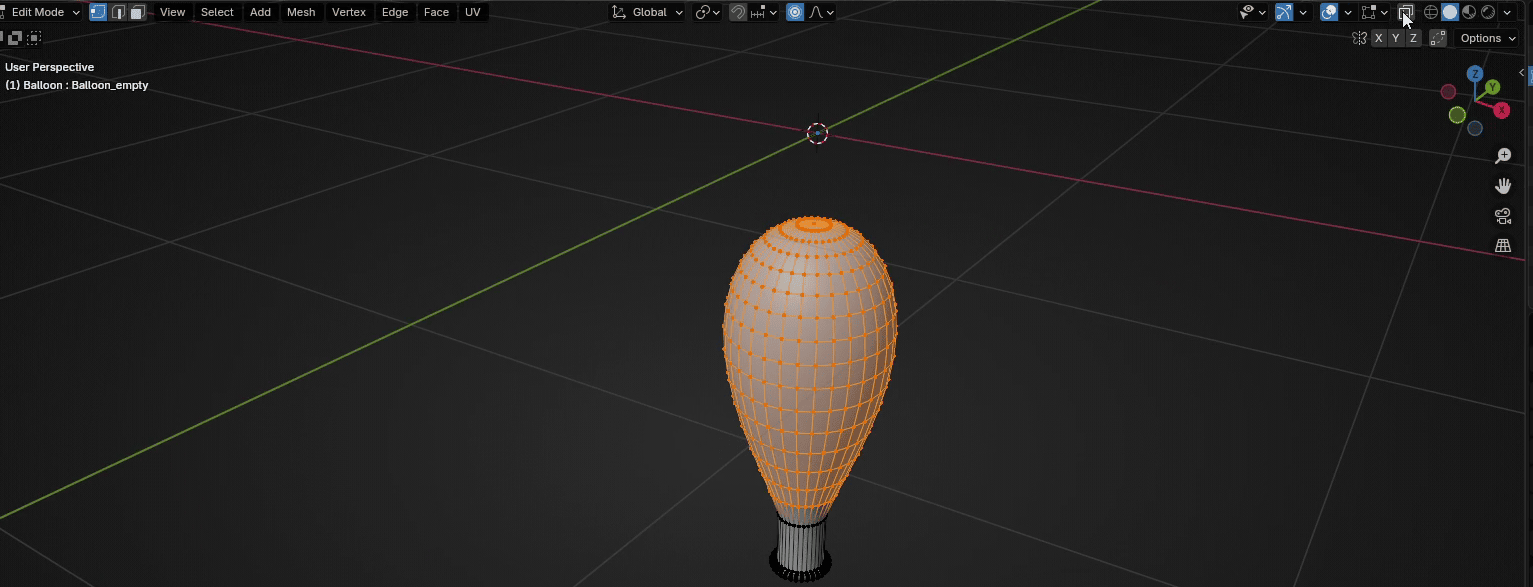
Scale it with “S+X” for around 0.69
Beginners guide to Blender
and scroll the mouse wheel down so your area of influence (Proportional size) is somewherearound 0.39.
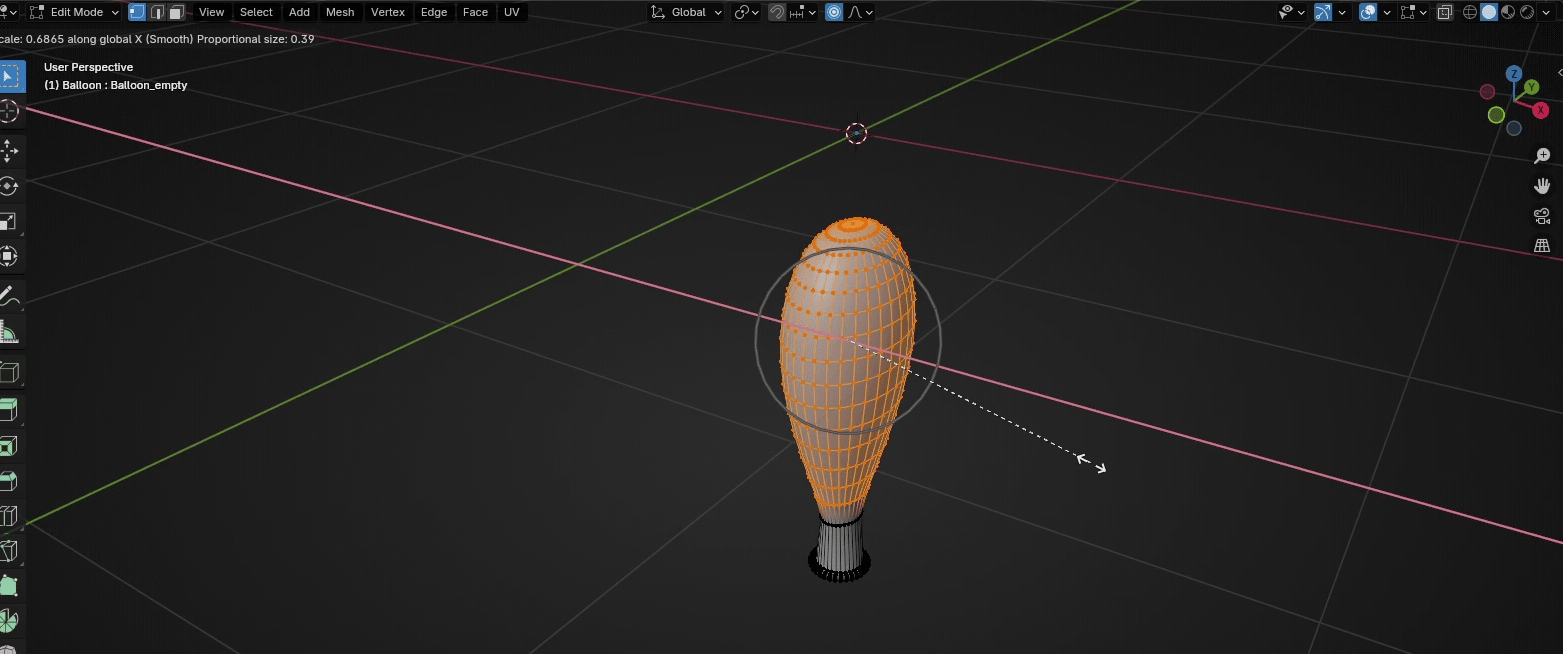
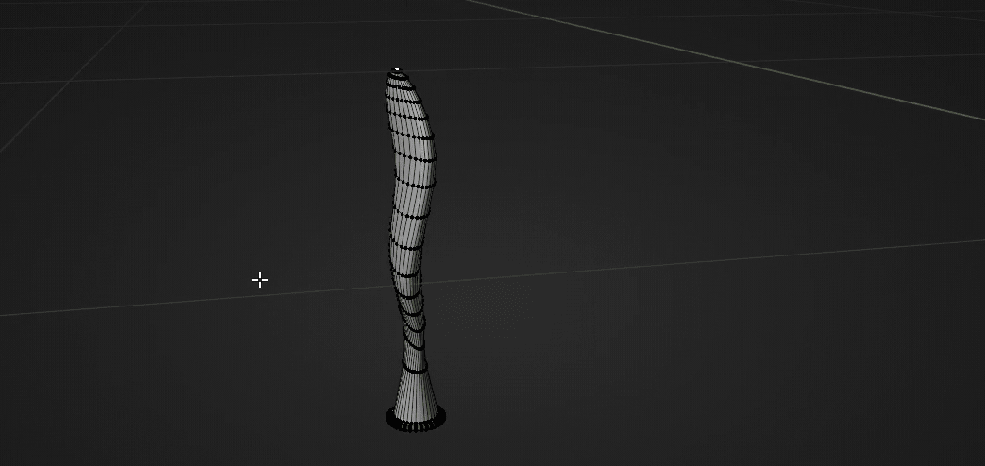
After that scale it more with “S+X”so your balloon will look more deflated.
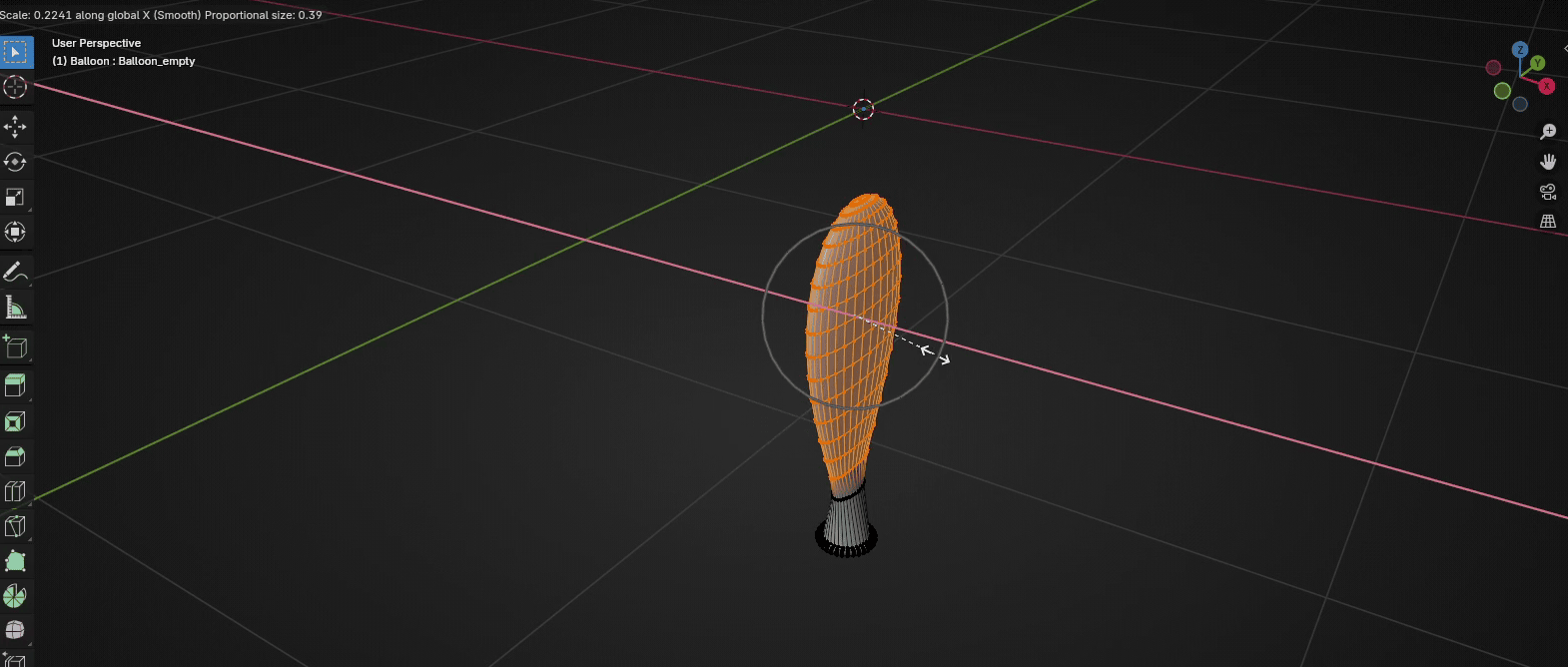
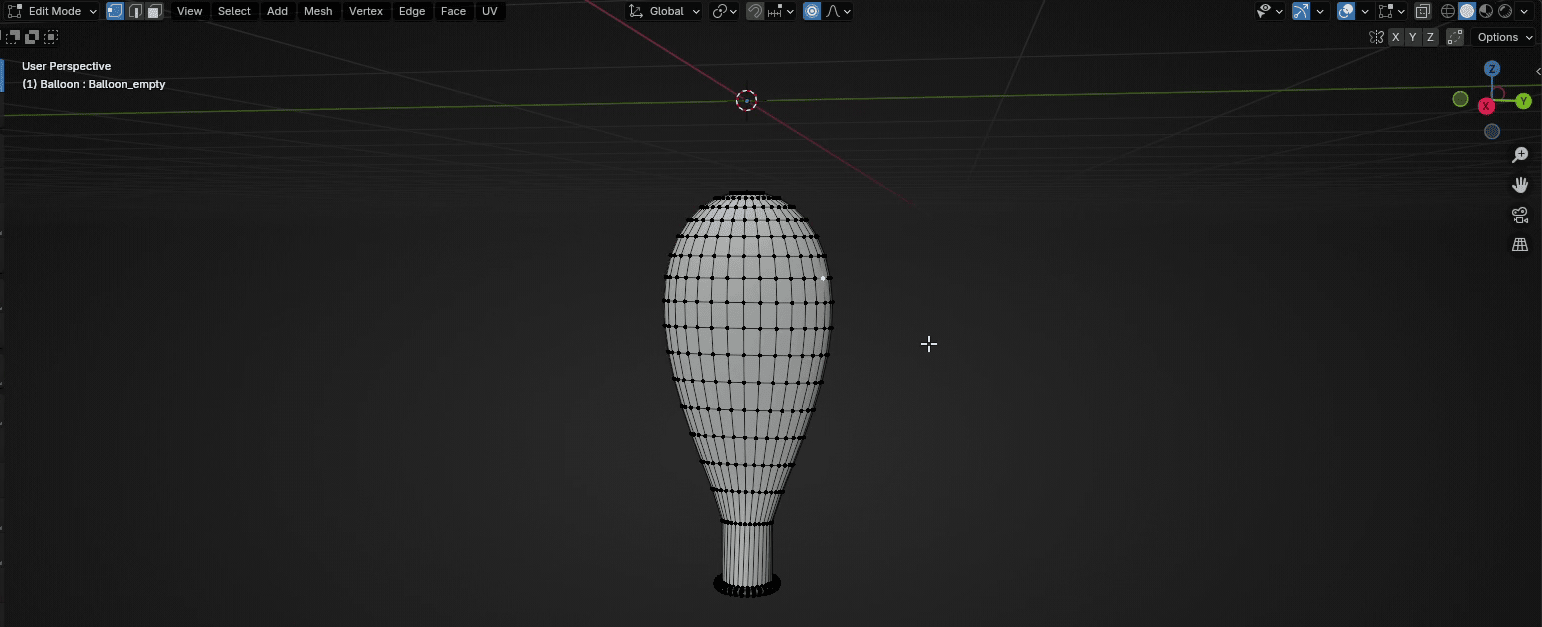
To improve look of your deflated ballon more, you can select a random vertex and move itaround with a “G”.
Beginners guide to Blender
For example I selected this vertex and moved it a bit with proportional editing turned on.
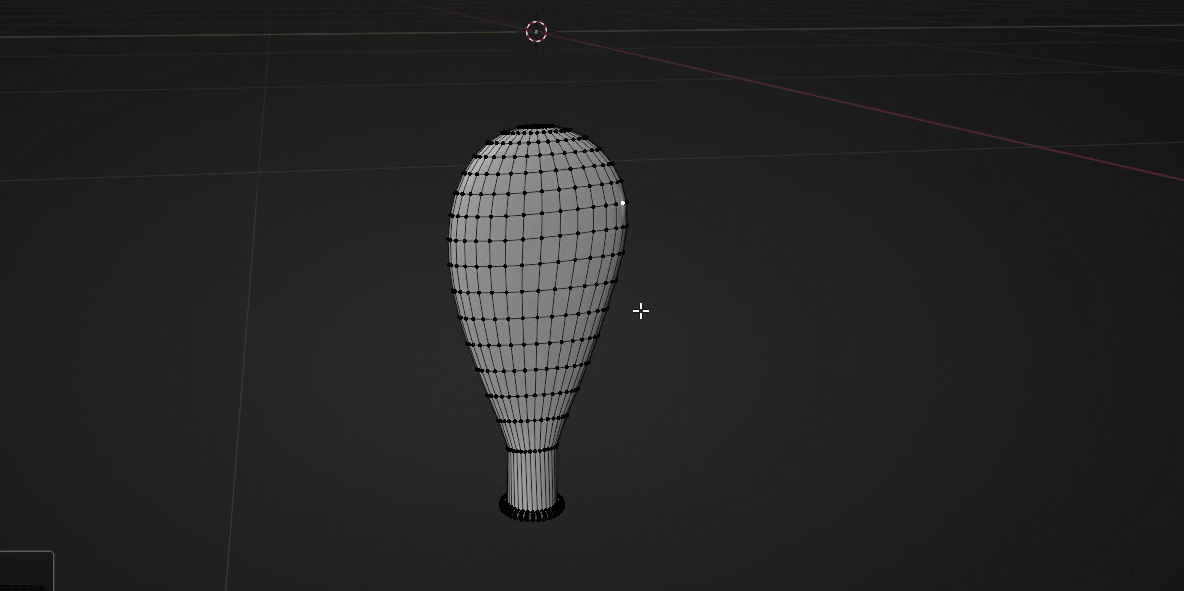
I did the same with this vertex
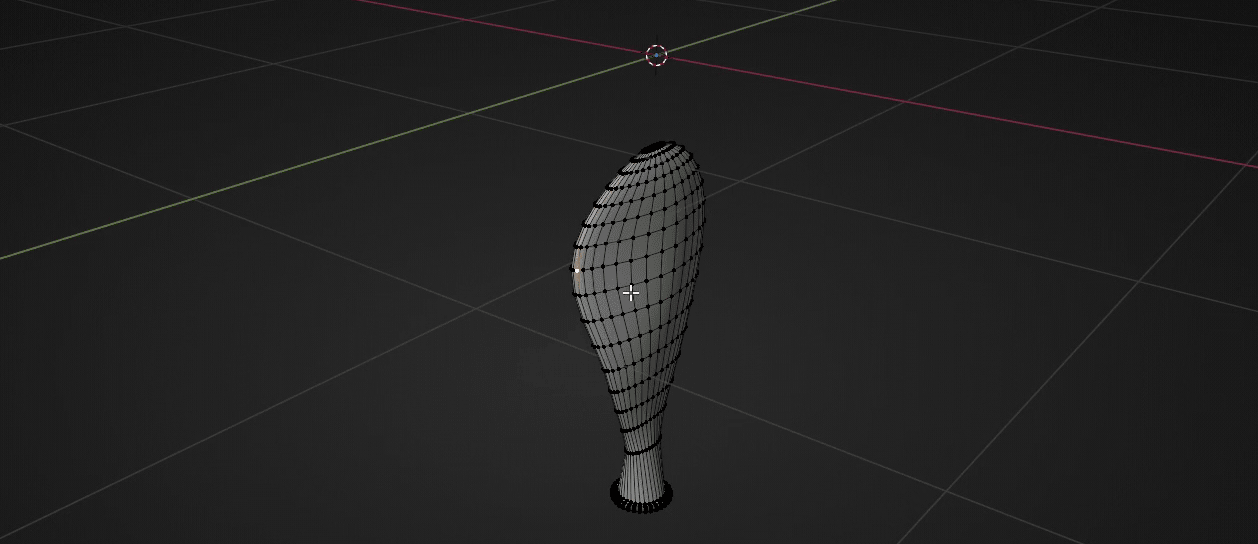
and this
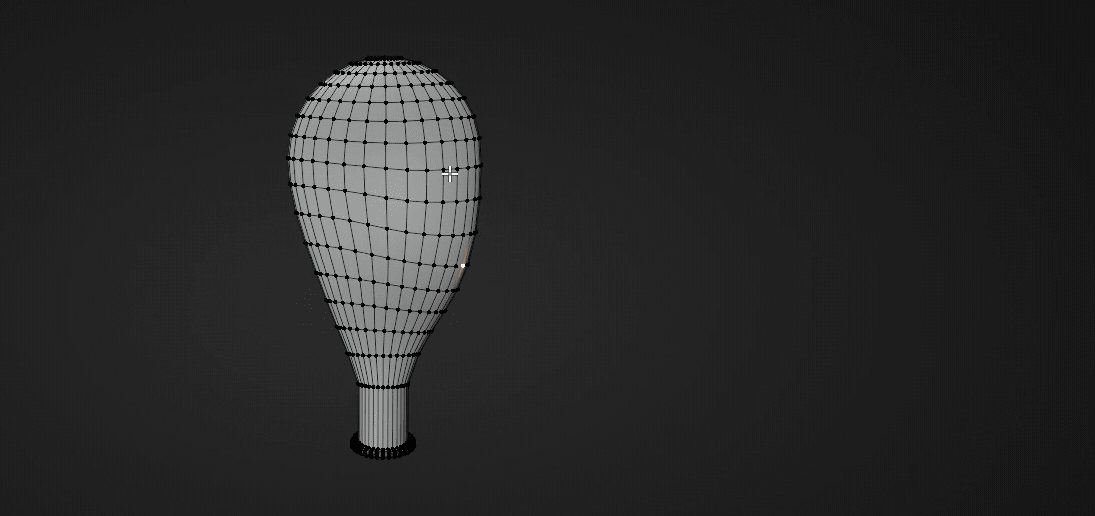
and this
Beginners guide to Blender
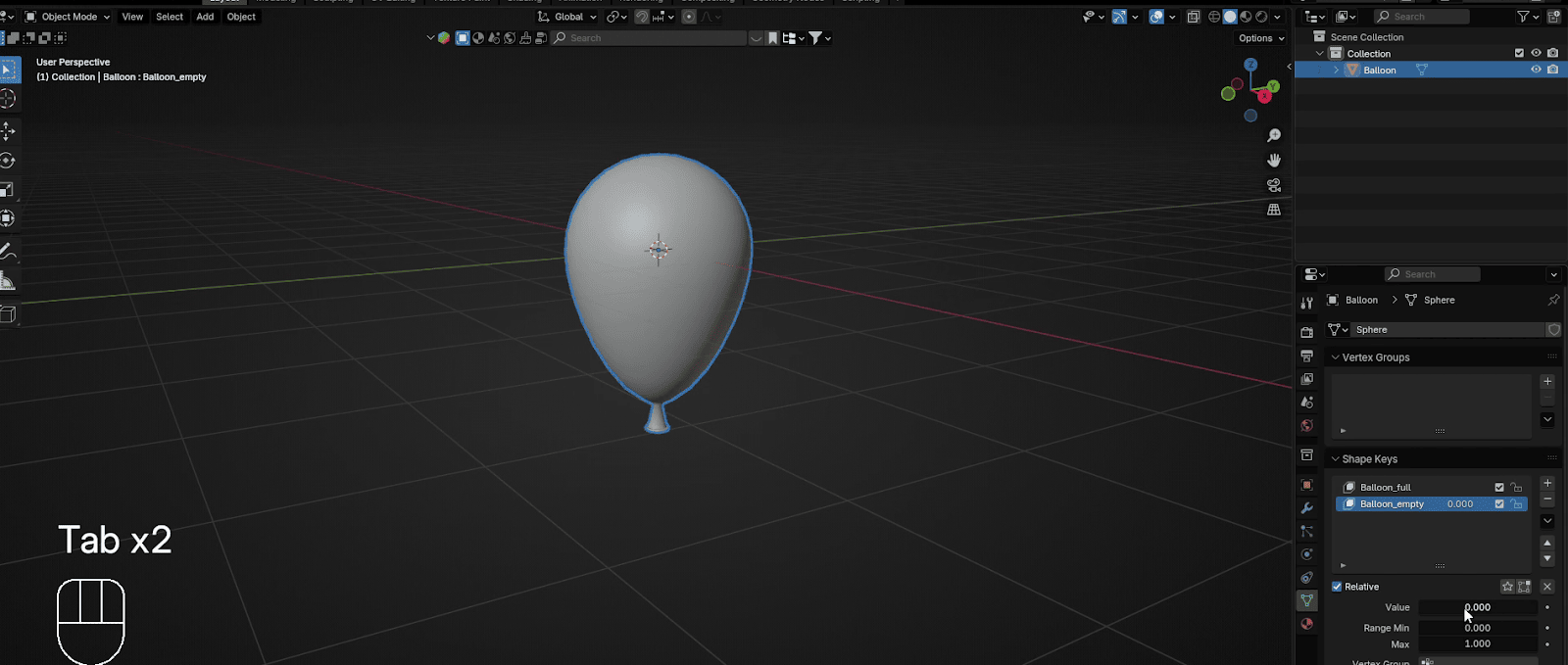
If you switch to object mode with “TAB”, your balloon will be full again. That is because valueof the second shape key is set to 0.
As you are moving the value towards 1, the balloon becomes more and more deflated.
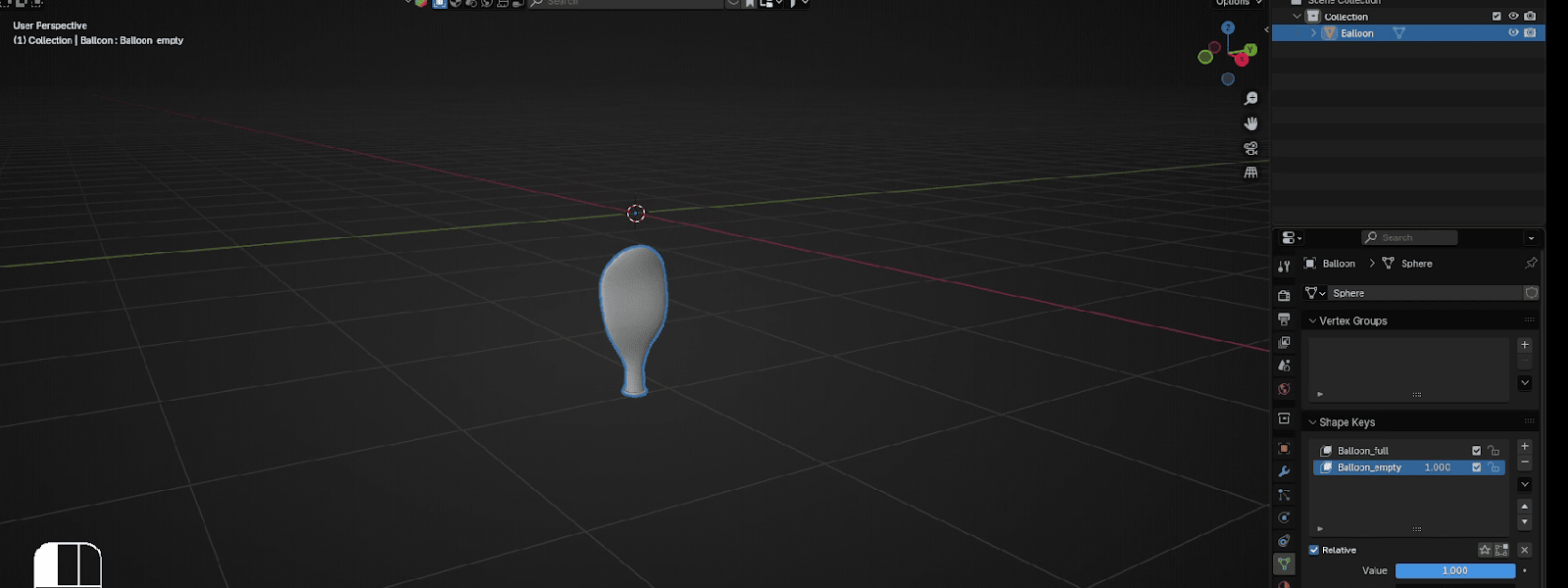
And if you are moving the value towards 0, the balloon become more full again. We will leaveit at 0 so it stays full for now.
Beginners guide to Blender
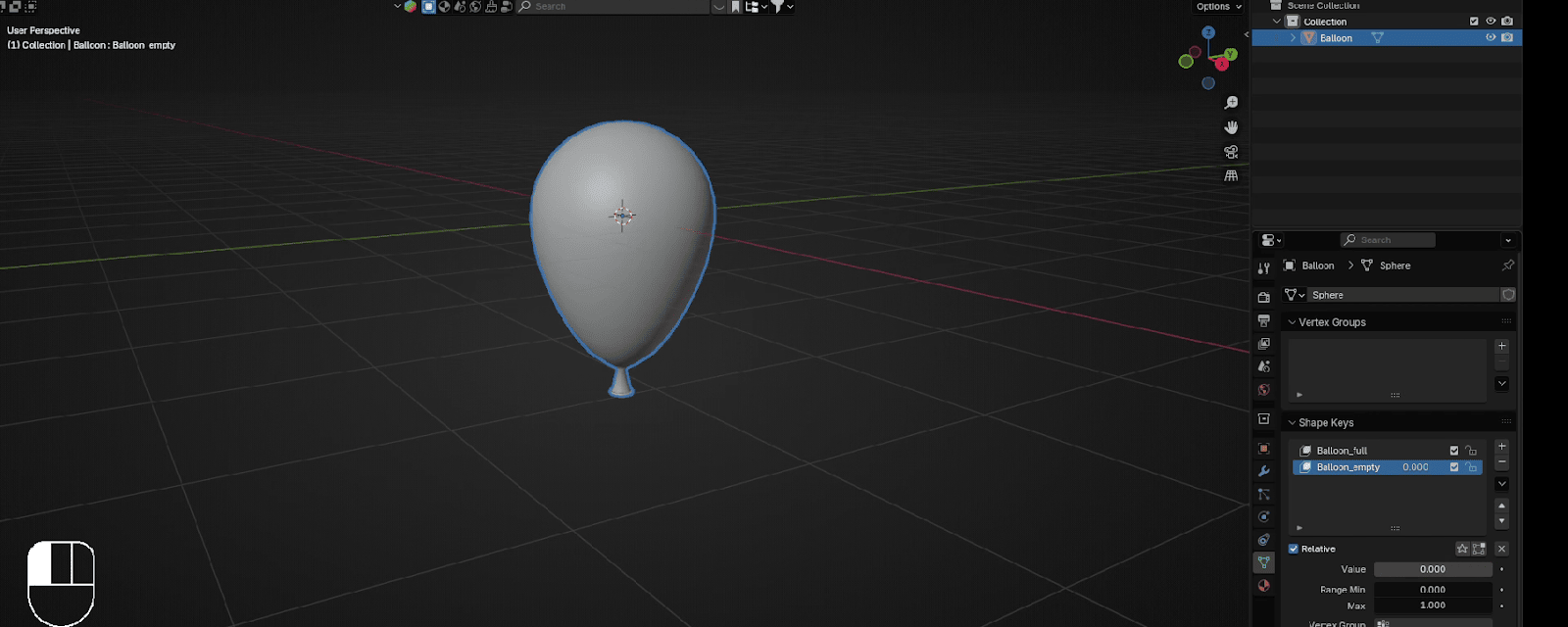
It is time for texturing it. Click on Material properties
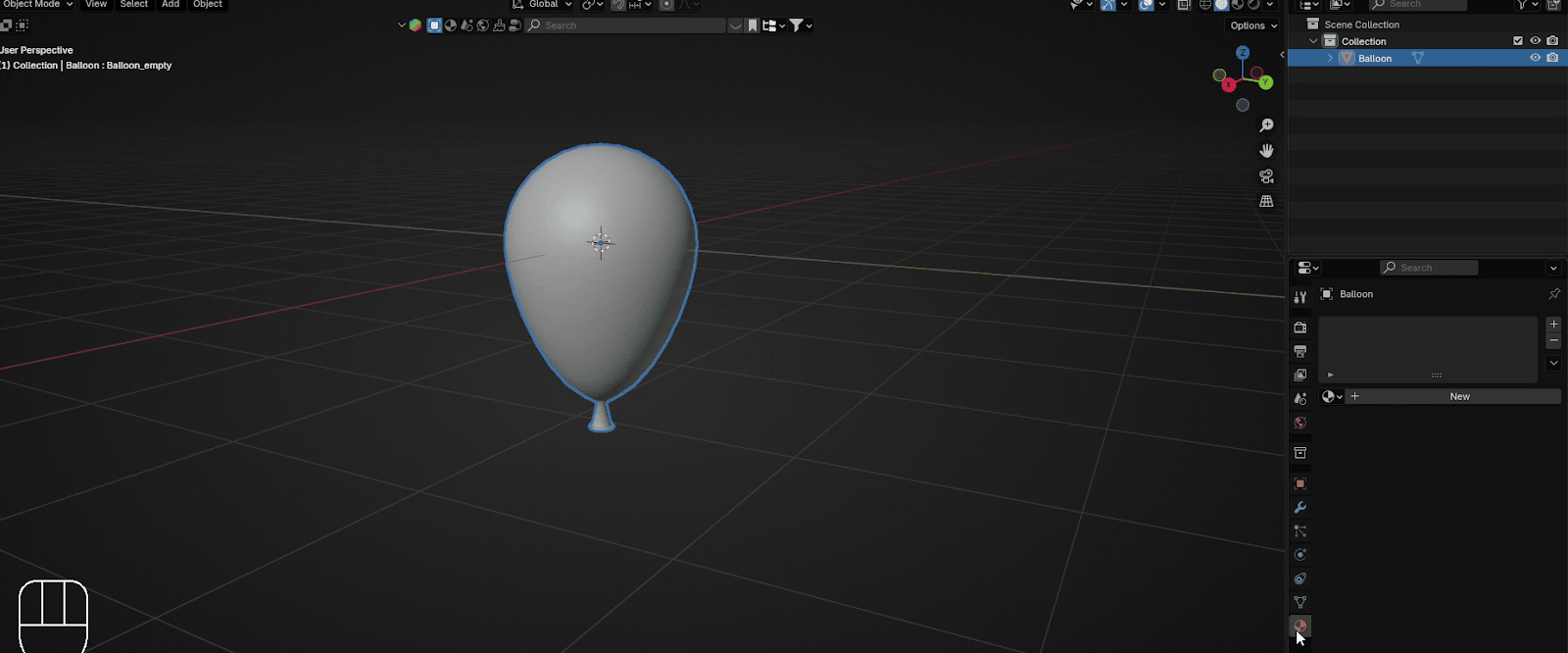
Click on New to add a new material
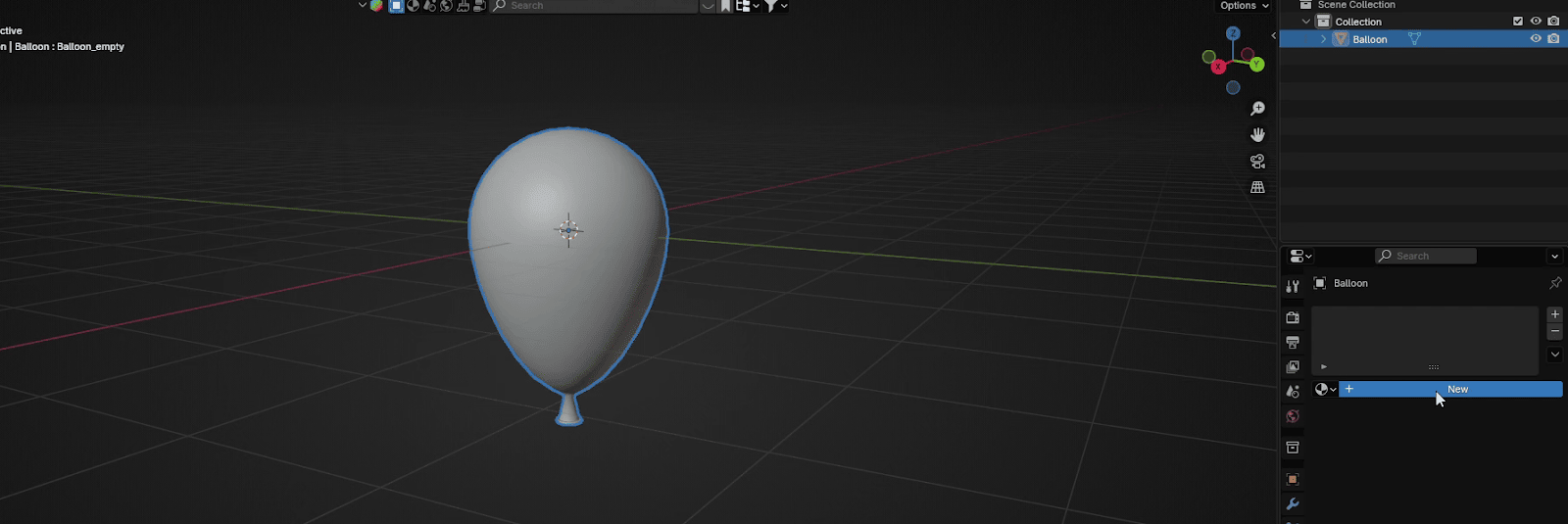
Rename the material to Balloon_red or anything else you want.
Beginners guide to Blender
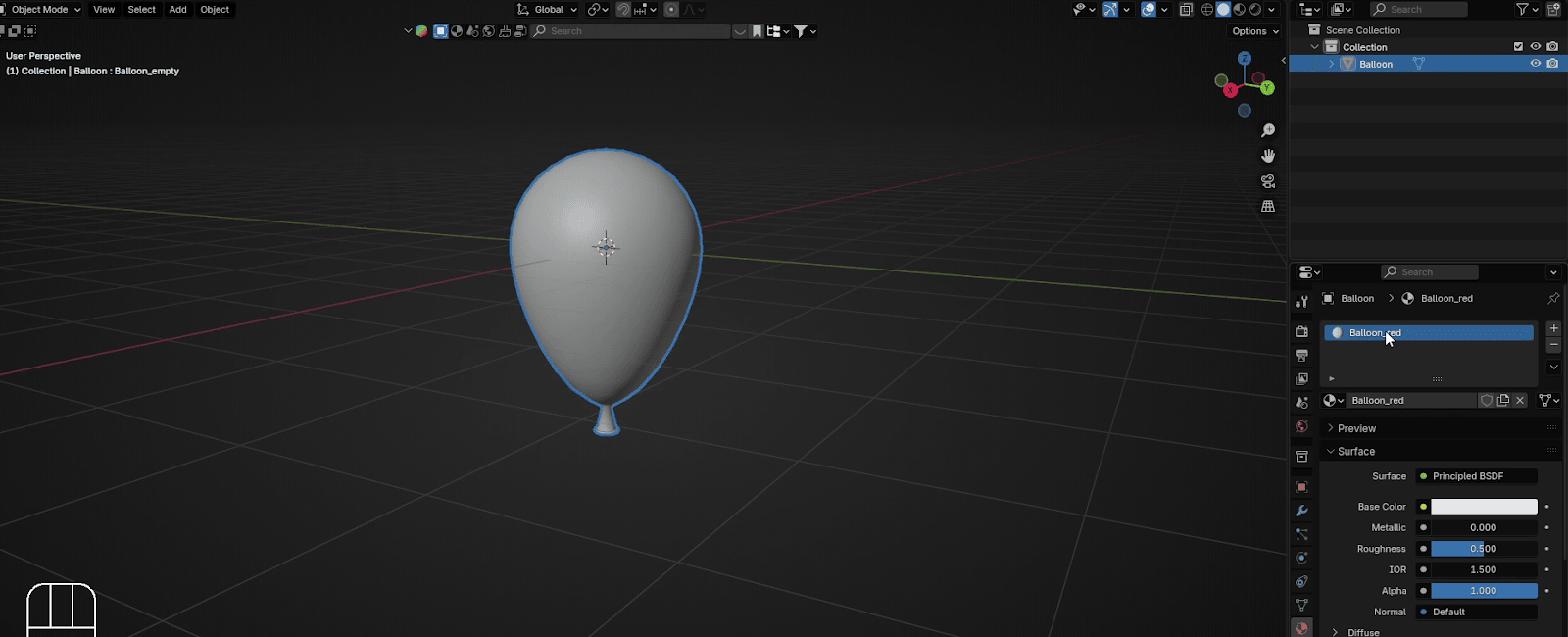
Switch to Material Preview mode by clicking here
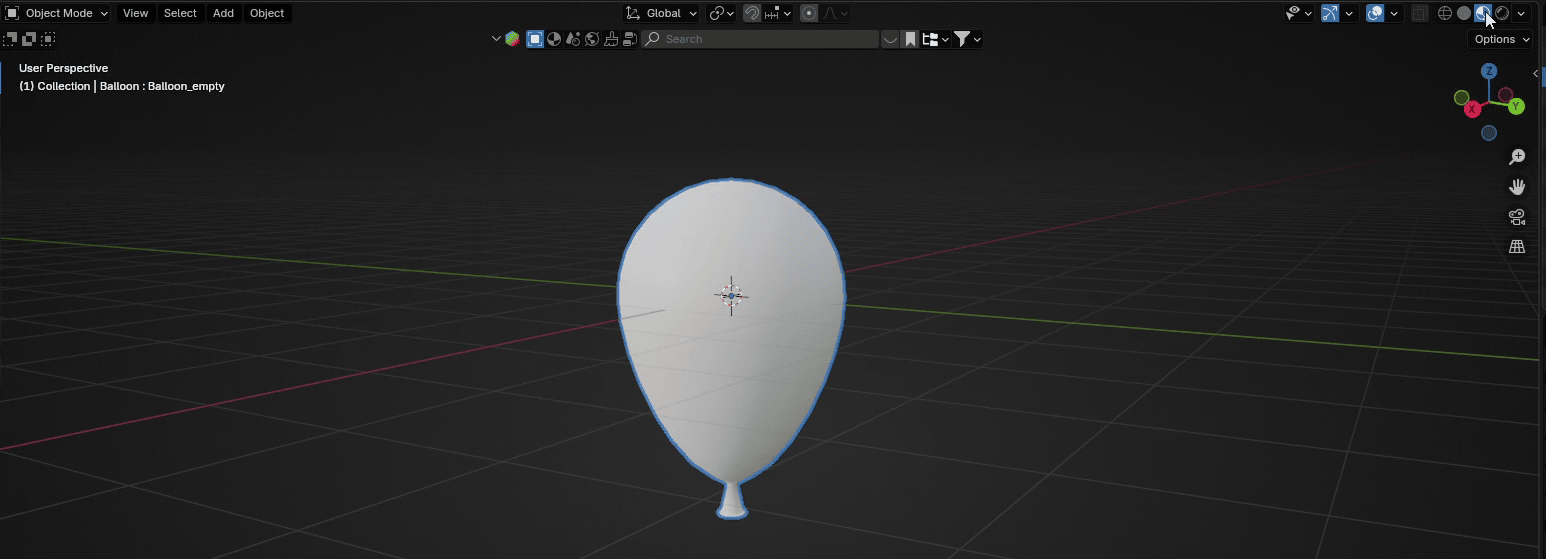
Place the cursor on the upper side of the screen as shown, and when you see plus,
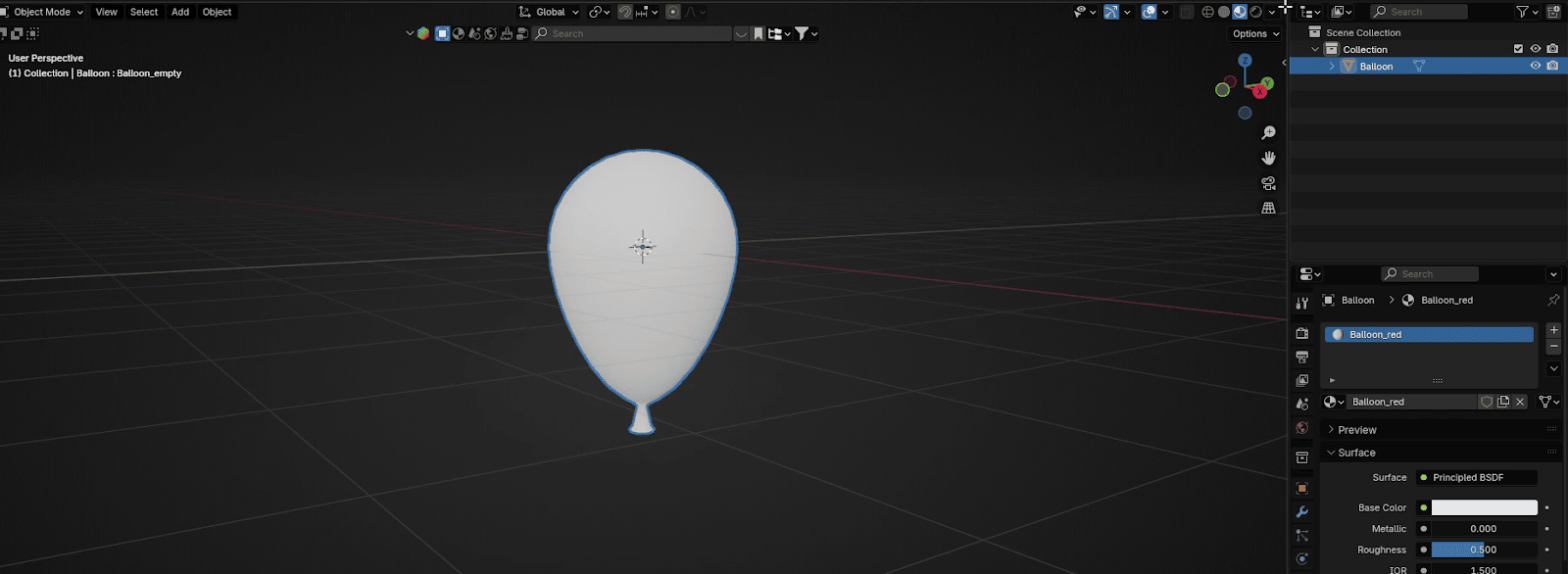
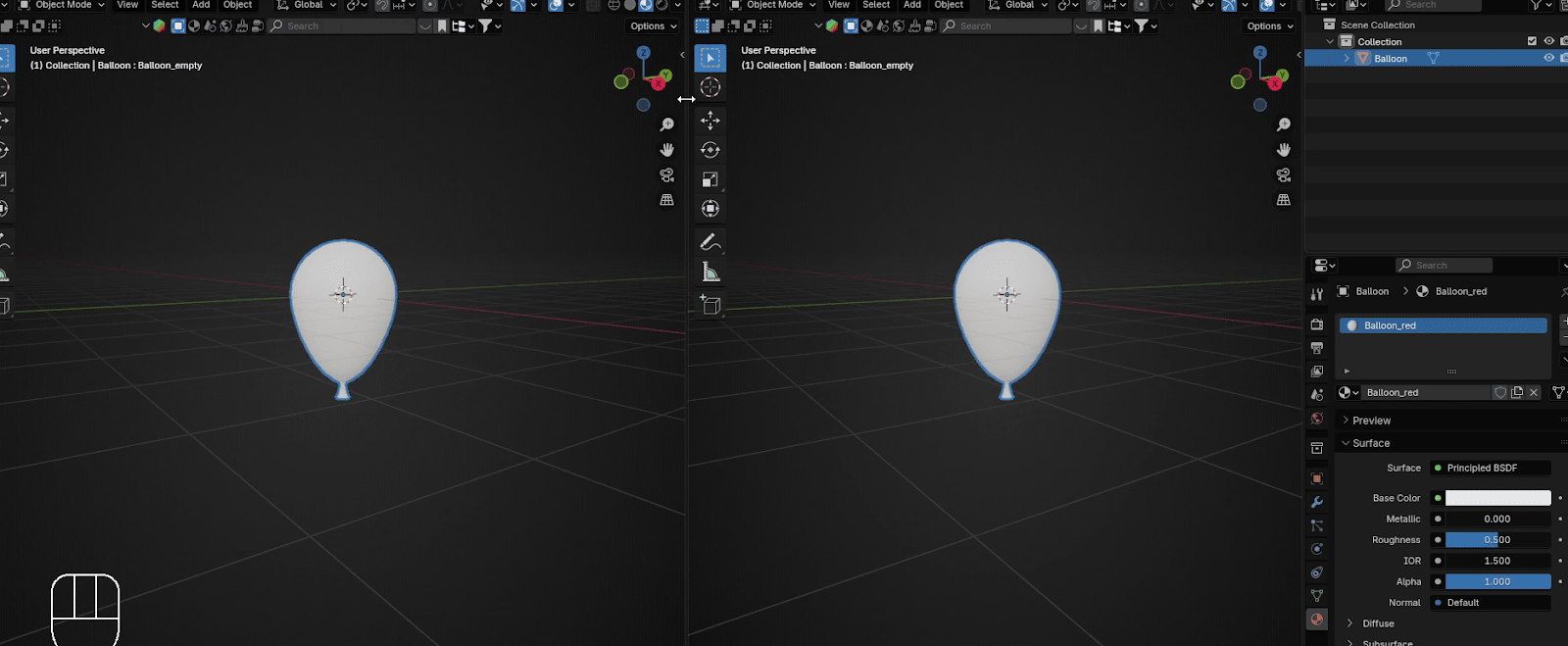
just pull it down to the left while holding the left mouse click.
Beginners guide to Blender
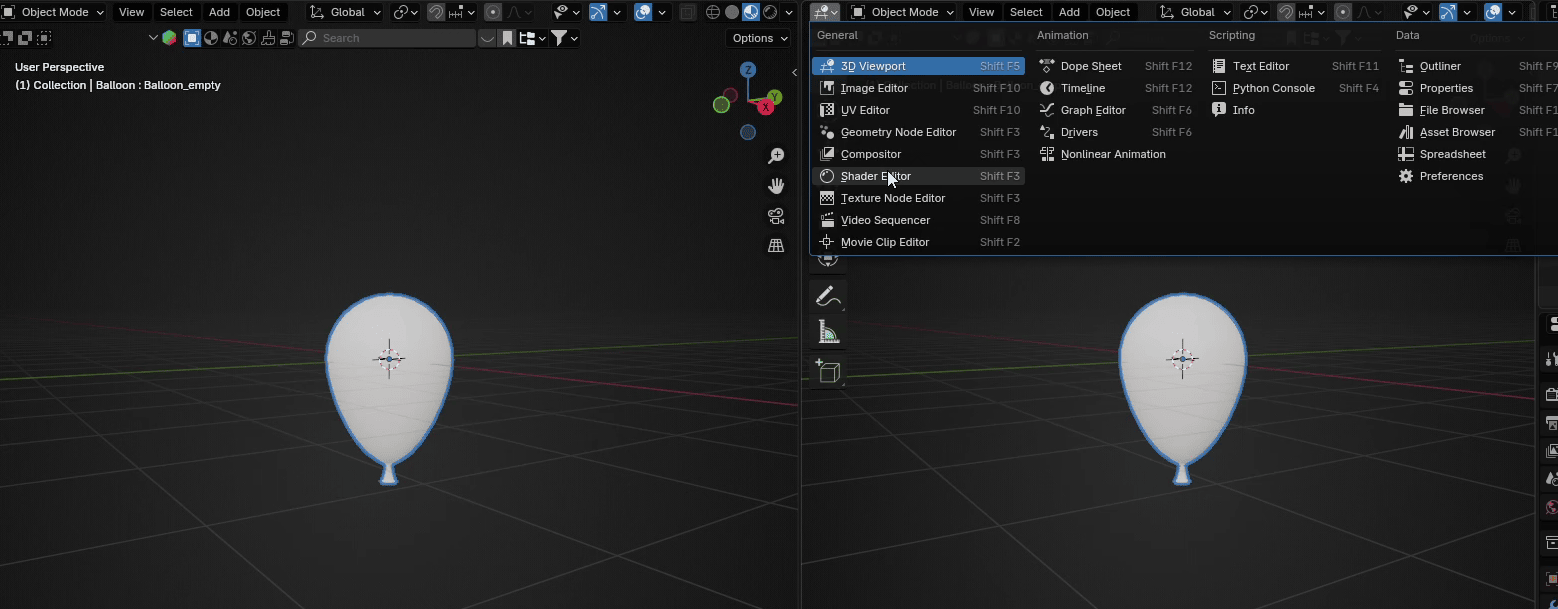
Switch from 3D viewport to Shader editor.
Change the Base color to any color you want. I chose red.
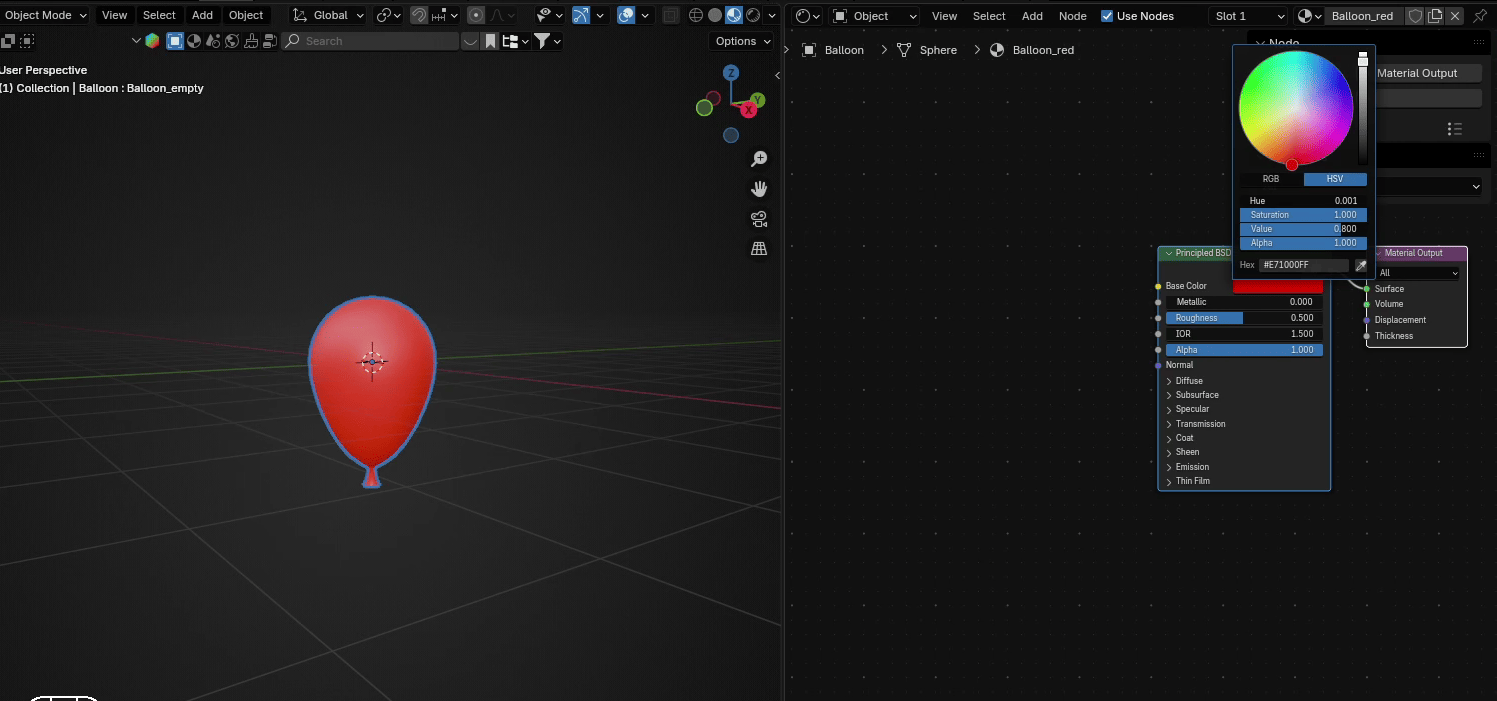
Change Alpha to 0.5
Beginners guide to Blender
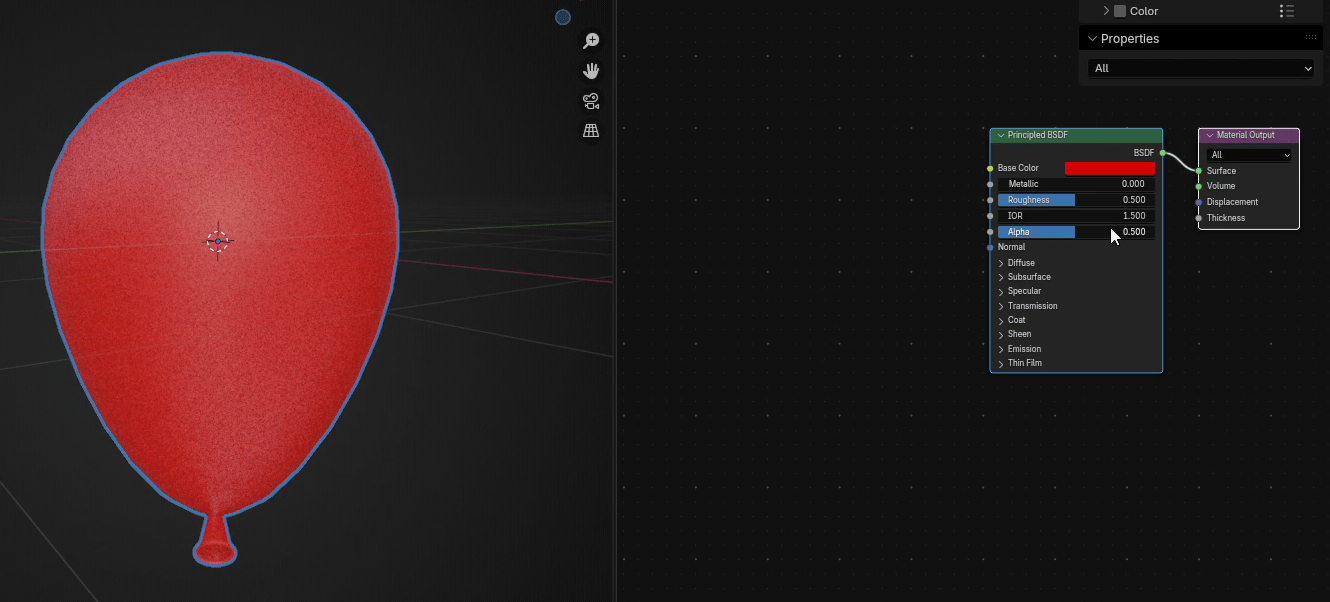
Change Roughness to 0.3
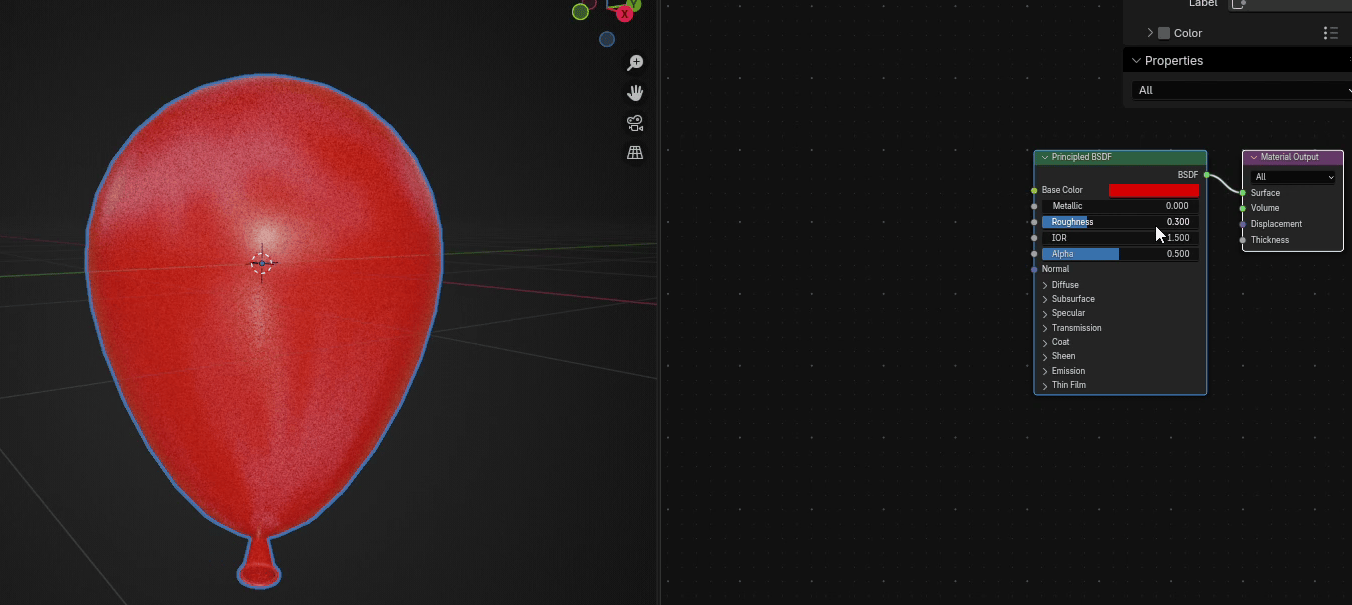
Position the mouse to the Base color that you choose and copy it with “CTRL+C”
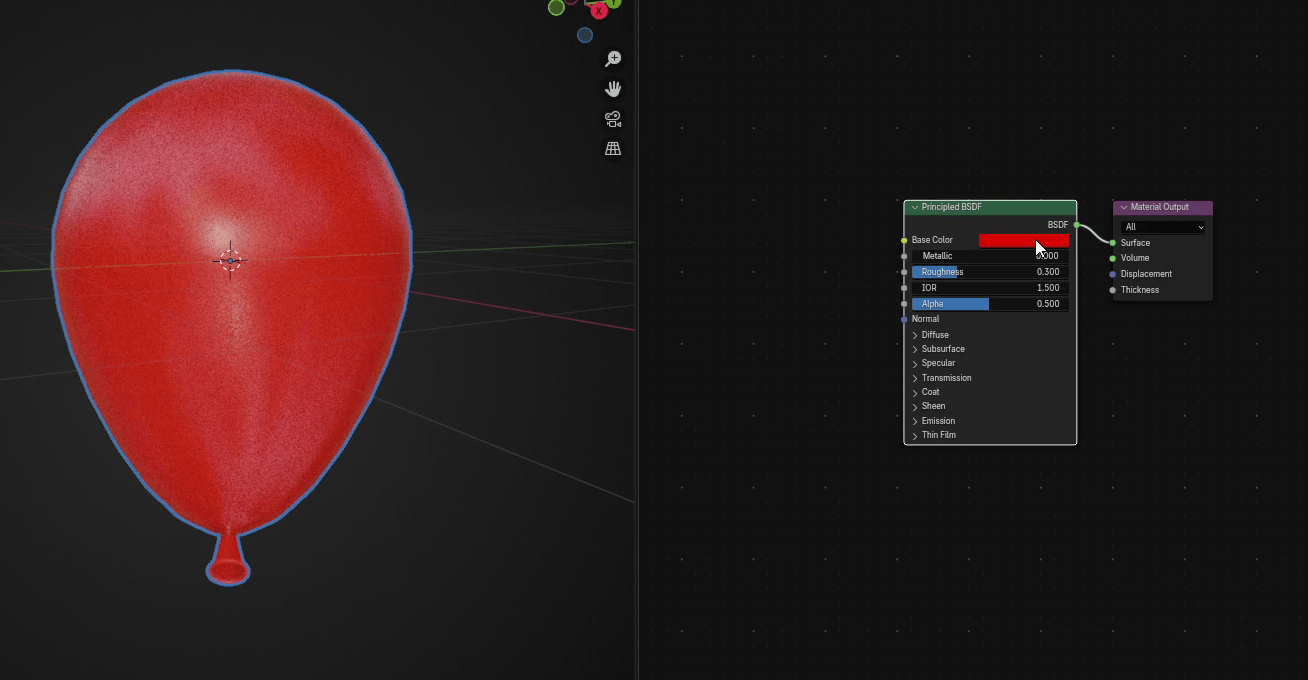
Duplicate the whole Principled BSDF with “SHIFT+D” and move it down a bit
Beginners guide to Blender
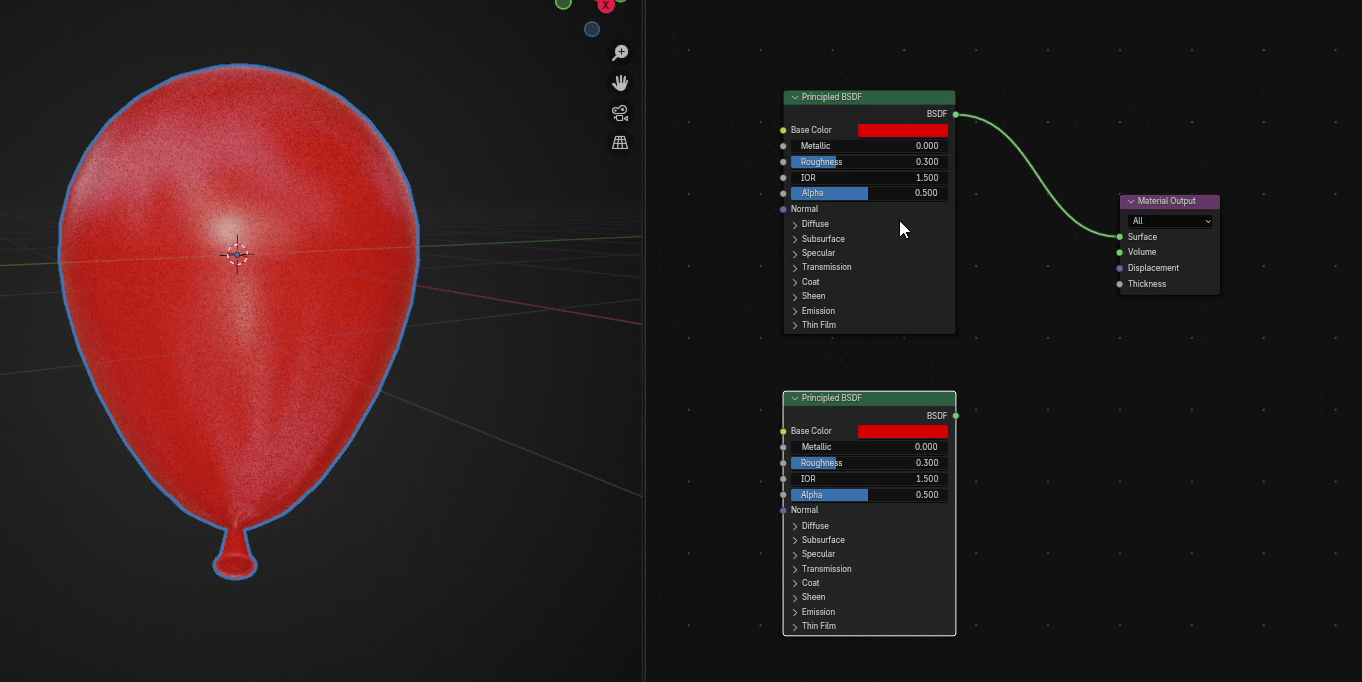
Go to Add → Shader → Mix Shader
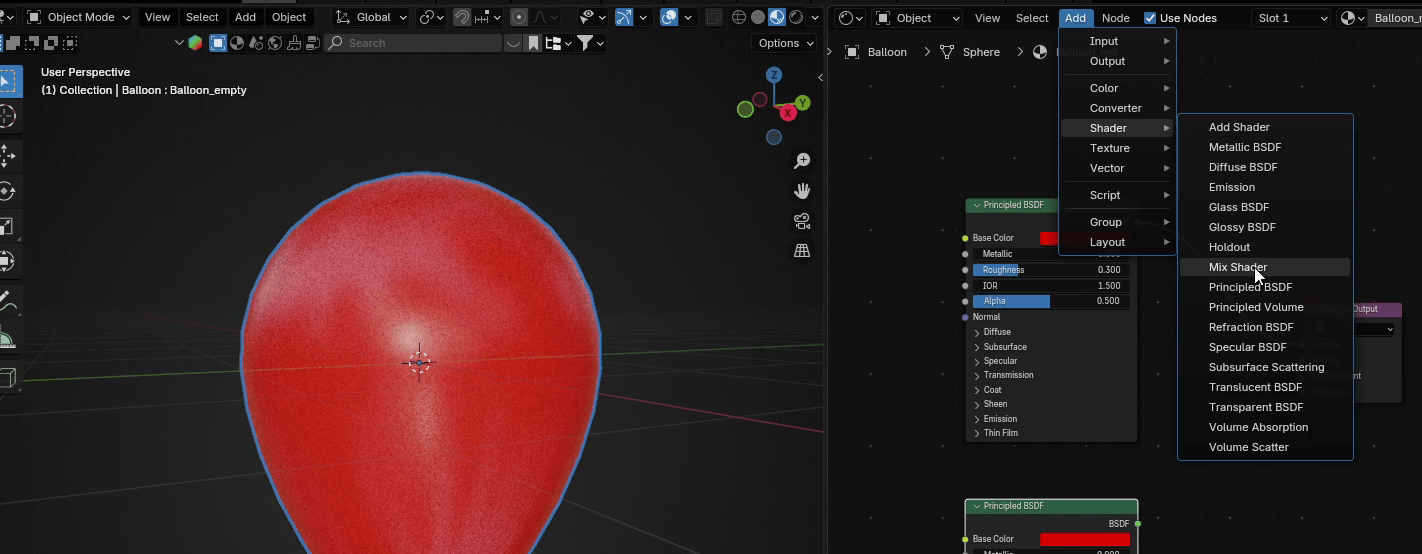
And put it between the first Principled BSDF and Material Output.
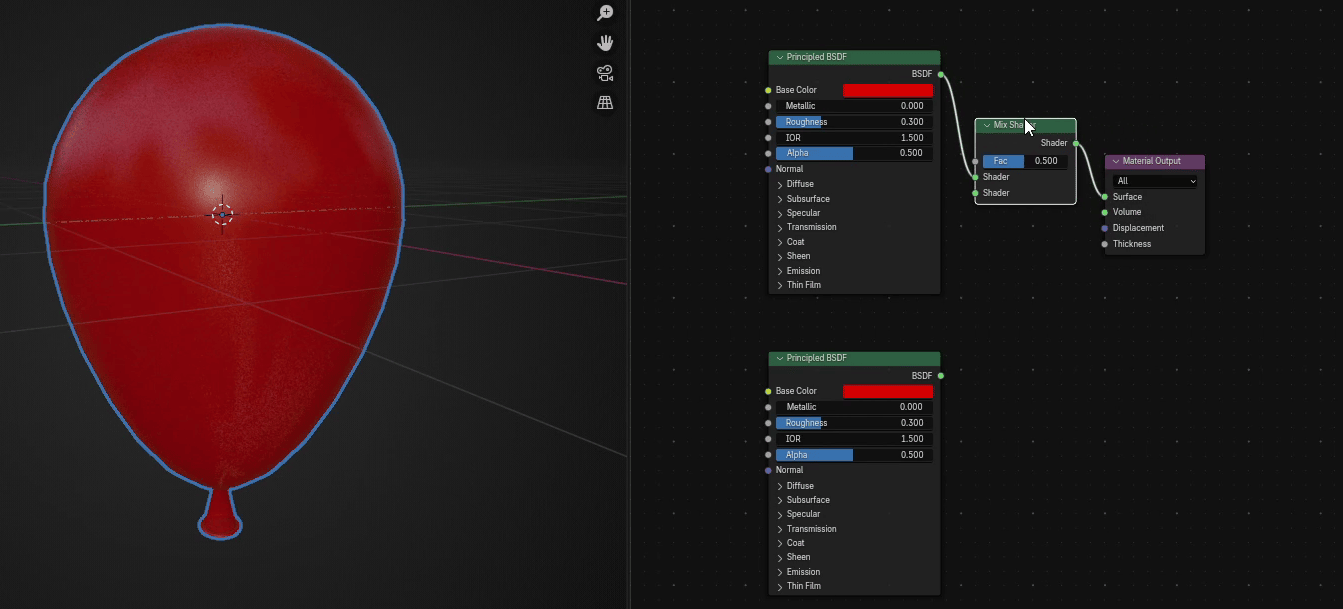
Connect BSDF from second Principled BSDF with Shader from Mix Shader.
Beginners guide to Blender
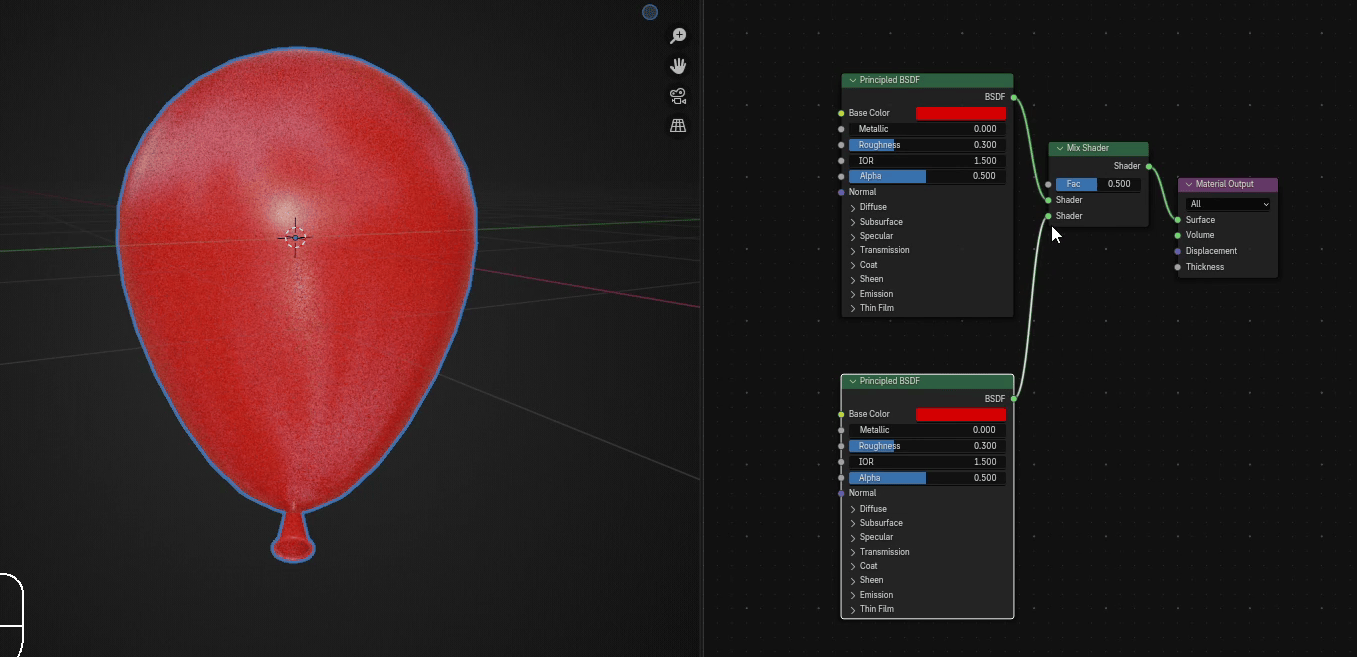
Change Roughness in the second Principled BSDF to around 0.7
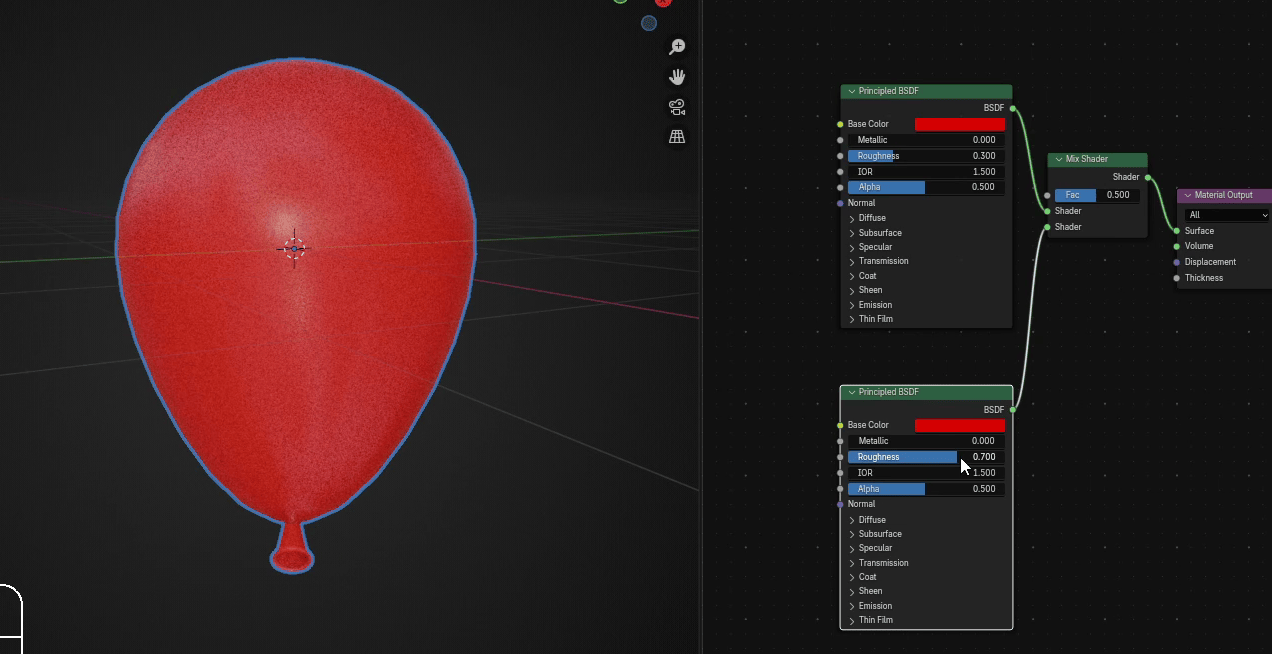
And Alpha to 1
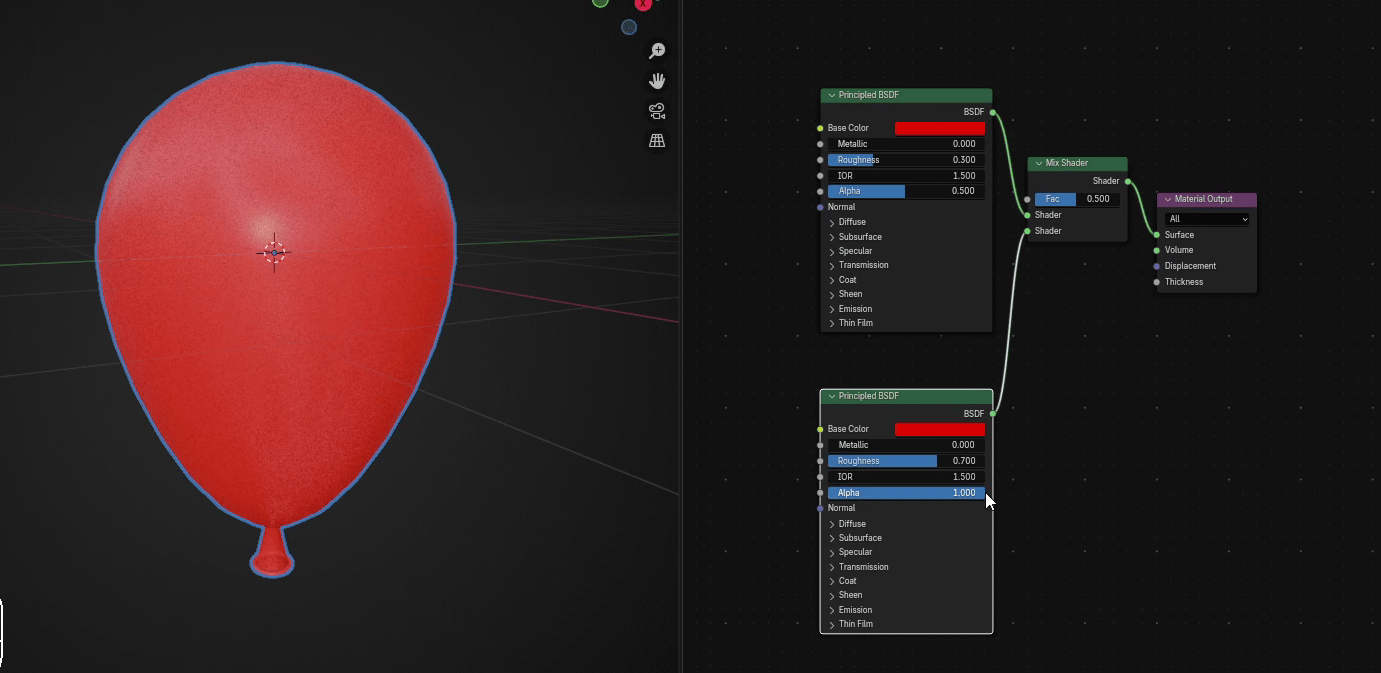
If you change factor in Mix Shader to 0 your balloon will look like this
Beginners guide to Blender
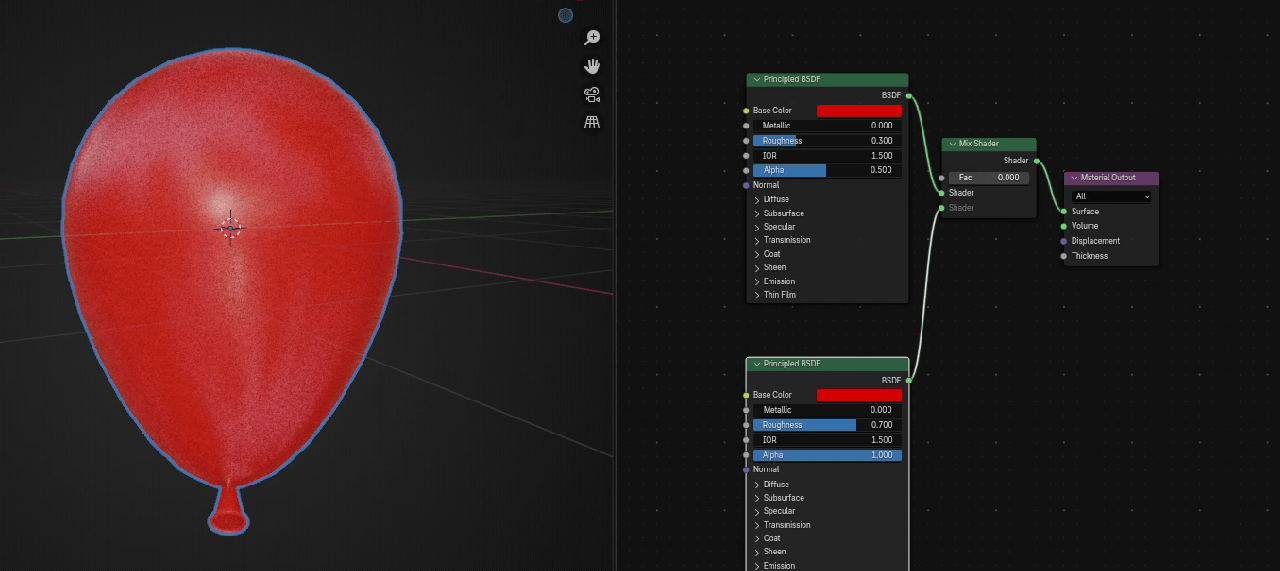
and the more you increase it towards 1, it will look like this
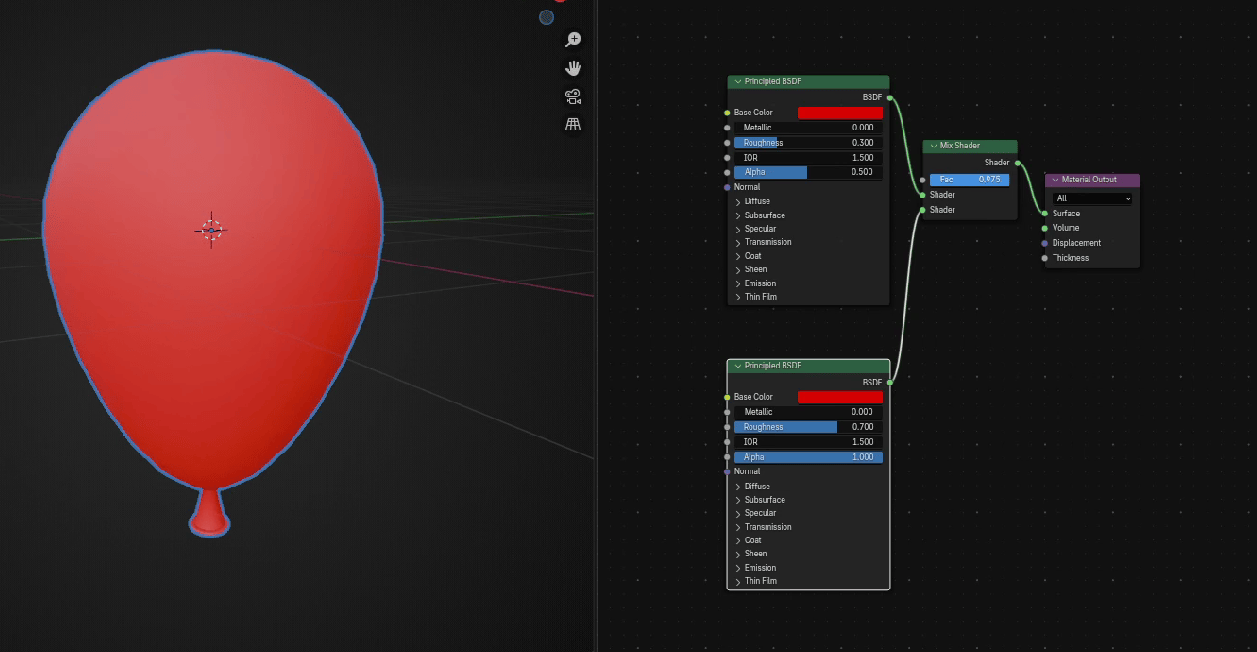
Go to Data and make sure that the Second Shape key called Balloon_empty is selected
Beginners guide to Blender
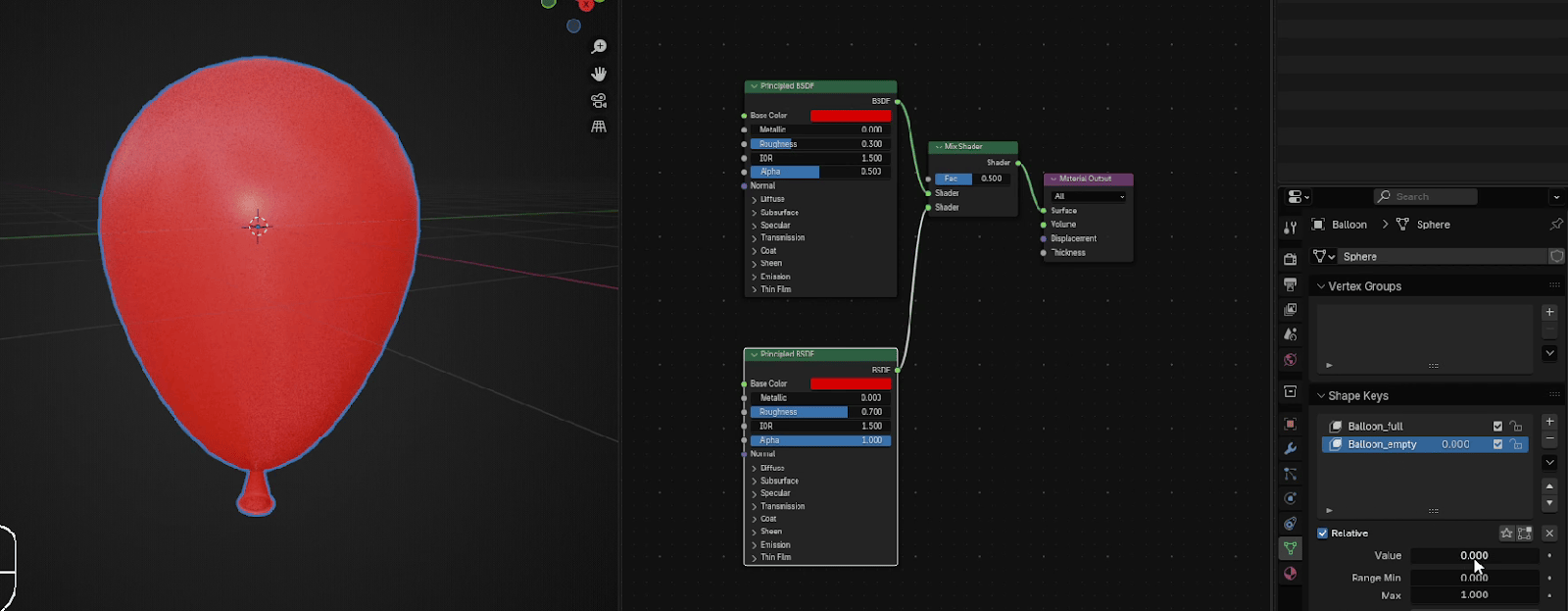
Go to this Value
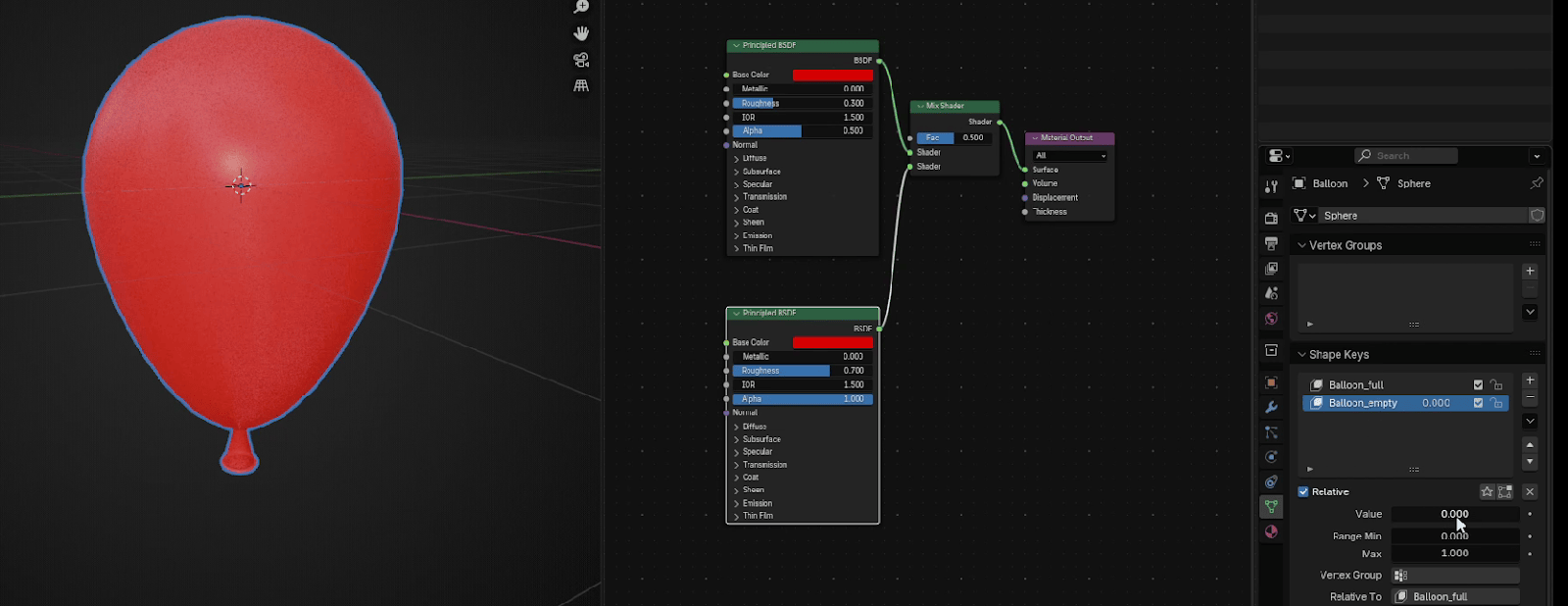
And now it is time to use something called Drivers.
And what are Drivers?
Drivers are a way to control values of properties by means of a function, or a mathematicalexpression.
Let me show you in a real example.
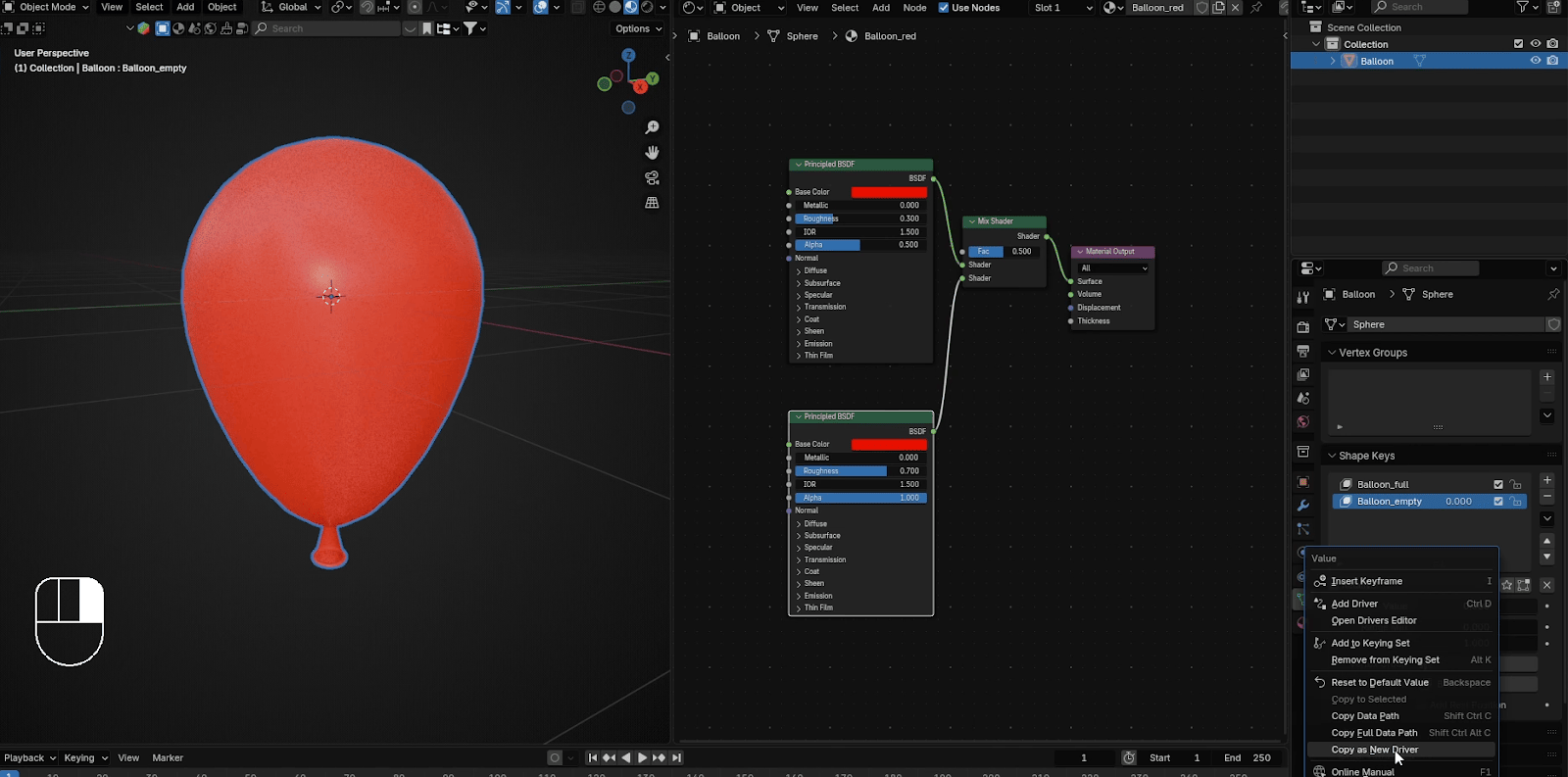
Press RMB and choose Copy as a new Driver.
Beginners guide to Blender
Now select Mix Shader
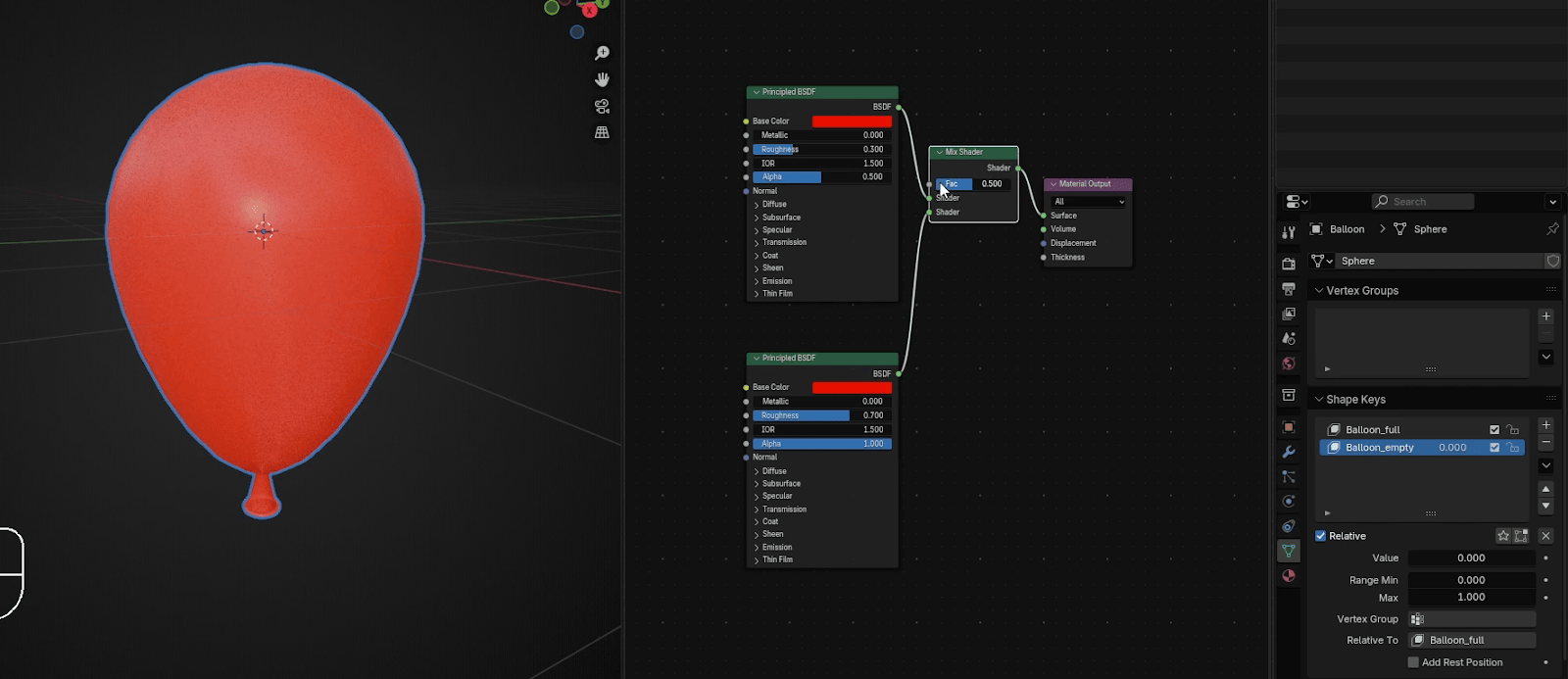
Click RMB on Fac and choose Paste Driver.
Beginners guide to Blender
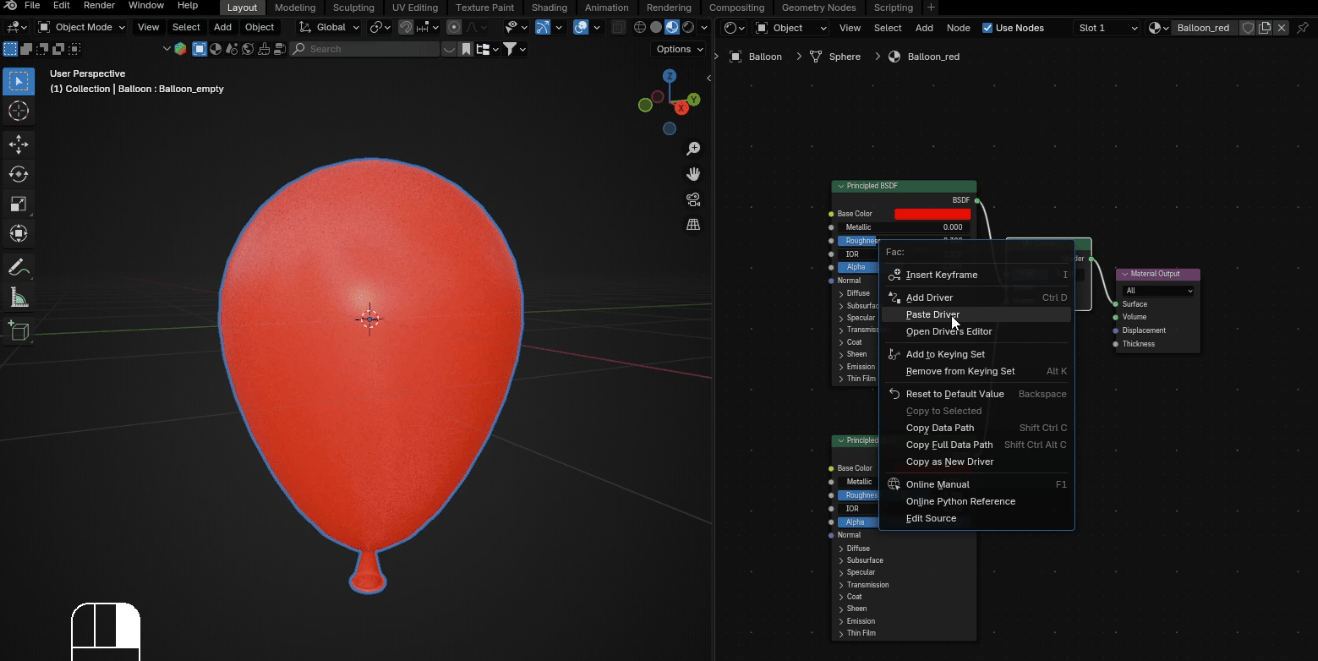
You Mix Shader Fac now looks like this
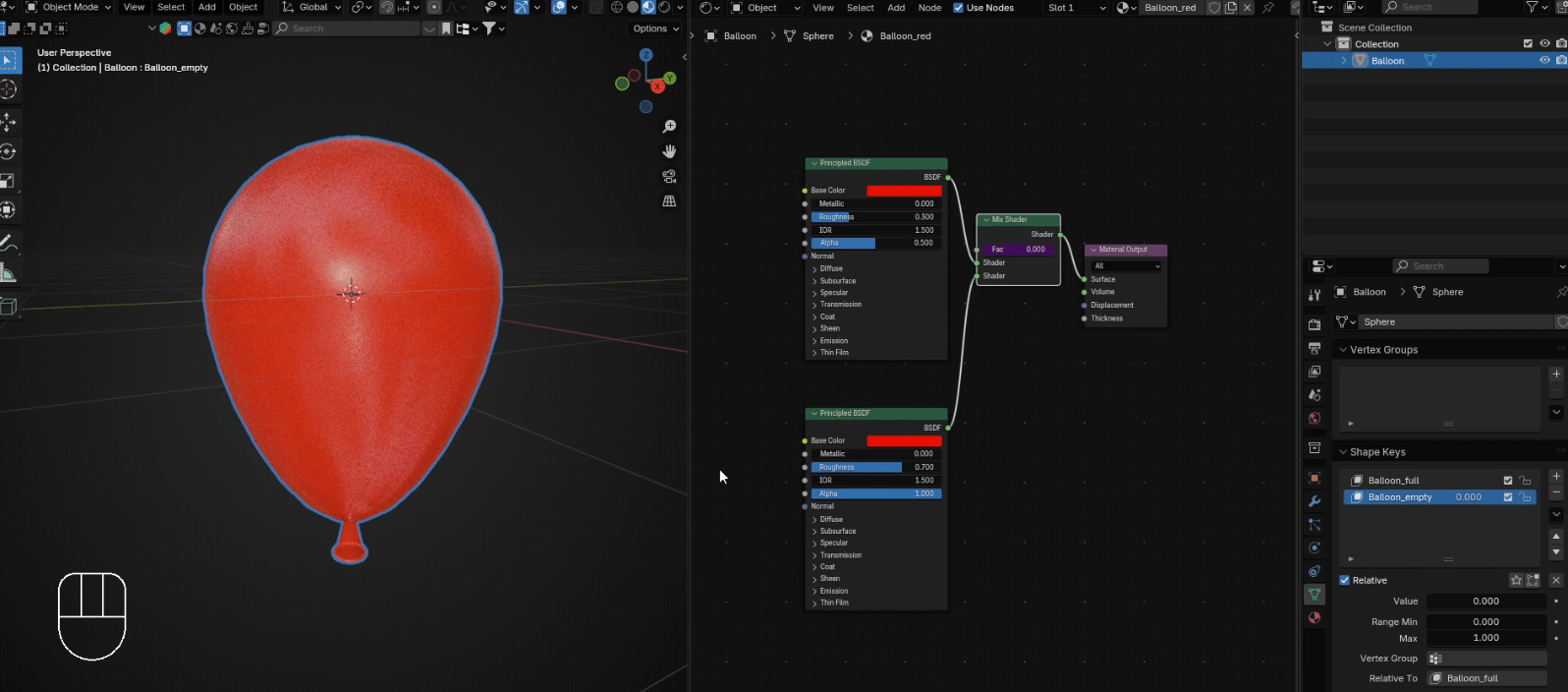
Now when you move the value of a Second Shape Key, your balloon gets inflated,rougnessalso changes and vice versa.