Chapter 12: Bevel
It is time to learn the third tool - BEVEL.
Bevel means to cut into selected items at an angle to create a bevel or chamfer.
This sounds complicated, so let me show you.
Switch to edit mode with “TAB”.
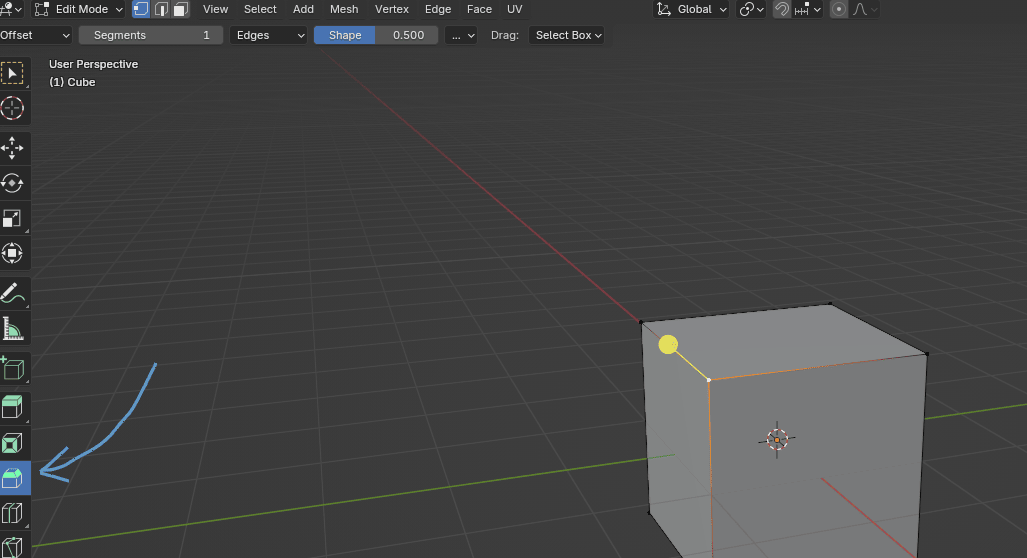
You can activate “Bevel” by clicking where the arrow is pointing.
If you switch to vertices, you will see that it is impossible to bevel them, but don’t worry, I will teach you a trick on how you can bevel even vertices, because it can become very useful while modeling if you know it.
Select the vertex that you want to bevel, and instead of activating the Bevel with a button, use the shortcut.
Press “SHIFT+CTRL+B” at the same time.
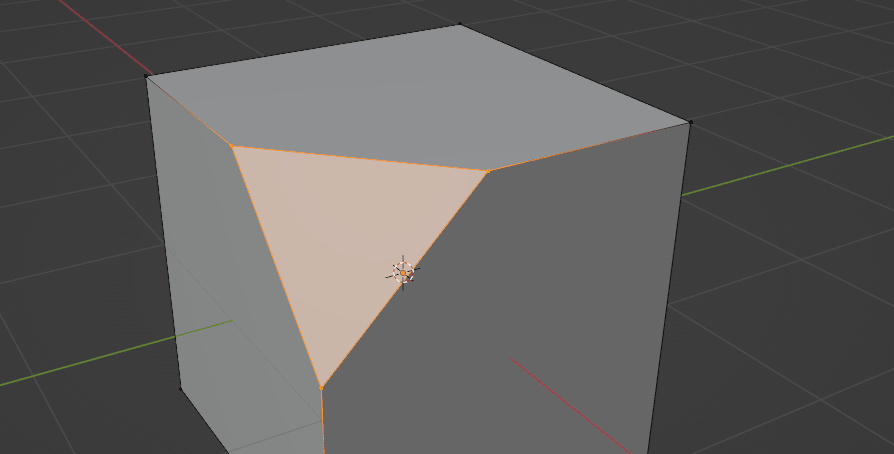
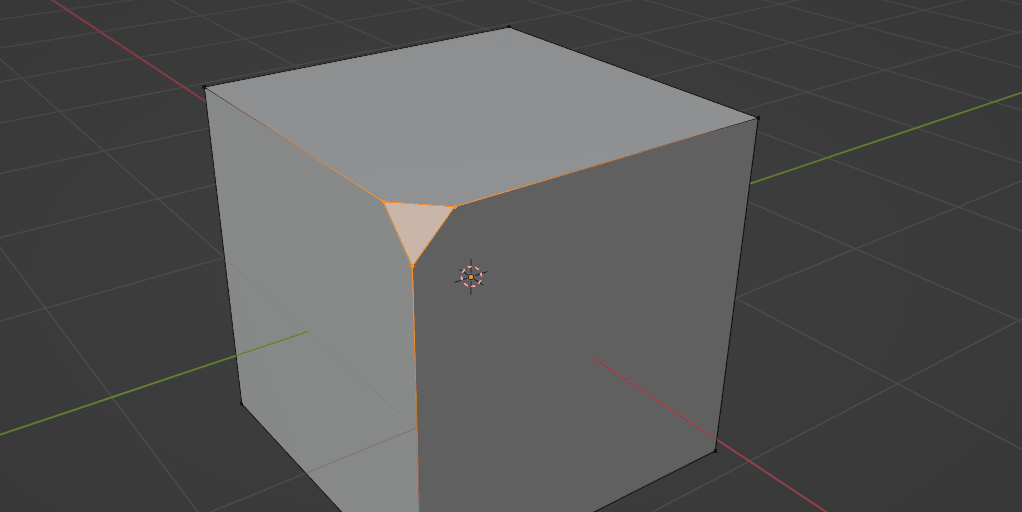
Move with your LMB to decide the size of your bevel.
If you scroll the mouse wheel up, you can increase the number of vertices.
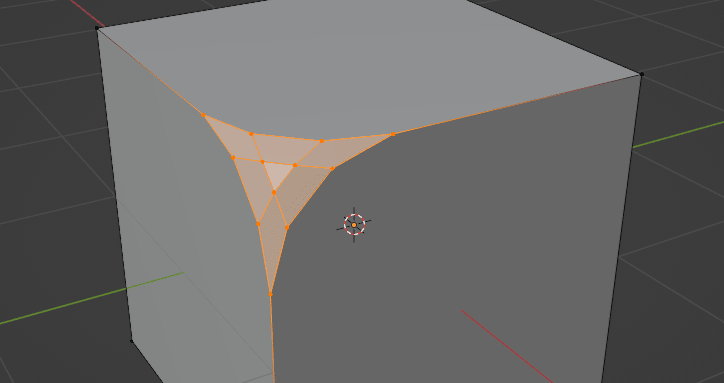
And if you scroll it down, you can decrease the number of vertices.
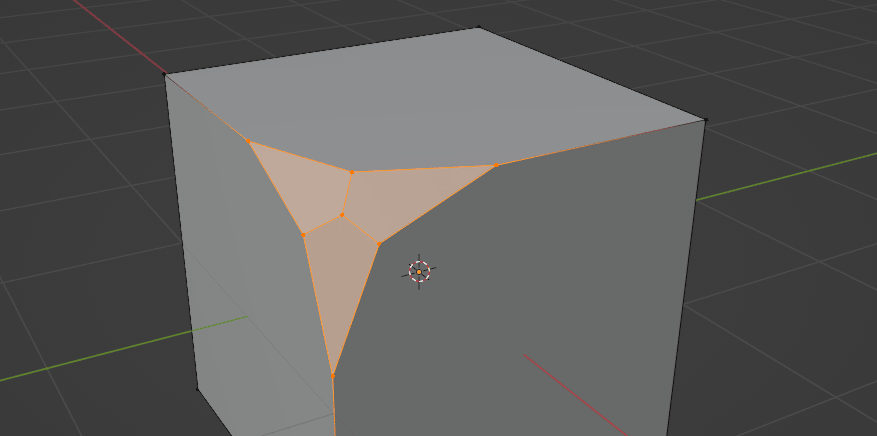
I will teach you one more trick.
Did you see this part in the bottom left corner where it says “Bevel”?
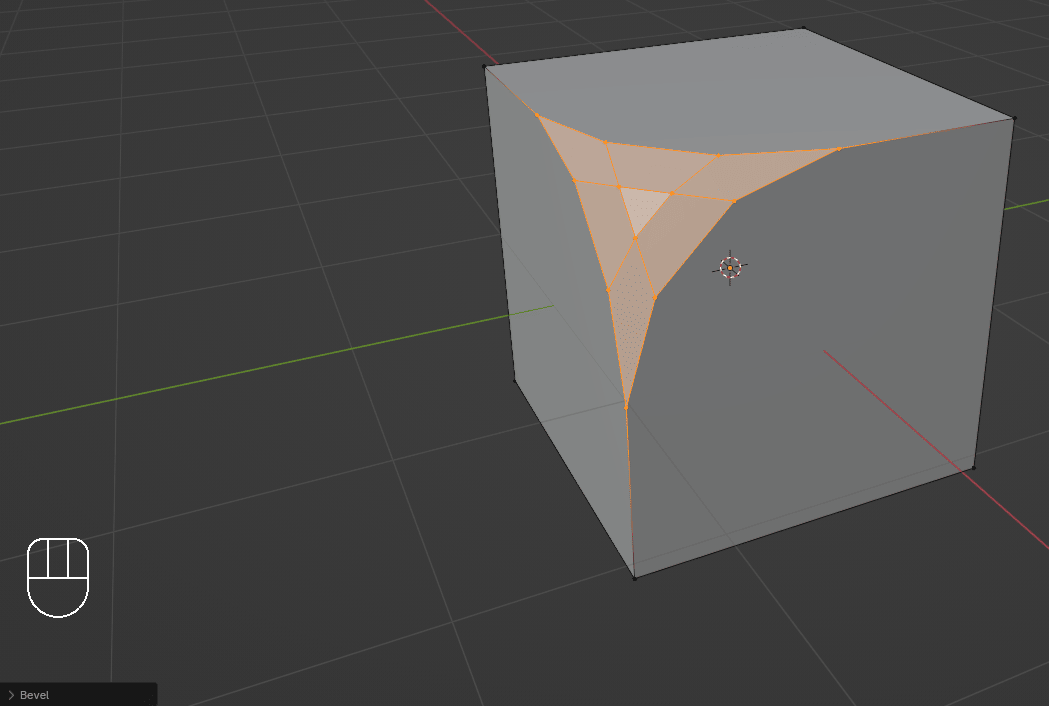
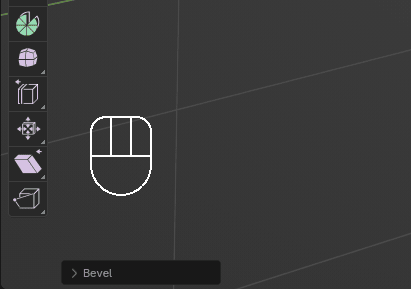
If you click on that, you will get even more options.
Because I am currently explaining vertices, we won’t change Affect from vertices to edges.
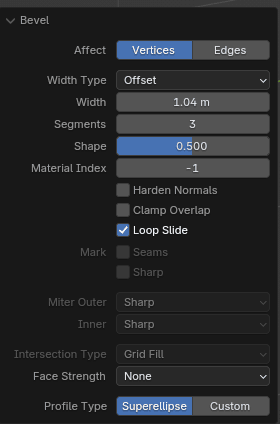
You can change the width type from absolute to width, depth, or percent.
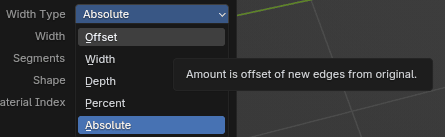
As you change the width type, other options change as well.
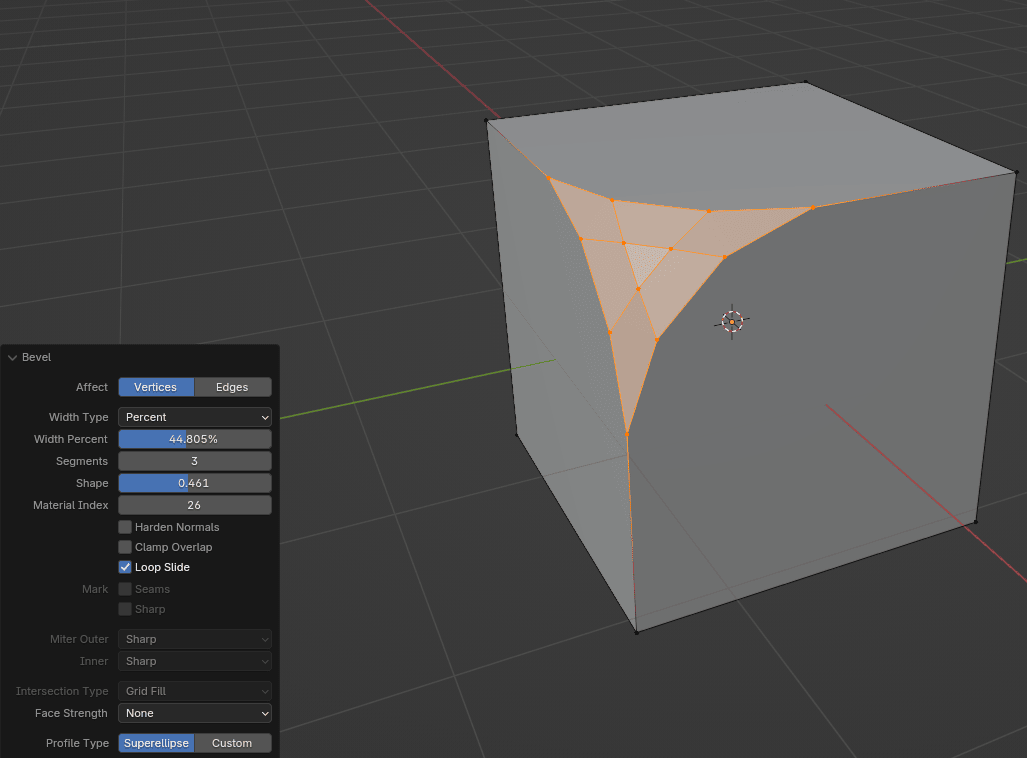
I won’t explain to you separately what each of those parts does because you can see it if you play around with it. The best way to learn something and remember it is to explore it by yourself.
ALERT!
Whenever you get any menu at the bottom left, if you finish with your action (in this case, beveling) or click somewhere else, that menu will disappear.
But don’t worry, you can bring it back with F9 as long as you are in the same mode in which you did an action(in this case, edit mode) and you didn’t do anything other than deselecting the object.
If you switch to edge selection, the bevel button will work.
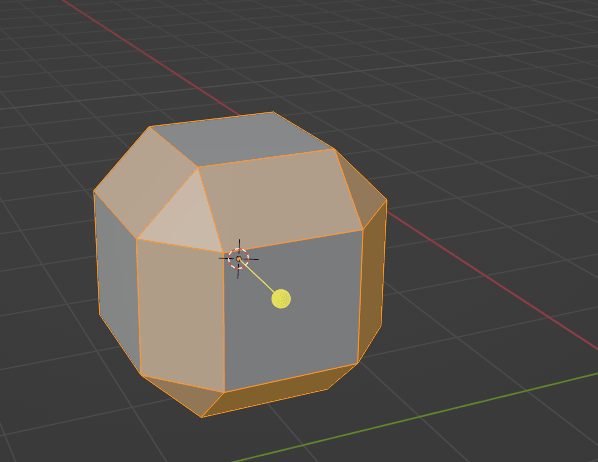
When you activate the bevel tool through the button, this yellow circle with a yellow line will appear.
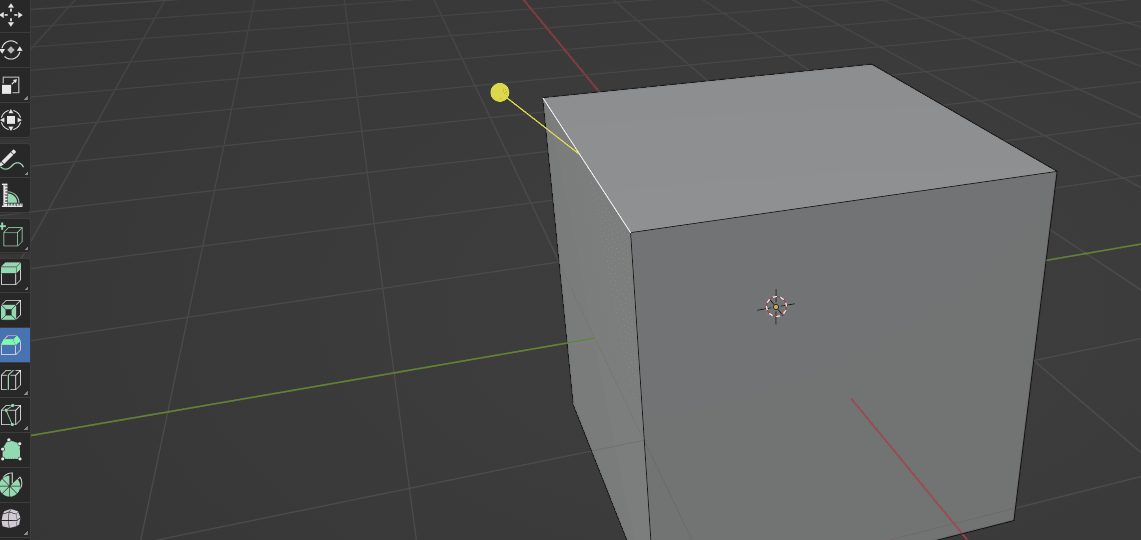
While you are holding the LMB, if you scroll the mouse wheel, segments will increase or decrease, depending on whether you are scrolling up or down.
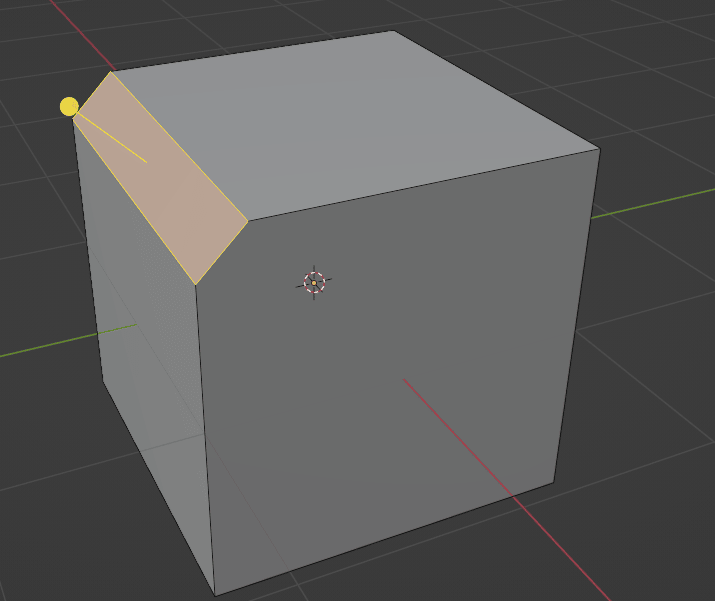
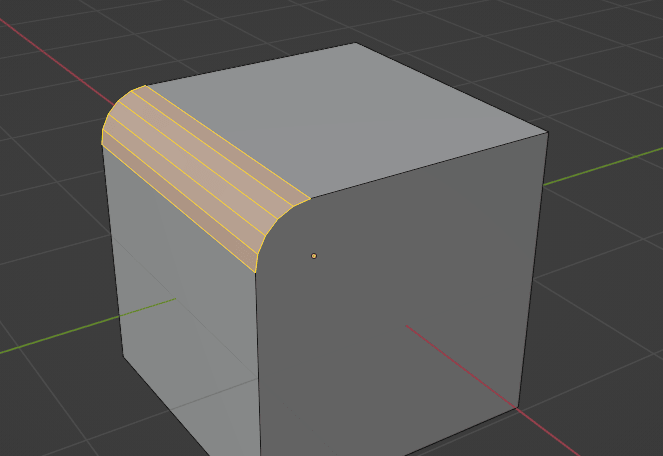
If you want to bevel faces, you can do it in the same way, just like you did with the edges, just instead of the edge selection, switch to the face selection.
Everything else is the same.
REMEMBER!
Shortcut for beveling edges and faces is “CTRL+B”.